Knowledge Base Article
Adding A Payment Method for An Argenta Subscription
Argenta does not have a separate "payment methods" screen. You put a card on your subscription (or swap in a new one) by making a payment with it, and Argenta saves that card for the charges that follow.
Add or change the card on file
- Sign in to Argenta as a Subscription Admin or a Master Admin. Those are the only roles that can reach this page.
- Click Settings (the gear icon in the top right), then choose Billing & Payments.
- Click Pay Subscription Fee. The Argenta subscription payment form opens in a new browser tab.
- Check the two fields that matter:
- Email Address. Required, and where your receipt is sent.
- Payment Amount. Already filled in with your monthly fee. Leave it as it is unless Argenta has asked you for a different amount. The card is saved only when you pay the monthly fee shown; a different amount is recorded as a payment, but the card on file stays as it was until Argenta staff update it.
- Click Pay with Stripe, enter the card you want to use, then click the Pay button.
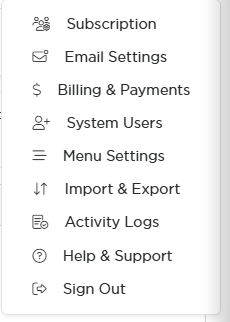
Billing and Payments is the third item on the Settings menu.
What this does
Argenta runs that payment through Stripe, our payment processor, and saves the card so future subscription payments can be charged automatically without anyone re-entering it.
This card is separate from the bank account your donations and payments are paid out to in Stripe. Changing that payout bank account in your Stripe dashboard does not change the card your subscription is charged to, so if both need updating, update each in its own place.
Because the card is saved as part of making a payment, the natural time to do this is when a payment is due, or when we ask you to update your card. If your card is expiring and you are not sure of the timing, ask us first through Help Center in the top right.
Check that it worked
The new payment appears on the Billing & Payments page, with a download icon to pull its receipt. A receipt is also emailed to the address you entered on the form within a few minutes, so check your spam folder if it does not arrive.
Related: How To Make Your First Argenta Payment.
