Knowledge Base Article
How to Merge Duplicate Constituent Records
When the same person or organization ends up with more than one record, merging combines them into one so your history and totals stay accurate. Merging is permanent, so review carefully first.
When to merge
Merge when you find true duplicates, for example a person entered separately as a donor and a volunteer, an imported record that duplicates an existing one, or two records with different spellings of the same name.
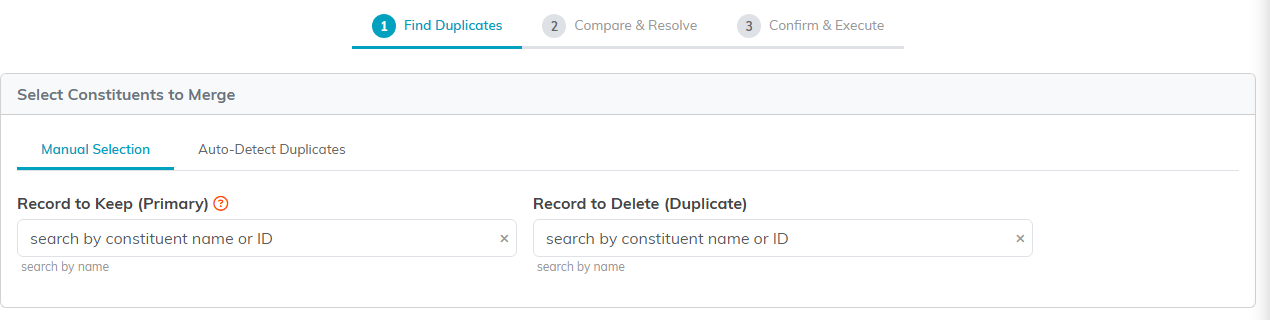
The merge wizard. Pick the record to keep and the one to remove.
Merge duplicate constituents
- Go to Constituents (CRM) > Constituent List and click Merge Duplicates. This opens the merge wizard.
- Find Duplicates: use Manual Selection to pick the two records yourself, or Auto-Detect Duplicates to choose a match field (such as email) and let Argenta list likely duplicate groups.
- In Manual Selection the two search boxes are Record to Keep (Primary) and Record to Delete (Duplicate). Each one takes a constituent name or an ID. In Auto-Detect Duplicates you choose a Primary Match Field (Constituent Name, Email or Cell Phone) and click Find Duplicates.
- Click Next: Compare Records.
- Compare & Resolve: review the two records side by side and choose which details the surviving record keeps. Going Back to an earlier step and returning keeps the choices you have already made, as long as you are still comparing the same two records. Pick a different pair and the comparison starts fresh from those two records' own values. Under Email Addresses, a record can keep only two addresses, a primary and a secondary. With two different addresses, both are kept and you choose which one is primary. With more than two, you choose the primary and the secondary, and every other address is marked Will not be kept and is removed by the merge. Addresses that differ only in letter case count as one. A mailing address is kept whole from one record, never mixed: choosing either record on any line of it keeps that record's whole address. The alternate, billing and shipping addresses are not shown here, and each of them also comes whole from one record.
- Confirm & Execute: click Confirm Merge. The kept record absorbs the other's history, and the duplicate is removed. If the email addresses on either record changed after you compared them, nothing is merged: the comparison reloads with what the records hold now, so check your choices and click Confirm Merge again.

With three different addresses, choose the primary and the secondary. The third is marked Will not be kept.
Start from two records you can already see
When both records are in front of you on the Constituent List, you do not have to search for them again. Tick exactly two rows and click Merge Duplicates at the top of the list, or open Choose Bulk Action, pick Merge Two Selected Records and click Run Bulk Action. Either way Argenta opens Merge Duplicate Constituents with the pair already filled in: the older of the two records goes into Record to Keep (Primary) and the newer into Record to Delete (Duplicate). Carry on from Next: Compare Records as above.
Check whether that is the way round you want before you go on. The older record is not always the fuller one, and both boxes can still be changed on the screen. With any other number of rows ticked, Merge Duplicates simply opens the merge page empty, while the bulk action tells you how many you have selected and asks for exactly two. Select All Records That Meet The Current Filter Criteria does not count as choosing a pair, even when only two records match: tick the two records individually instead. If either record is one your own permissions keep you from seeing, neither box is filled and you can pick the pair by hand instead.
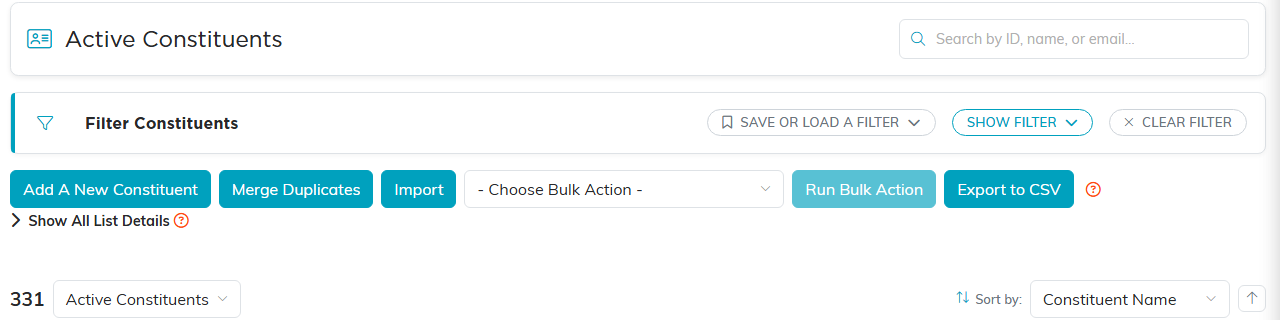
The constituent list, with search, filters and bulk actions.
Before you merge
- Decide which record should survive (usually the one with more complete information or more history).
- Double-check you have the right two records; the merge cannot be undone.
When Argenta will not let you merge. A record set to view only can be merged only by someone allowed to edit it: a Master Admin, the person who created it, or a user listed on its Record Permissions. A locked record can only be merged by a Master Admin. The records Argenta keeps for your Stripe and PayPal payments cannot be merged at all. Two records that are both registered to bid on the same auction, each with their own paddle, cannot be merged while both registrations exist. If one of the two paddles has no sales, bids, winning bid or invoice on that auction, remove it on the auction's Auction Bidders page, then merge. Otherwise a bidder's paddle registration, saved card and live auction purchases move to the record you keep. You also need more than view-only access yourself, and if your own permissions are limited to a chapter, division, department or precinct, both records must sit inside it. Argenta also checks the email addresses the surviving record would end up with. If either the primary or the secondary one is not a valid address, the merge stops with nothing merged, and the message names the address so you can go and correct it. This can happen on an address nobody has just typed, because the merged value is taken from what the two records already hold, so correct it on whichever record holds it and then merge them again.
After the merge
- Files uploaded to the deleted record's Files tab move across to the surviving record, so an attachment on either record is still there afterwards.
- The deleted record's Notes, Contact Log entries, Engagements and Follow-Ups move across as well, so anything written against the duplicate is still readable on the record you kept.
- Payments move too, including Stripe charges, membership payments and withdrawals, so the surviving record holds the whole payment history for both.
- Public form submissions the duplicate sent in move across too, so they stay on the record you keep and stay in the Public Forms Log.
- The duplicate's email consent history moves across with its original dates, so the Consent History on the record you keep shows both.
- Email automations the duplicate was in move across with their progress and send history, so nobody restarts a series or gets a step twice. If both records were in the same automation, the person carries on from the furthest step either had reached.
- The surviving record carries the combined giving history, and its Donor Level is recalculated from that new total, so the band can move up. See What are Donor Levels in Argenta?
