Knowledge Base Article
What are User Roles and Permissions in Argenta?
Argenta controls what each person can see and do through a set of Yes or No permissions on their user record, plus reusable roles you define yourself. There is no fixed ladder of built-in roles to pick from, which means access can be shaped to how your organization actually works.
The three layers
- Account-wide permissions on the user record, covering things like administration, exporting, and view-only access.
- Module permissions, one per area of Argenta, which decide whether that person can work in Fundraising, Events, Volunteerism, and so on.
- Record-level permissions on individual records, for the occasional record that needs protecting regardless of the above. See How To Set Record Level Permissions.
Account-wide permissions
Open Settings > System Users and open a person's record. Each of these is a Yes or No switch:
- Master Admin. Full access to everything, including every dashboard. Give this out sparingly.
- Subscription Admin. Access to the subscription and account settings.
- Master Builder. Required to add, save, and delete records in several modules, so somebody can have access to an area and still not be able to change anything without it.
- View Only Access. They can look, but not change anything, apart from their own personal shelf: their notebooks under My Personal Notebooks, and their own groups under Personal / Private on List Groups, stay fully editable.
- Report Manager and Can Export Lists To Excel. The export button simply does not appear for people without the export permission.
- Restricted by Chapters, Divisions, Departments, and District Precincts. Turn one of these on and the person sees the records filed under the areas you grant them, plus every record not yet filed under any; what it hides is the records filed under an area they do not hold. This is how a chapter-based organization keeps each chapter to its own data.
- Sees Only Their Own Events. Narrows what that person sees to the events they actually run: the ones they are the contact for, or are named on the committee of. Every other event drops out of the Events list, its search and its Excel export, and so do its guests, ticket buyers, ticket sales and sessions on the team-wide lists and the guest reports.

The account-wide switches, here on a role. A person's own user record carries these plus Sees Only Their Own Events, which a role does not hold.
Module permissions
Below those sits a manager switch for each area of the system: Constituent Manager, Donation Manager, Event Manager, Grant Manager, Member Manager, Participant Manager, Volunteer Manager, Finance Manager, Expense Manager, Materials Manager, Products Manager, Orders Manager (Vendors), Project Manager, Workflow Manager, Marketing Manager, Program Manager, Staff Manager, Mail Room Manager, Password Manager, Portal Manager, Property Manager, Contract Manager, Partner Manager, Client Manager, Delegate Manager, Auction Manager, Mission Trip Manager, Websites Manager, Survey Manager, and more. Survey Manager opens Surveys to someone who is not an admin, so they can build the team's surveys and read their results.
Turn on only the ones a person's job needs. Someone without a module's manager permission is bounced to an access-denied page if they reach one of its pages by link.
Once a module is on, a View Only switch appears beside it. Turn it on and the person can open every page of that module but cannot change anything in it; the page tells them their permission is set to View Only. Turning the module off turns its View Only switch off too. Email System User, Team Schedule Viewer and Timekeeper do not offer it. To let somebody look people up without being able to change them, turn on Constituent Manager and its View Only switch. A Master Admin is never view-only. A Staff Manager set to View Only can still work on their own time sheets and time off and acknowledge their own write-ups. When a page belongs to more than one module, it stays editable if any of those modules the person holds is not set to View Only.
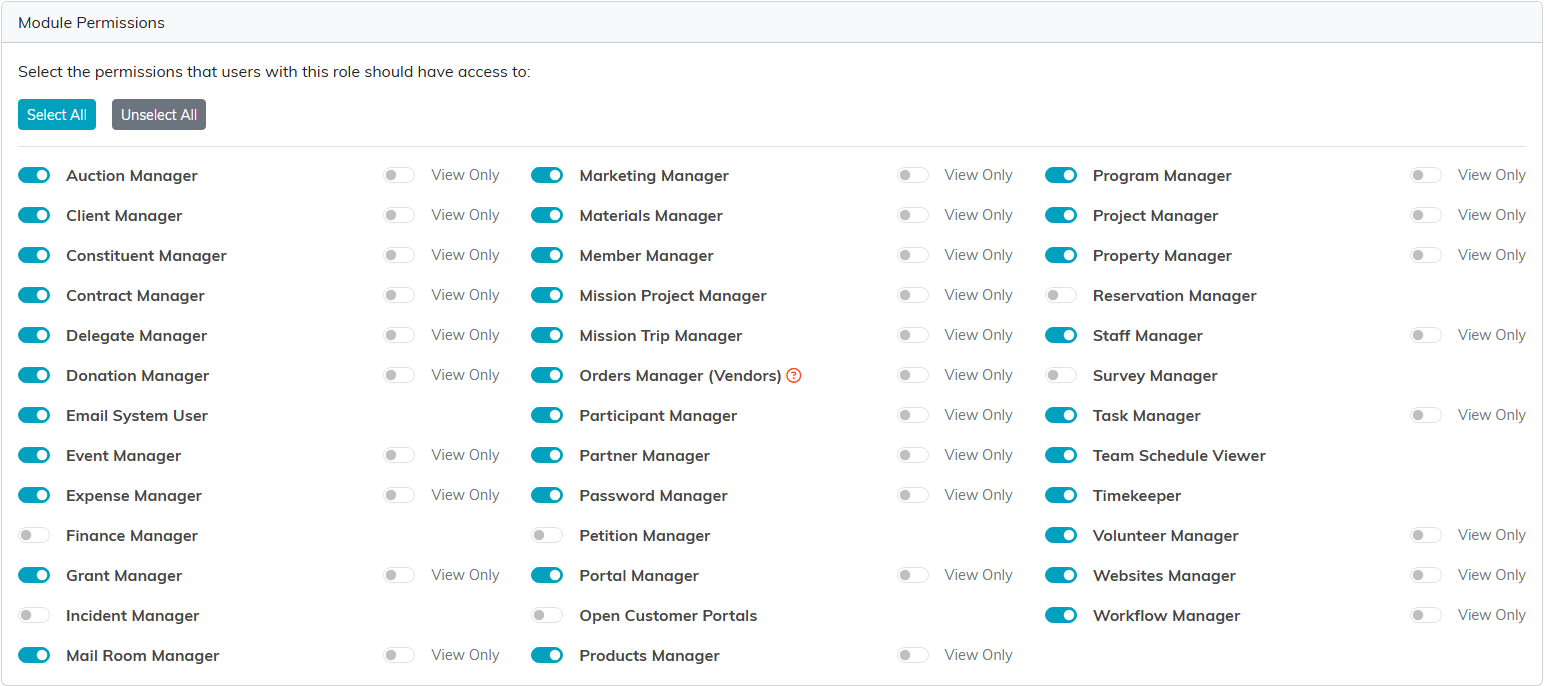
One switch per area, with Select All and Unselect All above them. The View Only switch beside a module makes just that module read-only.
User roles
Setting two dozen switches for every new hire gets old quickly, so Argenta lets you bundle them into a role and apply that instead.
Sees Only Their Own Events is set on the person's own user record rather than through a role, so set it individually after you apply one.
Roles are yours, not ours. You create them, name them to match your organization, and describe what each is for. Real examples from other organizations look like "Department Head" or "Full Administrator", but yours should say whatever makes sense to your team.
- Go to Settings > Subscription, then User Roles in the workspace menu.
- Add a role, give it a Role Name no other role on your team uses (Argenta ignores capitals and surrounding spaces when it compares), a Description, and a status, then set the permission switches the way that job needs them. Beside a module you turn on, the View Only switch gives that module to everyone in the role as view-only. If a person holds two roles that both give the same module and only one of them marks it View Only, the module stays editable for them.
- Apply it from Our Argenta Users: tick the people, choose Update Selected User Roles from the bulk actions, pick the role and click Apply. Applying a role resets each person's permissions to the union of every role they hold, so a switch you had turned on by hand that none of their roles gives is switched off, administrator switches included.
Writing a real description is worth the minute it takes. Six months on, "this role is for staff who lead a department and need management permissions" tells the next administrator what they need to know; a bare role name does not.

User Roles sits in the Subscription Settings menu.
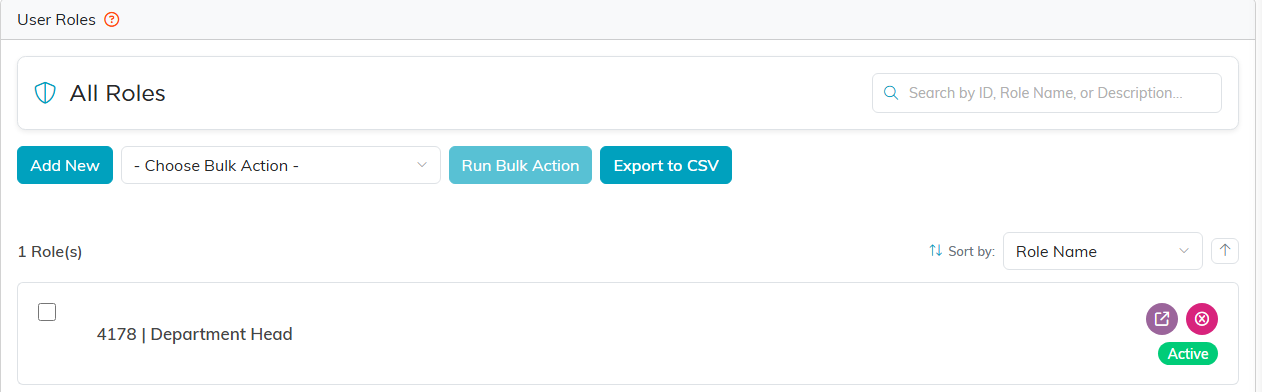
Add New starts a role. The list shows every role you have built.
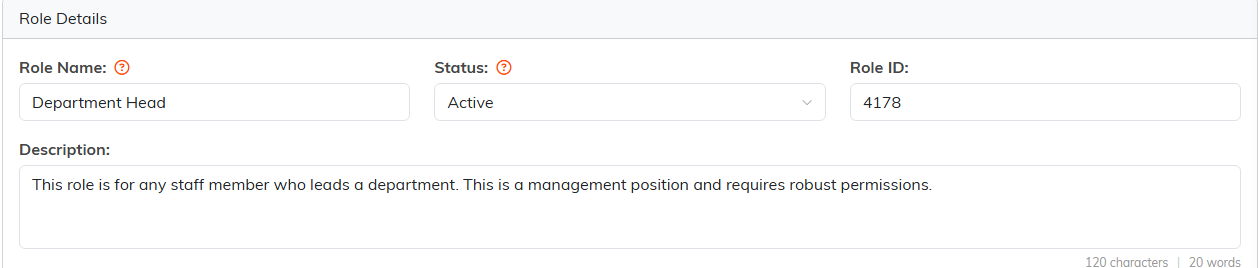
Name the role, set its status, and write a description the next administrator can use.
A sensible starting point
Give each person the access their job needs and nothing more. Opening access up later is a two-minute job; working out why somebody saw something they should not have is not.
