Knowledge Base Article
How to Use the Membership Status Log
The Status Log is a read-only history of a member's status and suspension changes over the life of their membership. Use it to see how a membership has moved through its stages and to keep an audit trail.
Open the Status Log
- Open the member record.
- Click Status Log in the workspace menu.

Status Log sits on the workspace menu, after Programs.
The page shows two logs: the Membership Activity Log and the Membership Suspension Log.
Membership Activity Log
Each activity entry captures a snapshot of the membership at that point:
- New Status: the membership status recorded for that entry.
- Member Category
- Reason for Status Change: why the status changed (the inactive reason, when one applies).
- Membership Year, Active Date, and Inactive Date
- Application Date, Approval Date, and Nomination Date
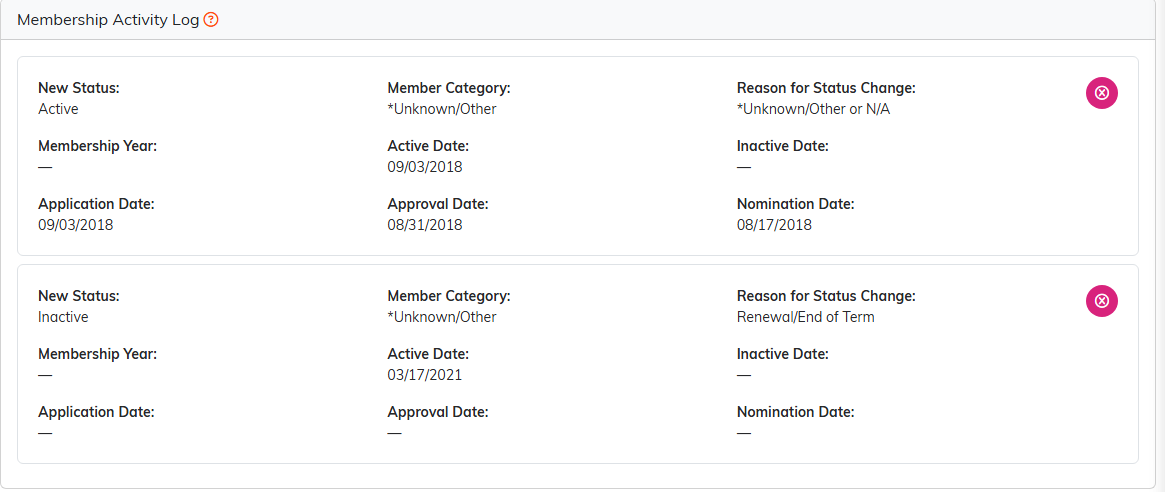
Each entry is a snapshot of the membership at that moment.
Membership Suspension Log
Each suspension entry records:
- Reason for Suspension
- New Status
- Suspension Start Date and Suspension End Date
The end date is filled in for you when a suspension is lifted. Older entries may not have the date on record. Those read Lifted, date not recorded once the suspension is over, and a dash only while the member is still suspended.

The suspension log sits below the activity log on the same page.
Working with log entries
You do not add entries here by hand; the log is kept for you as the membership progresses on Member Details. If you need to remove an entry, click the pink delete icon next to it and confirm. Delete is available only when you have edit access and the record is not view-only or locked.
The confirmation names the entry you picked, so you can check it before you answer. Deleting from the activity log is headed Delete Membership Status Log Entry and quotes that entry's status and membership year; deleting from the suspension log is headed Delete Suspension Log Entry and quotes the suspension reason and its start date.
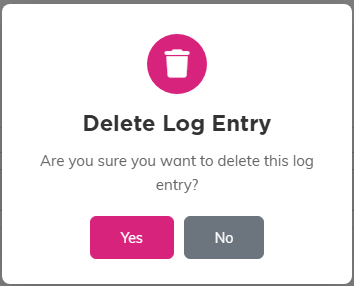
The pink icon asks first, and it names the entry. Nothing goes until you click Yes.
Why the log matters
- History: see how the membership has moved between In Process, Active, Inactive, and suspended.
- Audit trail: keep a record of past status for dues, tenure, or dispute questions.
