Knowledge Base Article
How to Lend Out Inventory Items
Lend Out Inventory tracks equipment and other items signed out to someone and expected back. Argenta handles this as a lending list: one record for one loan, holding all the items that went out together, to one person, coming back on one date.
Set up a loan
- Go to Products & Inventory > Lend Out Inventory and click Add New.
- Designate the items going out. The add screen lists what is available with its Product DB-ID, Product Number, and Cost (per unit), and you confirm with Add Designated Items To A Lending List.
- On List Details, set Lent To Constituent, the borrower. It is required when you move the list to Lended Out, along with the Date Lended Out, and you find them by typing their name.
- Set Lent By (Team Member) so you know who on your side handed it over.
- Set the Planned Return Date and the Lending Status, and use Description for anything worth noting about the loan.
- Save.
The Product Can Be Lent Out switch on the product record is what marks an item as lendable, so if something you expected is missing from the list, check that switch first.

Add New starts the loan.
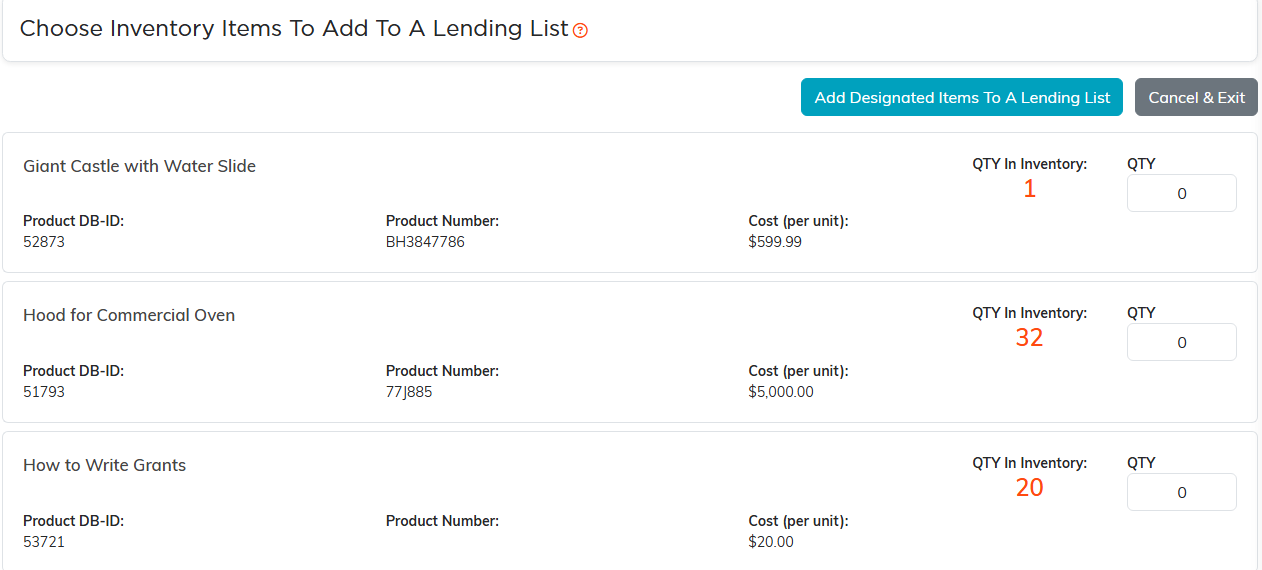
Everything flagged for lending, with a QTY box on each.
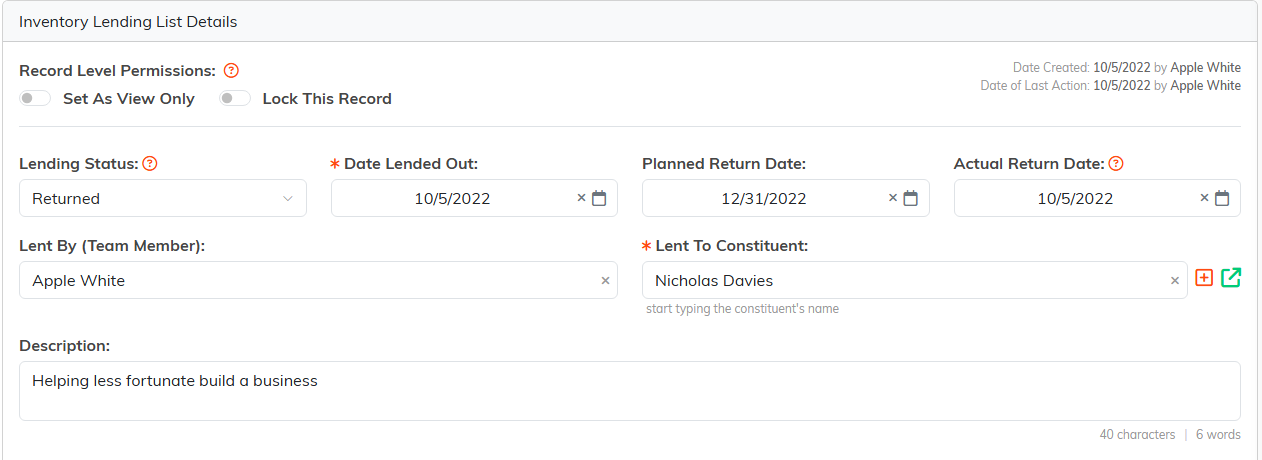
Lent To Constituent is required when you move to Lended Out. You find them by typing their name.

If something you expected is missing, check this switch on the product.
Take the items back
Open the lending list and fill in the Actual Return Date. When you save, Argenta sets the Lending Status to Returned and puts the items back into inventory. Keeping the planned and actual dates side by side is what makes the record useful later: you can see at a glance which loans ran over and by how much.

Planned and actual sit side by side, so an overrun is obvious.
Inside a lending list
- List Details for the borrower, the team member, the dates, and the status.
- Inventory Items for everything in this loan, with the product and its cost per unit.
- List Files for a signed loan agreement or a photo of the condition it went out in.
- List Notes for anything else.
- Record Permissions to set the record view only or lock it.

Every page of the loan is on this bar.
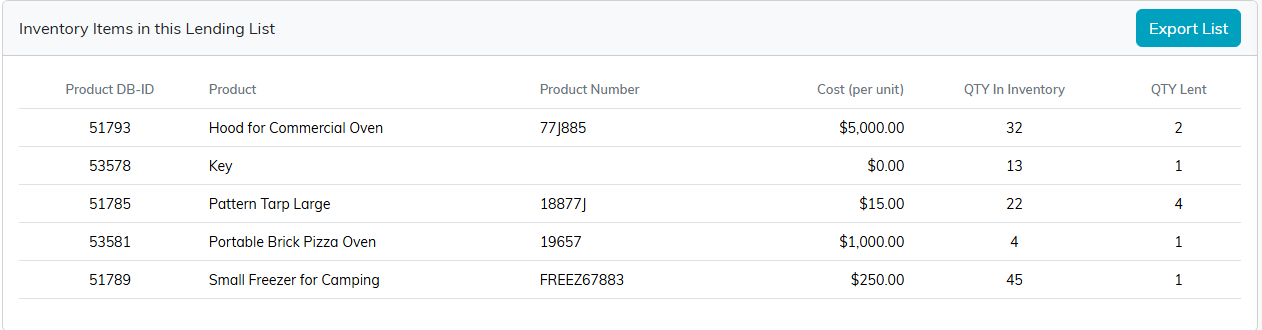
Inventory Items shows what is in this loan and what each item costs.
Keeping an eye on what is out
The Lend Out Inventory list shows your lending lists so you can see what is signed out and to whom. Search and sort it from the list page, and Export to CSV when you want to chase up several overdue loans at once.
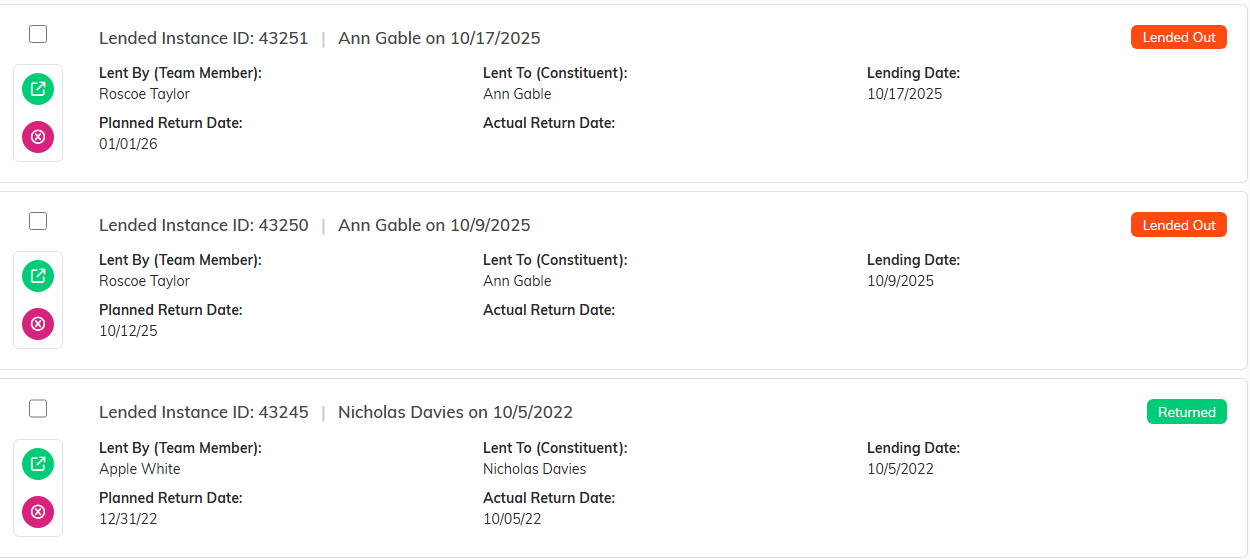
Who has what, and whether it has come back.

Export to CSV when you are chasing several overdue loans at once.
Related: How to Add a Product to the Catalog.
