Knowledge Base Article
What is Product Inventory in Argenta?
Products & Inventory is where you track the physical things your organization buys, stocks, sells, and lends. It is a separate module from Materials Management, and the difference matters.
What is in the module
Open Products & Inventory in the left menu and you get six pages:
- Product Vendors for the suppliers you buy from.
- Product Orders for orders you place with those vendors.
- Products for the catalog itself, one record per item.
- Product Inventory for what you actually have on hand.
- Lend Out Inventory for items signed out to someone and expected back.
- Product Inventory Change Log for the history of every stock change.
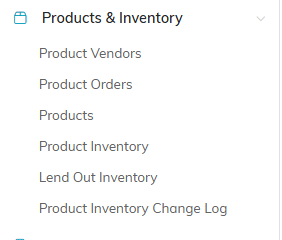
All six pages, in the order you meet them.
What you can track
- Merchandise such as shirts, books, and promotional items.
- Supplies used in your programs or your office.
- Equipment that goes out on loan and comes back.
- Event items you sell at an event.
How the pieces fit together
A product record holds the description, the vendor, the cost, and how you classify it. Inventory is counted separately, so a catalog entry does not automatically mean you have any in stock. Each product has switches for Track In Inventory and Product Can Be Lent Out, and those decide whether it turns up in the inventory and lending pages at all.

A product record holds the description, the vendor and the cost.

These two switches decide whether an item shows up in inventory and lending at all.
Products or materials?
- Products are things you purchase, stock, sell, or lend. They live here.
- Materials are donated goods you receive and redistribute. Those live in the separate Materials Management section, with its own donations, inventory, distributions, and recipients.
If you are tracking a donated item on its way to someone who needs it, that is Materials Management. If you are tracking something you bought and own, that is here.
If you cannot see the module
Products & Inventory is switched on for every new team, political organizations included, so you can see it is there. A team that does not sell anything can switch it off in Menu Settings, and switch it back on there at any time. Most pages in it also need the Products Manager or Admin role; without it you still see the section in your menu but are refused on the page. If the whole section is missing from your menu, your team has switched it off in Menu Settings.
