Knowledge Base Article
How to Create Donor Acknowledgment Letters
Thank-you letters and year-end giving letters both come out of the same place: the Summary Donation Thank You Letters report.
Open the report
Click Report Center at the top right of the screen, open Fundraising Reports, and choose Summary Donation Thank You Letters. It totals each donor's giving across the date range you pick, which is exactly what a thank-you or year-end letter needs.
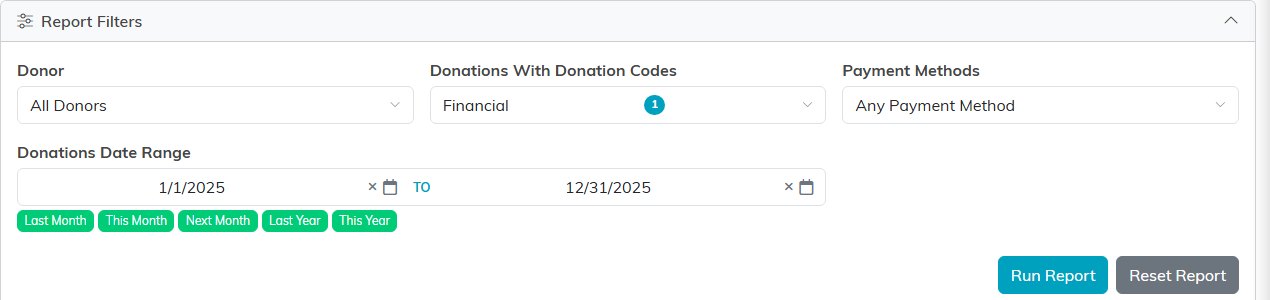
The filters that decide who gets a letter.
Choose who gets a letter
- In Report Filters, set the Donations Date Range. For a year-end mailing that is your full giving year.
- Leave Donor on All Donors, or pick one person if you are only sending a single letter.
- Narrow by Donations With Donation Codes or Payment Methods if you want only certain kinds of gifts counted.
- Click Run Report.
- In the results, tick the donors you want letters for. The checkbox in the column header selects everyone at once.

Tick the donors, then Format Selected Records for Printing.
Format the letter
Click Format Selected Records for Printing to open the Format Thank You Letter window, then set up how the letter should read:
- This Is My Year End Report turns the letter into a year-end giving summary. That is the year-end path, so there is no separate year-end report to go find.
- Create An Engagement Record For Selected Donors logs the letter on each donor's record, so months later you can still see that you sent it.
- Include Our Organization's Logo In Header and Print On Letter Head control the top of the page. Use letterhead mode when you are printing onto pre-printed stationery.
- Tagline and Include Organization Image in Left Side Bar are optional. Keep that side bar image under three inches.
- Letter Body is your message. There is no set character limit.
- Signature Closing Line and From Name are both required, and Staff Position sits underneath the name.
- Include Tax ID Info In Footer adds your tax identification details for the donor's own records. Include Contact Info In Footer adds your contact details, with optional fax and website.
Click Create Letters. Argenta builds one letter per selected donor and opens them all in a print window, ready to send to your printer.
Export instead of print
If you would rather work with the numbers yourself, Export To CSV and Export To Excel sit right next to the format button and give you the same donor totals as a spreadsheet.

Both exports sit above the results.
A related report
Donor Statements - Donation Details Report, in the same category, gives each donor a gift-by-gift breakdown instead of one combined total. Some donors prefer that at tax time.
For the full walkthrough of this report, see Report Summary Donation Thank You Letters.
