Knowledge Base Article
Report Summary Donation Thank You Letters
The Summary Donation Thank You Letters report totals each donor's giving over a date range and generates a thank-you or year-end contribution letter for every donor in that range. Donations of $0 are left out, so a donor whose only gifts in the range are $0, such as the deductible part of a fully refunded event ticket, gets no letter. It pulls straight from your fiscal donations, so the amounts are always current.
Find the report
Click Report Center in the links across the top right of the screen, open Fundraising Reports, and select Summary Donation Thank You Letters. To reach it faster next time, click the orange heart to save it to My Favorite Reports.
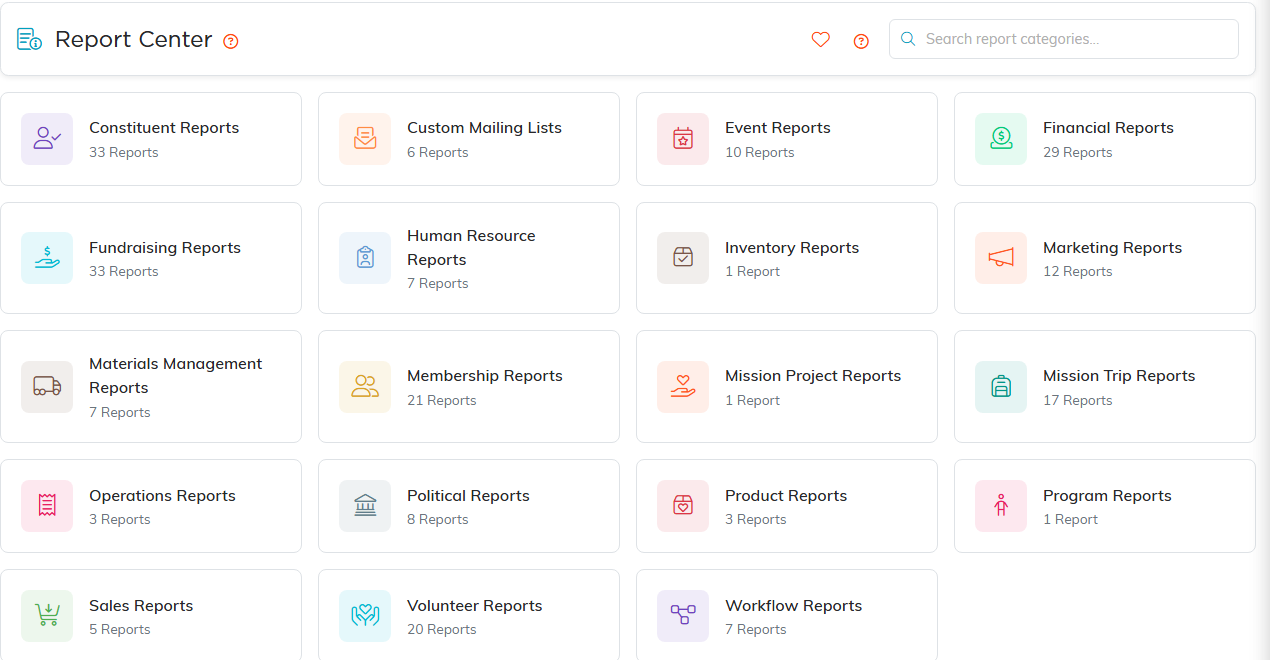
Report Center opens on the categories. Fundraising Reports is in the second row.

The heart at the left saves the report to My Favorite Reports.
Set your filters and run it
- Donor - Pick one donor to print a single letter, or leave it blank to include every donor who qualifies.
- Donations With Donation Codes - Limit the totals to certain donation codes. "Financial" is checked by default.
- Payment Methods - Optionally narrow to specific payment methods.
- Donations Date Range - Defaults to January 1 through December 31 of last year (handy for year-end letters); change it to any range you like.
Run the report and every matching donor appears in the list with their ID, name, total donations, and mailing address.
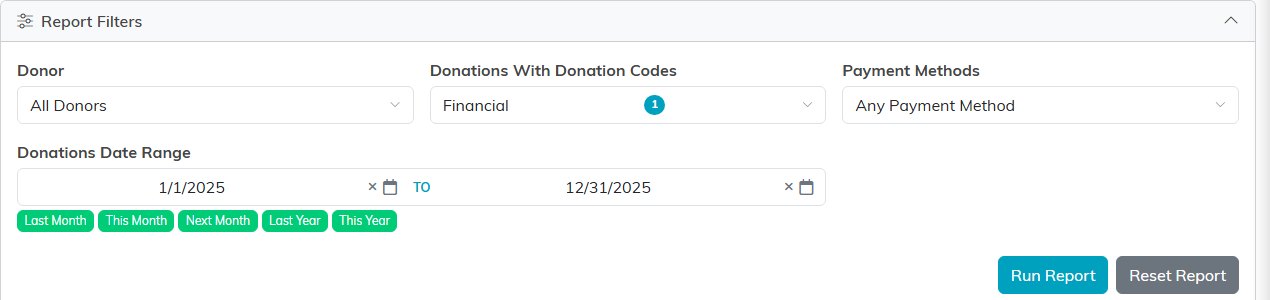
The date range defaults to all of last year, which is what year-end letters need.
Choose your recipients
Check the donors you want, or use the checkbox in the list header to select everyone on the page.
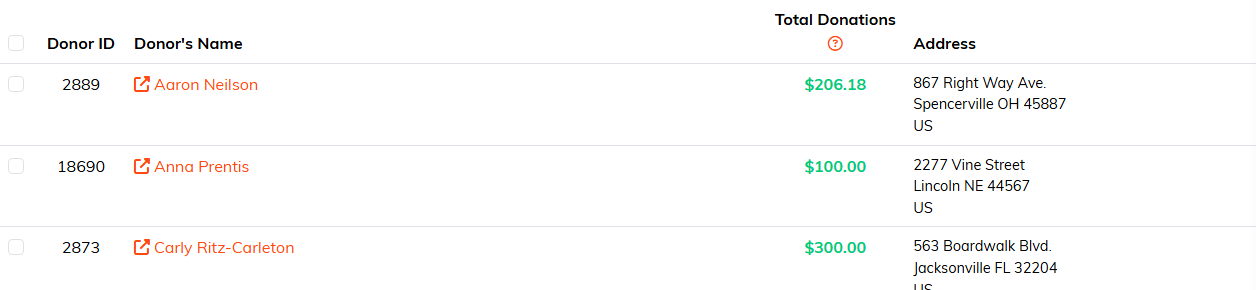
The checkbox in the header ticks everyone on the page at once.
Format and print the letters
Click Format Selected Records for Printing to open the Format Thank You Letter window, where you shape how the letters look:
- This Is My Year End Report - Adds year-end wording to the letters.
- Create An Engagement Record For Selected Donors - Logs an engagement on each donor's record. A donor whose donor or constituent record is locked or set to view only for you is skipped unless you are a Master Admin; Argenta tells you how many it skipped, and their letters are still created.
- Include Our Organization's Logo In Header - Uses the logo from your subscription settings.
- Print On Letter Head - Leaves room at the top for preprinted letterhead.
- Tagline (optional) - A short line under the header.
- Include Organization Image in Left Side Bar - Adds a side image (max 3 inches).
- Letter Body - Your message, with basic formatting. There is no set character limit.
- Signature Closing Line - Defaults to "Sincerely,".
- From Name and Staff Position - The sender's name and title.
- Include Tax ID Info In Footer - Adds your tax ID from your subscription settings.
- Include Contact Info In Footer - Opens Fax and Website fields to print in the footer.
When everything is set, click Create Letters. Argenta opens the finished letters in a print window, one per selected donor, ready to print or save.

Format Selected Records for Printing sits above the results.
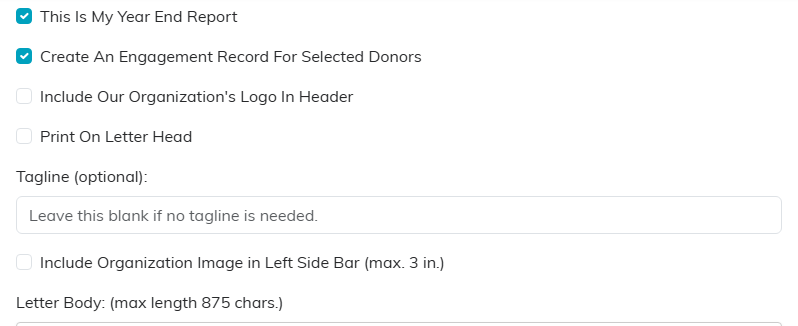
The switches at the top of the window shape the header of every letter.
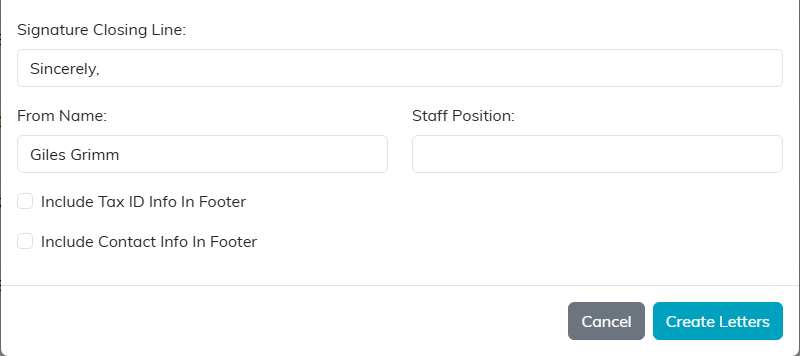
Create Letters opens the finished letters in a print window.
Export or build a mailing list
You can also Export To CSV or Export To Excel for your records, or use the bulk-action menu to create a new Mail Room list from the donors, or add them to an existing one.
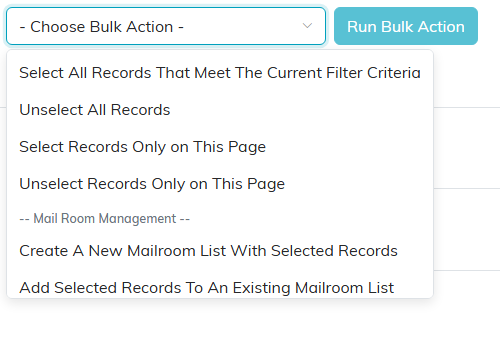
The bulk menu builds a new mail room list, or adds to one you already have.
