Knowledge Base Article
How to Monitor and Manage Auction Bids
The Bidding tab lets you follow every bid across your auction items. It loads the bids when you open it and does not update on its own, so reload the page to see bids placed since.
The Bidding tab has a short Show Me How To Use This Page video at the top right; click it to watch, and use its chapters to jump to the part you need.
Open the Bidding view
- Open the auction.
- Click Bidding in the workspace navigation.

Bidding is one of the tabs in the auction workspace menu.
What you see
The tab lists every bid placed, each showing the auction item, the bidder's name, the bid amount, the bid date and time, and the item value.
Losing bids are never removed, so this stays a full history of the auction rather than a list of who is currently winning.
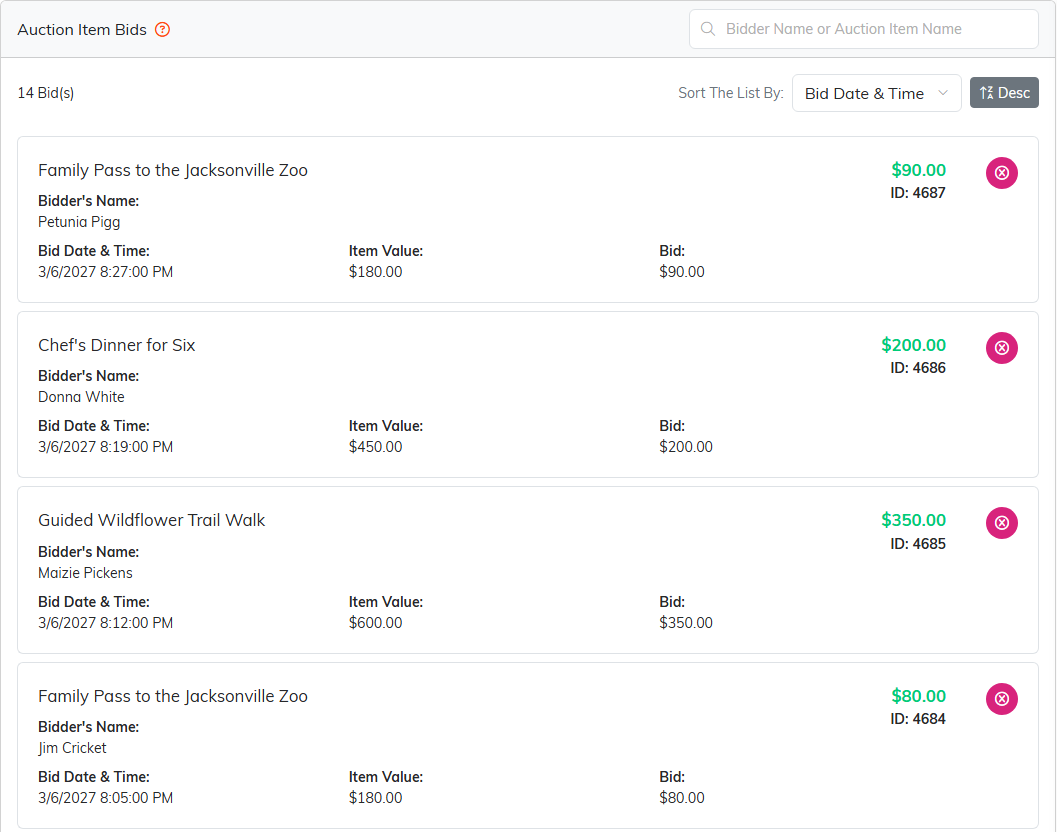
Every bid on the auction shows up here, newest first.
Finding a bid
- Search by bidder name or auction item name.
- Sort The List By is a dropdown, not clickable column headings. It offers Bid ID, Bid Date & Time, Bidder Name, Item Name, Item Value and Bid Amount, with an ascending or descending toggle beside it.

Search by bidder or item, and sort the list any way you need.
Where bids come from
Supporters place bids themselves on the public auction form; staff do not enter them. Argenta records each bid, enforces the minimum next bid, and tracks the current high bidder on every item automatically.
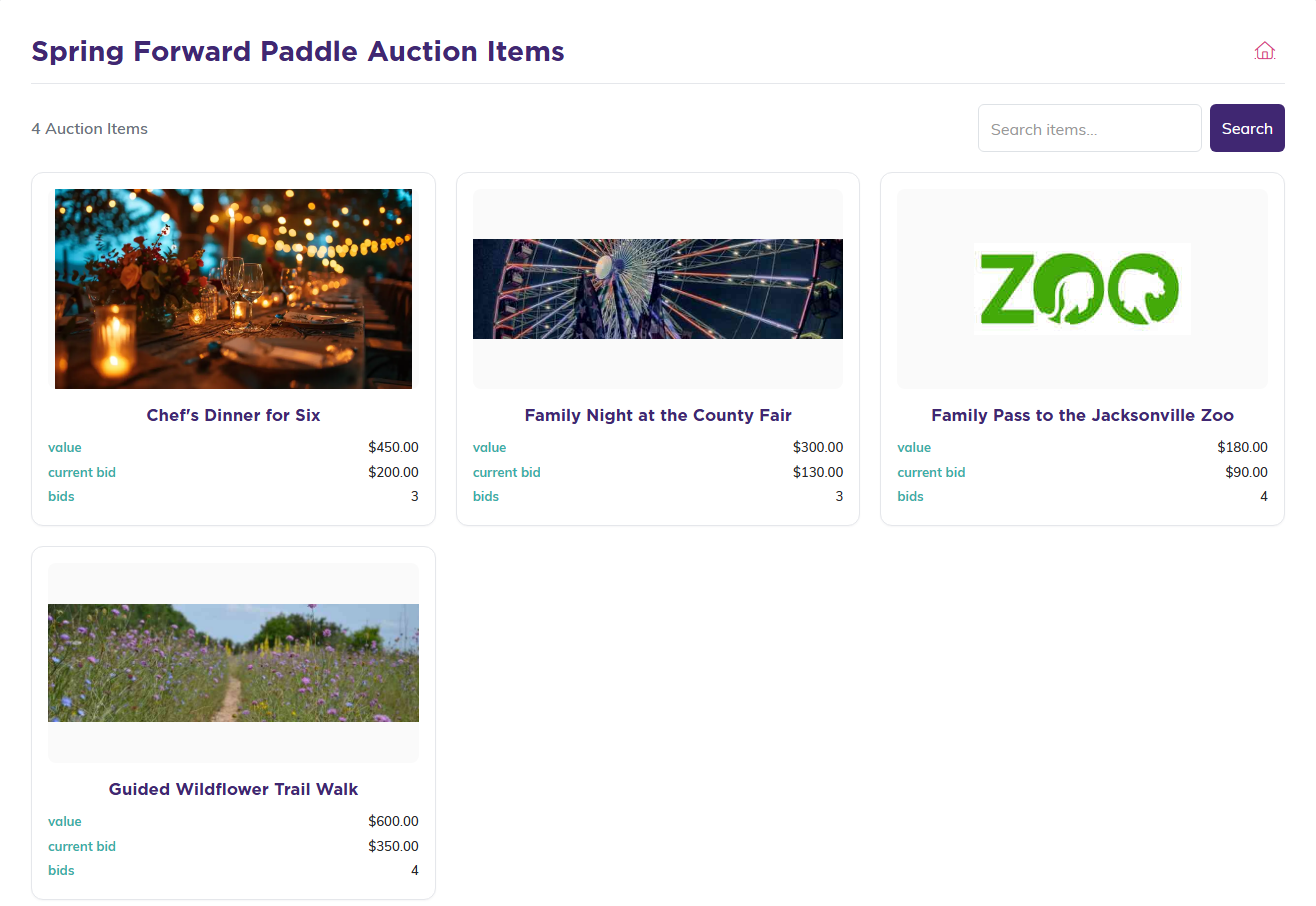
Bids come in from the public auction form, not from staff.
Removing a bid
If a bid needs to come off, click the pink delete icon on that bid. Argenta removes it and recalculates the item's winning bid and next bid, so use it carefully; it can change who is winning. Once the item has closed or sold, its bids can no longer be deleted, and the winner and final sale price stay as they were at close.

The pink icon on the right of a bid removes it.
After bidding closes
Bidding closes at the auction's end date and time, and Argenta takes it from there. You do not close the auction or set its status yourself.
If the auction has a Silent Bidding Close Date and Silent Bidding Close Time, online bidding stops then instead, whether or not the auction has live items, and each item's public page shows that time as Bidding Ends. The silent items are marked sold to their highest bidders at that moment, but the auction stays open for its live items and only moves to Complete at its end time. On an auction with live items, Charge Silent Winners At The Silent Close decides whether those winners are billed right away or held so each guest gets one invoice with their live wins at the end of the night. See How to Run a Live Auction.
At the end time it stops taking bids, marks every bid-on silent item sold at its current bid, assigns each one to its highest bidder, and moves the auction's status to Complete for you.
It then bills the winners. Each winning bidder gets one invoice covering everything they won, and the card they saved when they registered is charged for that total. A bidder with no usable card, or whose card is declined, is emailed a link to pay their invoice instead, and that invoice stays unpaid until they act on it.
So your job after the close is to review rather than to finish: check the winners on the Auction Items list, then check your invoices for any that are still unpaid.
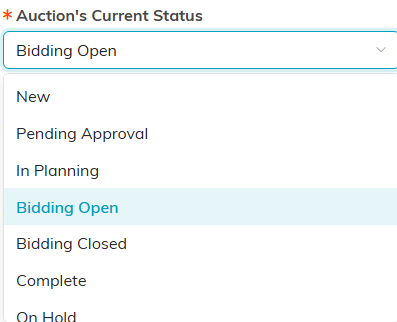
The status moves to Complete on its own once the auction closes.
