Knowledge Base Article
How to Run a Live Auction
Argenta can run the room on auction night, not just the bidding that happens beforehand. You give each guest a bidder number, call items from the stage, record each sale as the hammer falls, and then bill everyone in one pass at the end of the evening.
Your silent auction is unchanged. This is the live half sitting alongside it, and an auction can use both: guests bid online all week, the silent bidding closes, and the live items are called from the stage the same night.
Set the auction up for the night
Open the auction and go to its Details page. Five settings decide how the night behaves.
- Silent Bidding Close Date and Silent Bidding Close Time – when online bidding stops. An auction can close its silent bidding partway through the evening and keep going with the live items, so this does not have to be the end of the night.
- First Bidder Number – the number the first guest is given. Everyone after that is numbered up from it. It must be 1 or more.
- Card Required For A Bidder Number – when this is on, every guest must register with a card before they can be given a bidder number, and you cannot add a walk-up guest at all. Guests register with Register to Bid on the auction's public home page, which is there whenever the auction's status is Bidding Open, even on a live-only auction. Turn it off if you expect people to arrive on the night without registering first.
- Charge Silent Winners At The Silent Close – on by default, which bills the silent winners as soon as silent bidding closes. Turn it OFF and their silent winnings are held unbilled instead, so Run Transactions can put them on the same single invoice as everything that guest won live. This setting only makes a difference on an auction that has live items; a purely silent auction always bills at the close.

Mark the items you will sell live
Open an item and tick Live Auction Item. That is the whole of it: the item stops being part of the online bidding and appears in the list you call from on the night.

A Fund A Need item is the other kind, and it is not really an item at all. It is the appeal where you ask the room to give at set amounts, so it has no single winner and the same guest can give to it more than once. Nothing is handed over in return for a Fund A Need gift, so the whole amount is receipted as tax-deductible. Tick Fund A Need and a Giving Levels box appears. Type the amounts you plan to call, separated by commas, like 1000, 500, 250, 100. A thousands comma is fine as long as a space follows each level's comma, as in 1,000, 500, 250. If Save cannot read a level as an amount, or an entry like 2,500 could be one amount or two, it names that entry and saves nothing; put a comma and a space between levels and it saves. Saved levels show in the box the same way, as 500, 250, 100. They become buttons on the live page so nobody is typing amounts while the room is moving. The order you type them in does not matter, because they are always shown highest first, and whoever is working the page can still enter an amount that is not on the list.

Give your guests bidder numbers
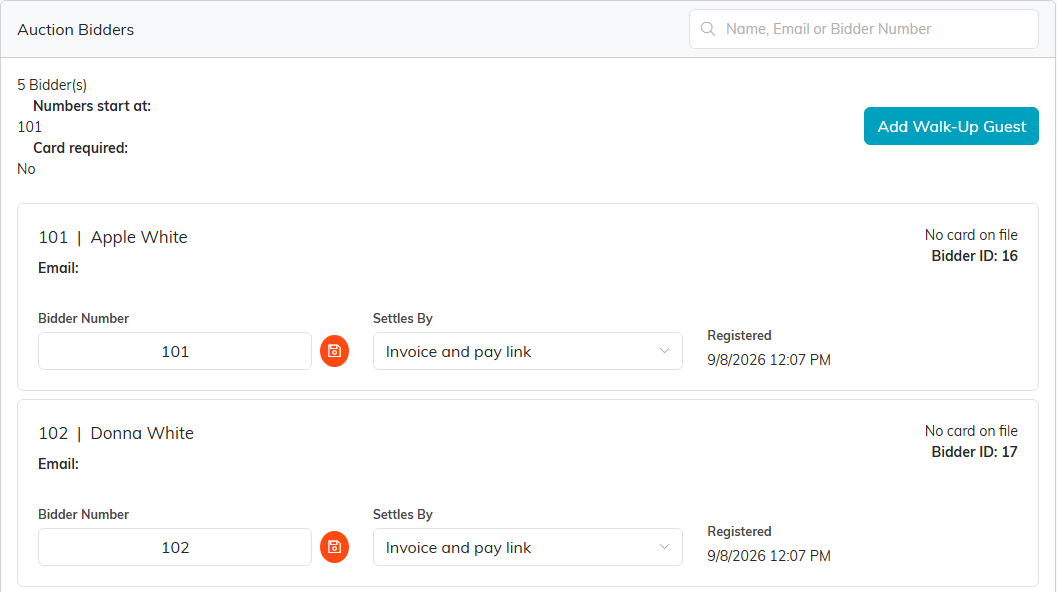
Go to Bidders in the auction menu. Across the top you see how many bidders there are, the number bidder numbers start at, and whether a card is required. Each guest shows their bidder number and name, whether a card is on file, when they Registered, and how they will pay under Settles By. Search by name, email or bidder number to find one quickly, and change a number in Bidder Number with the orange save icon beside it.
Settles By is either Card on file or Invoice and pay link, and it decides what happens to that guest when you settle at the end of the night. A guest with a card on file is charged. A guest without one is emailed a link to pay.
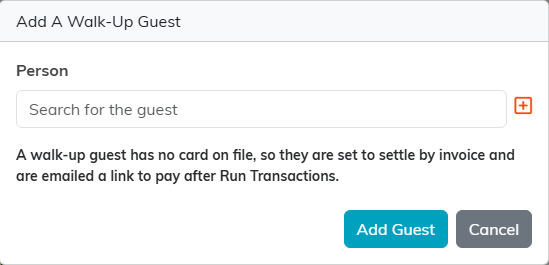
Somebody who arrives without registering online is a walk-up. Click Add Walk-Up Guest, search for them under Person (or add them as a new constituent with the plus icon), and click Add Guest. They are given the next bidder number so the night is not held up. A guest can only be registered once for an auction, so adding the same person twice is refused rather than quietly making a second row.
If Card Required For A Bidder Number is on for this auction, the Add Walk-Up Guest button is replaced by a note: every guest registers themselves with a card, and you turn the requirement off on the auction's Details page to add walk-ups here. It is worth deciding which way you want that before the doors open.
Record the sales as the hammer falls
Go to Live Auction in the auction menu. This is the page somebody works from during the event, and it is built to be used quickly.
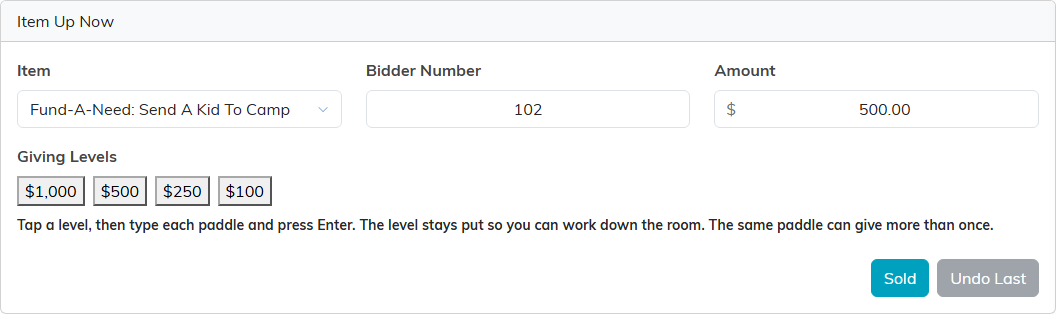
Pick the item under Item Up Now, type the winning Bidder Number and the Amount, and click Sold. The sale appears under Sales Recorded at the bottom of the page, newest first. An ordinary live item can be sold only once: a second Sold on it tells you which bidder already holds it, so undo that sale first if it was a mistake. A Fund A Need takes as many gifts as the room gives. If you record the wrong thing, Undo Last takes back the sale you just entered. Each sale under Sales Recorded says whether it is Not yet billed or On invoice. A sale not yet billed has an undo icon on its row. A sale already on an invoice has a Reverse this sale icon instead: it takes the sale's line off the invoice and frees the item to be recorded again. Reversing is refused while that invoice has a payment on it, so refund the payment first.
When the item up now is a Fund A Need, the Giving Levels you typed appear as buttons. Click a level, then type each paddle and press Enter. The level stays put so you can work down the room. The same guest can give at the same level more than once, and both gifts are kept, because one person raising a paddle twice for the same amount is two real gifts rather than a duplicate.
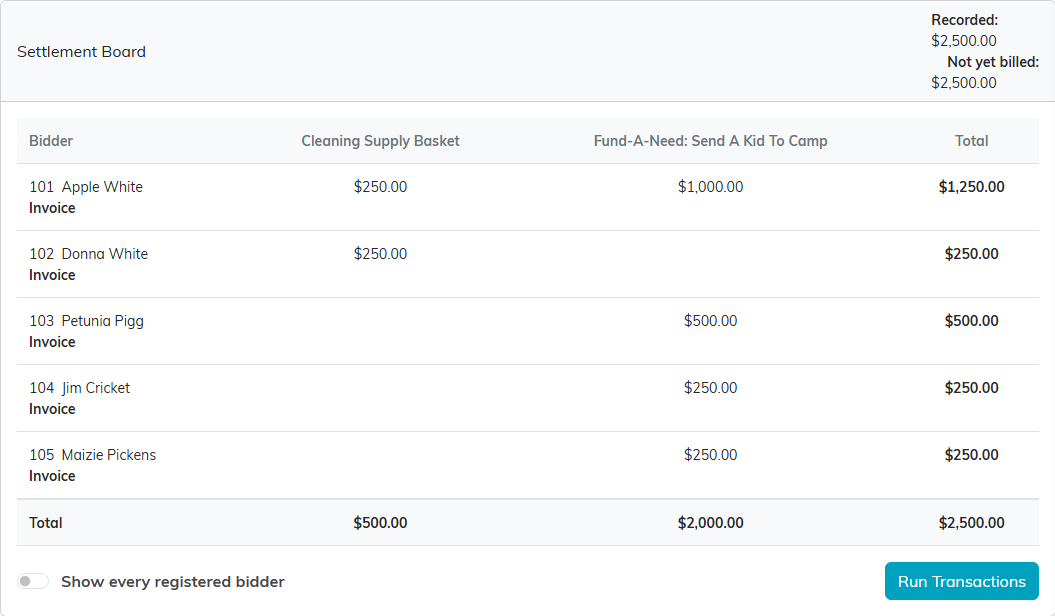
The Settlement Board shows you where the room stands as you go: each bidder's total across the items, with Recorded and Not yet billed at the top. Tick Show every registered bidder to see the guests who have not bought anything yet as well.
Bill everyone at the end
When the calling is finished, click Run Transactions. Argenta tells you how much is about to be billed, including any silent winnings held for the end of the night, and how many guests, then asks you to confirm before anything happens.
Every guest gets one invoice for the whole night, covering everything they won and everything they gave. A guest with a card on file is charged it. A guest without one is emailed a link to pay. The Run Transactions Results panel then tells you how many were charged and for how much, how many were sent a pay link, and how many cards declined. If a card was charged but the payment could not be recorded, that guest shows under Charges needing review instead of as a decline, and is never charged or emailed for it again.
When a card is declined, the reason shows on that guest's own line, above the pay-link line, because Argenta goes on to email them a link to pay instead. That guest is counted under Declined and under Pay links sent, so those two figures together can come to more than the number of guests.
If anything needs your attention, a panel appears under the results listing the invoices to go and look at. Read it before anybody pays, because it is money that is still wrong.
It is safe to press Run Transactions more than once. Anything already billed is left alone, so a guest cannot be charged twice for the same win, and a sale recorded after your first run is picked up by the next one. This means you can settle the early leavers partway through the evening and run it again at the end for everybody else.
Each invoice is charged, or its pay link emailed, only for what is still owed on it. A guest who paid part of it by check or cash at checkout, with that payment recorded on the invoice, is billed for the rest, and an invoice already paid in full is not charged or emailed at all. The same goes for the charge Argenta makes on its own when the auction closes.
Who can do this
The Bidders and Live Auction pages are staff pages, and they are only available to a user with the Auction Manager permission or a Master Admin.
