Knowledge Base Article
How to Track Chapters and Organizational Units
Chapters, divisions and departments are the three ways you group your organization. A record carries one of each and they are independent of one another, so the same constituent can sit in one chapter, one division and one department at the same time. Organizations doing political work get two more segments, districts and precincts, which behave the same way.
Where each one lives
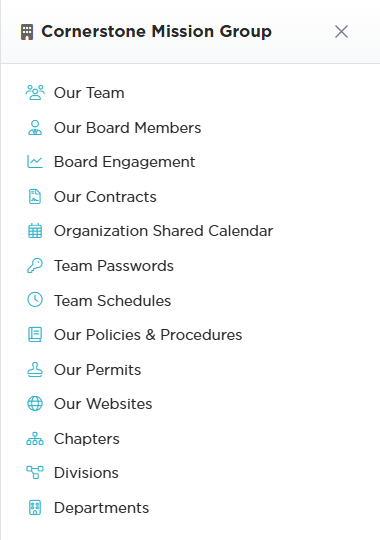
- Chapters, Divisions and Departments: click your organization's name in the top right corner of the screen to open the Team menu, then choose Chapters, Divisions or Departments. If those entries are not in the Team menu, the My Organization section is not switched on for that organization.
- Districts and Precincts: in the left sidebar, under Voting & Elections.
Setting up a chapter
Only a Subscription Admin or a Master Admin can add, open or delete a chapter. Everyone else sees the Chapters list without those buttons.
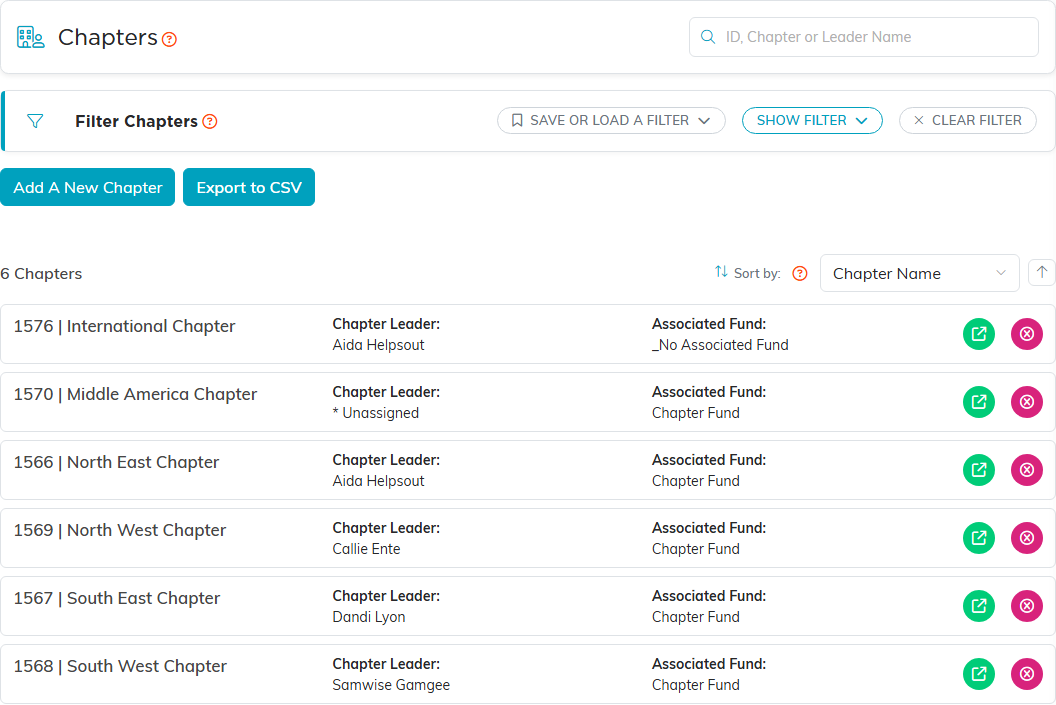
- Open Chapters from the Team menu.
- Click Add A New Chapter.
- Enter the Chapter Name. It is the only thing this form asks for, and the only required field.
- Click Add & Enter Details. The chapter is created and the Chapter Workspace opens.
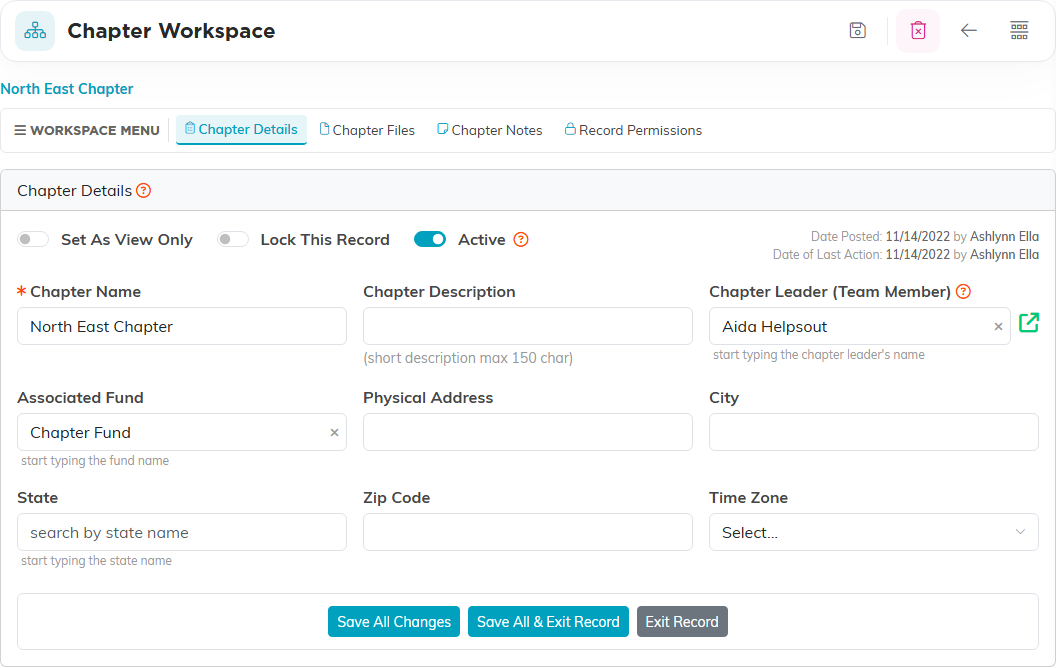
Everything else is set in the workspace, on the Chapter Details page: Chapter Description, Chapter Leader (Team Member), Associated Fund, Physical Address, City, State, Zip Code, Time Zone, and the Active switch. Two more switches sit alongside Active, Set As View Only and Lock This Record. The workspace has four pages: Chapter Details, Chapter Files, Chapter Notes and Record Permissions. Divisions, departments, districts and precincts each follow the same shape. Step by step, with pictures: Add A Chapter.
There is no chapter code field. The chapter's own ID number shows in front of its name on the chapter list.
Assigning records to a chapter
Almost every record type carries a Chapter tag, and that tag is what the Chapter filter on those list pages reads:
- Constituents, on the constituent record
- Events, and an event can also be held at a chapter, picked on the event's Contact & Location page when the location type is a chapter
- Staff positions
- Donations, deposits, expenses, invoices and pledges
- Campaigns, programs, projects and tasks
- Documents, contracts, permits, policies and websites
A record nobody assigned is not blank behind the scenes. It sits on an unassigned placeholder, so it does not come back when you filter for a specific chapter.
Chapter-based access
Access is set on the person's user account, not on the chapter. On the user's details page:
- Set Restricted by Chapters (Y or N) to Yes.
- Tick the chapters they should see in the Chapter Level Permissions card lower down the page. The tick boxes stay greyed out until the switch is Yes.
That person then sees records tagged to those chapters on the constituent list, whether or not they touch a filter. The Find Duplicates search on Merge Duplicate Constituents follows the same limits, so it lists only people they can see. They also keep seeing every record that has no chapter on it at all, because an unassigned record sits on a placeholder that is always included in a person's chapter list. So what the restriction actually hides is the records filed under a chapter they do not hold, and a record nobody has assigned yet stays visible to everyone. The change takes hold the next time they sign in. Switching the setting back to No quietly drops the chapter list you had chosen, because the ticks are only written while it is Yes. Administrators cannot be chapter-restricted. Divisions, departments and precincts each have their own switch and their own card, and work the same way.
Naming someone as Chapter Leader gives them no extra access to that chapter's records.


Reporting by chapter
Chapter is a filter, not a report of its own. Many of the reports in the Report Center carry a Chapter filter, so you run the report you want and narrow it to one chapter. There is no report that sets chapters side by side or rolls them up into an organizational total.
The dashboard count boxes are scoped to the signed-in person's own chapter, so two people in different chapters open the same dashboard and see different numbers.
Retiring a chapter
A chapter that is still assigned to anything cannot be deleted. Argenta asks you to reassign those records first, so retiring a chapter usually means turning Active off instead. An inactive chapter stops being offered in most Chapter dropdowns (a few record pages, such as expenses, contracts, documents and auctions, still offer it), and nothing changes about records already tagged to it. A record already on that chapter still shows it in its own dropdown, so the value is not silently lost.
