Knowledge Base Article
How to Print Mailing Labels with Print Templates
Print templates are the label layouts Argenta uses to print mailing labels for U.S. Mail. Each one matches a standard Avery® label sheet, so you choose a Mail Room list, pick the template for the labels you bought, and print.
Print templates are for labels only. They are not letter templates and carry no merge fields; for letters, see How to Use Mail Merge for Letters and Labels.
Printing mailing labels
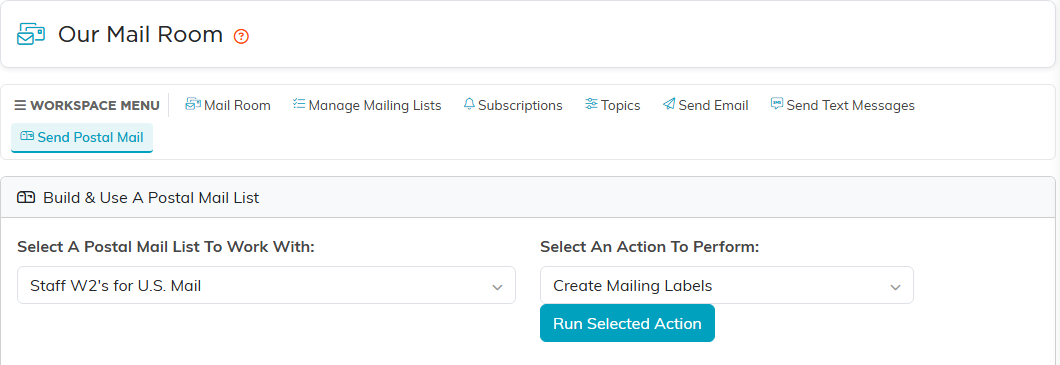
- Click Communication > Mail Room in the left menu, then Send Postal Mail in the Mail Room's workspace menu. The page is Build & Use A Postal Mail List.
- Under Select A Postal Mail List To Work With, pick the Mail Room list you are mailing to. The people on it appear below with their envelope salutation and mailing address.
- Under Select An Action To Perform, choose Create Mailing Labels, then click Run Selected Action.
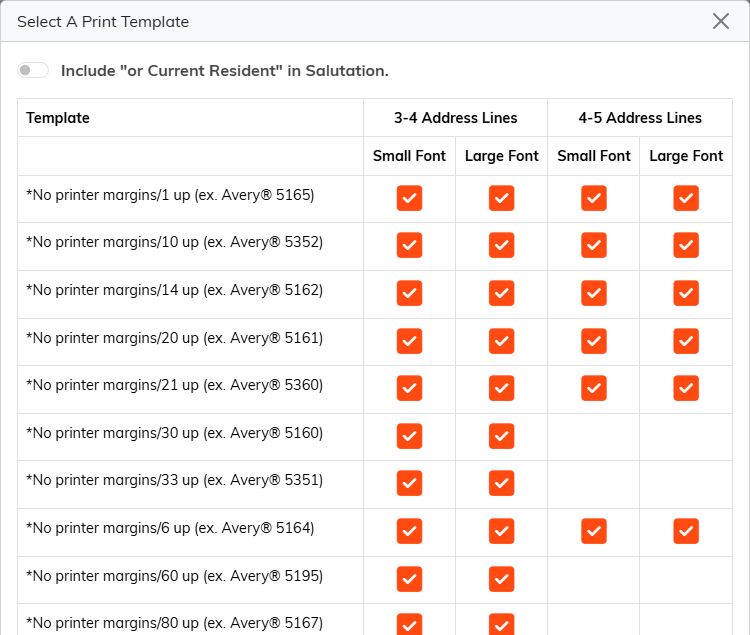
- In Select A Print Template, click the check mark for the template and layout you want (see below).
- Argenta tells you the printer settings that template needs. Click OK, and the label sheet is built for you to print.
The other action, Export The List To CSV, is for when a mail house is doing the printing.
Choosing a template
Each row is a label sheet, named by how many labels it has and the Avery sheet it matches, such as 30 up (ex. Avery® 5160). Hover over a template's name to see the other sheets it fits.
Every sheet comes twice:
- Default printer margins templates are for printing with your printer's normal margins.
- *No printer margins templates are for printing with the margins set to none, which uses more of the sheet.
The four columns choose the layout: 3-4 Address Lines or 4-5 Address Lines, each in Small Font or Large Font. Pick the address-line count that fits your longest address and the font size that fits the label. 4-5 Address Lines is offered only on the *No printer margins templates for the 1, 6, 10, 14, 20 and 21 up sheets; every other template prints 3-4 address lines.
The Include "or Current Resident" in Salutation switch at the top adds that phrase to each salutation.
Printing the sheet
Before the labels are built, Argenta tells you how to set your printer preview for that template: portrait for most sheets, landscape for the 1 up sheet, with default margins or no margins to match the template you picked. Use those settings and print one page first. Label sheets are unforgiving about margins, and a misaligned run wastes the whole box.
What changes what you get
- Labels are sorted by ZIP code, lowest first, which is the order a bulk mailing wants.
- Incomplete addresses are left off. A person with no Address Line 1, City or ZIP code, or no real State, gets no label. Argenta warns you that these are excluded but does not list who, so if your count looks short, check those addresses.
- No Solicit constituents are left out unless you turn on Include "No Solicit" Constituents In List. It starts off. Leave it off for anything asking for money.
Letters and receipts
Letters and receipts are not printed through print templates. Donor thank-you letters come from the Summary Donation Thank You Letters report in the Report Center, and a single donation receipt is available on the donation itself.
