Knowledge Base Article
How to Track Timesheets
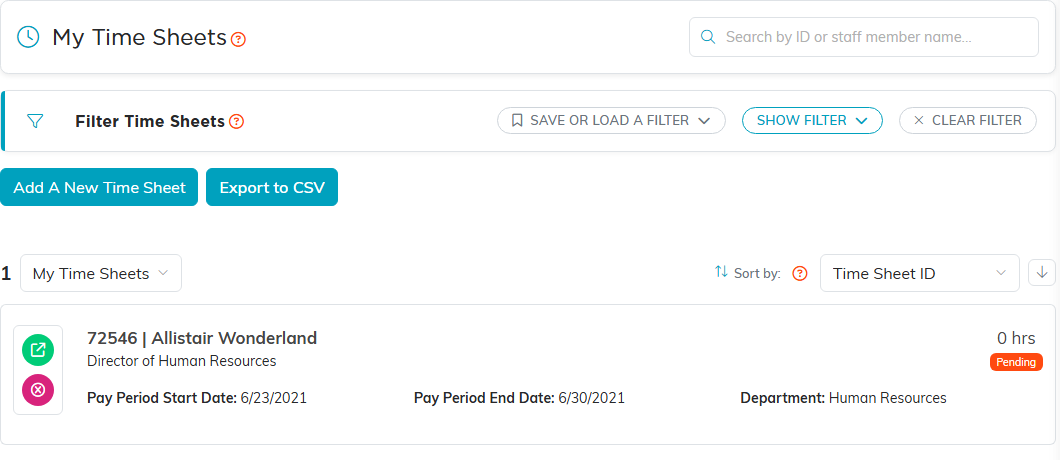
Time sheets record the hours staff work, a pay period at a time. They are in the left sidebar under Staff & HR > Time Sheets.
Entering one
- Click Add A New Time Sheet, choose the Staff Member, set Pay Period Start and Pay Period End, and click Add Time Sheet. Argenta opens the time sheet on Tasks & Hours.
- On Tasks & Hours, click Add New Task for each piece of work. In the box, choose the Task from your master list and type the Description of Work; Related Project and Related Grant are there if you want them. On the saved line, enter the hours for each day of the period, and add Mileage and Amount Per Mile ($) or an Associated Task if they apply. The project and grant show there as Associated Project and Associated Grant.
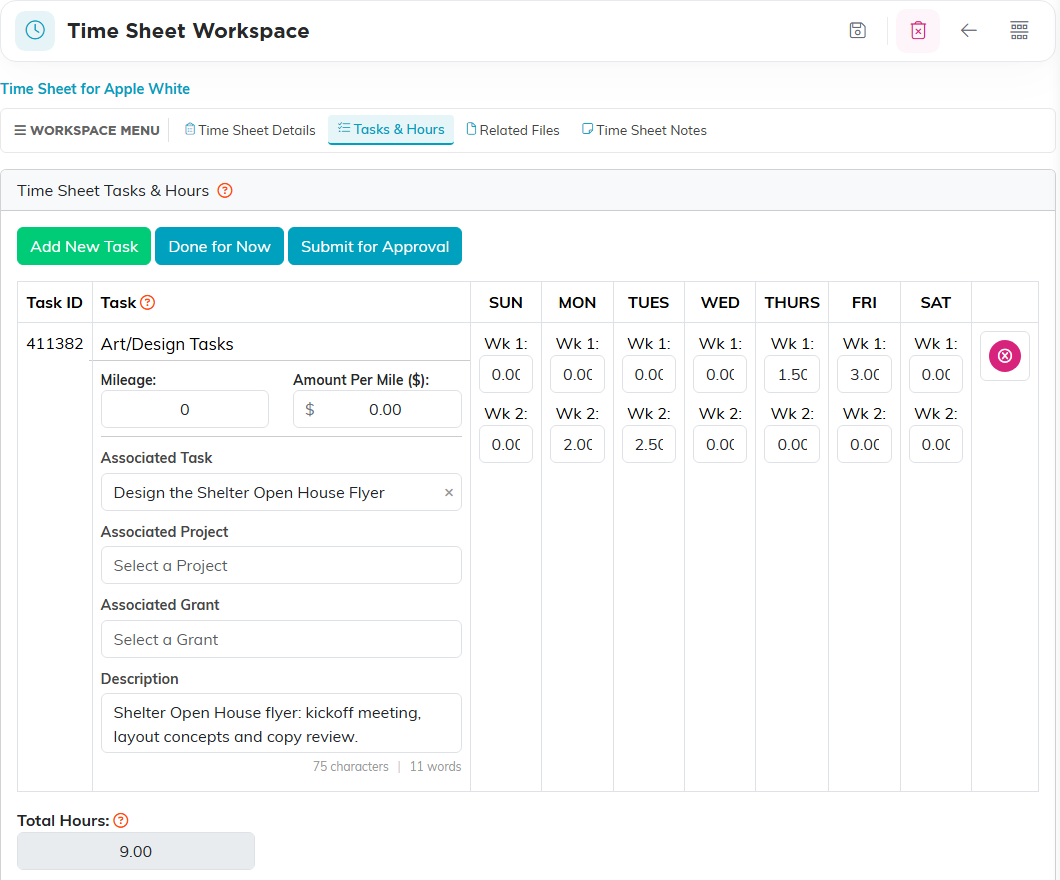
- Click Done for Now to come back to it later, or Submit for Approval when the hours are complete.
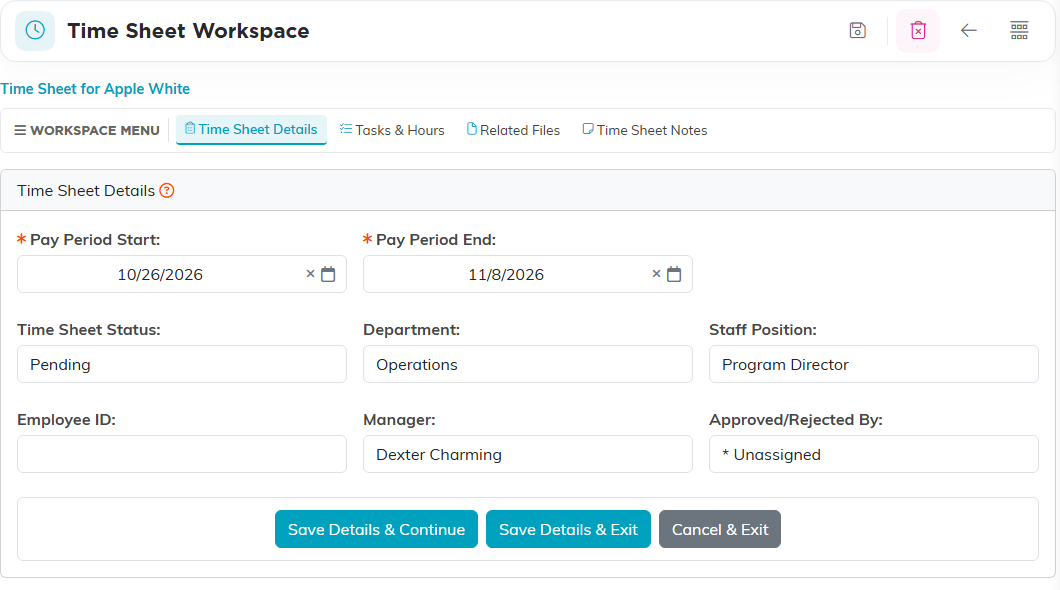
- Time Sheet Details holds the pay period dates, along with the status, Department, Staff Position, Employee ID, Manager and who approved or rejected it.
The tasks you choose from come from the Time Sheet Master Task List, which is in the same sidebar group and is your organization's own list to add to.
Approval
A time sheet carries one of four statuses: Pending, Submitted, Approved or Rejected. Once it is Submitted, a manager opens it and uses Approve Time Sheet; nobody can approve their own. The details page then shows who approved or rejected it.
When a time sheet is approved, Argenta emails the hours to your Staff & HR notification address, and the hours with the pay worked out to your Financial notification address. Both addresses are set on Email Settings; if one is blank, the approver is told that email did not go.
Once a time sheet is Approved, only a System Administrator or a Time Keeper can delete it. Anyone else who tries is told to contact their System Administrator.
Who sees which time sheets follows the reporting line: a staff member sees only their own, a manager also sees their direct reports', and administrators and timekeepers see everyone's.
Where the hours turn up
- On a project's Time Tracking page, for every line that named that project.
- In the Timesheet Details Report, which totals logged task hours by team member over a date range.
What it does not do
Time sheets do not feed Payroll Distributions. That is a separate page, and nothing carries hours from a time sheet into it; the approval email to your Financial address is what finance works from.
Naming a grant on a line records those hours against the grant so you can report on them. Whether that meets a particular funder's requirements is between your organization and that funder.
Step by step, with pictures: How To Enter A Time Sheet in Argenta and How to Use Time Sheets to Track Staff Hours.
