Knowledge Base Article
How To Enter A Time Sheet in Argenta
Time sheets record the hours a staff member worked in a pay period, broken down by the task or project the time went to.
Starting a Time Sheet
- Go to Staff & HR > Time Sheets.
- Click Add A New Time Sheet.
- In the window that opens, choose the Staff Member and set the Pay Period Start and Pay Period End. One time sheet can span at most six Sunday-to-Saturday weeks (a calendar month always fits), so a longer span is refused and needs a sheet of its own for each pay period.
- Click Add Time Sheet.
You can search the list by ID or staff member name to find a time sheet later.
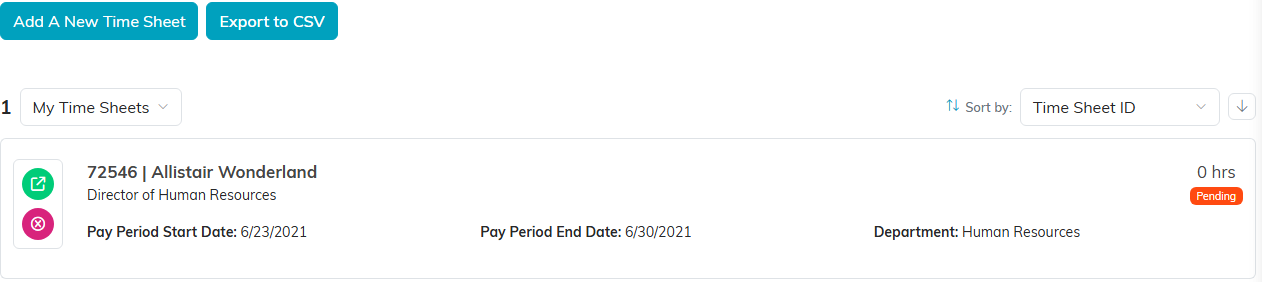
Add A New Time Sheet sits above the list.
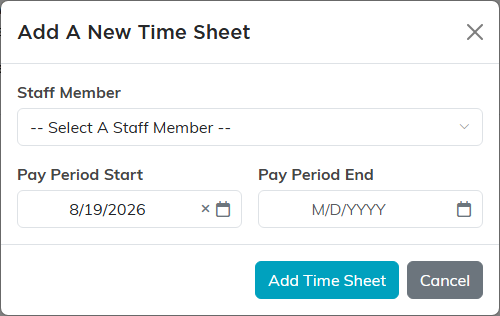
Pick the person and the pay period, then click Add Time Sheet.
What Is on Time Sheet Details
Pay Period Start and Pay Period End stay editable and are both required, until the sheet is approved. An approved sheet keeps the dates it was approved with, because the pay worked out at approval is for that period, so a change to them is refused and not saved. The rest is filled in for you and shown read only: Time Sheet Status, Department, Staff Position, Employee ID, Manager, and Approved/Rejected By.
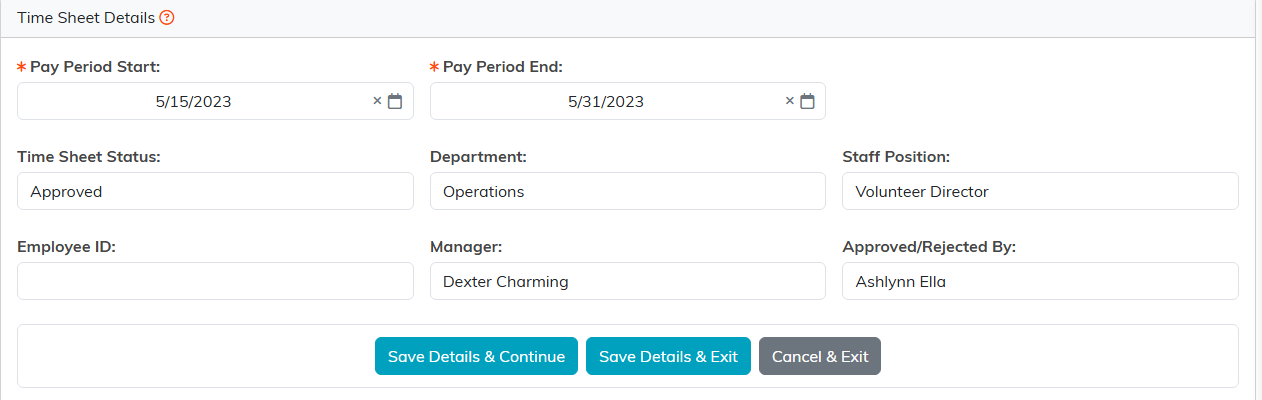
Only the two pay period dates are editable. The rest is filled in for you.
Entering Hours
Hours go on the Tasks & Hours page of the time sheet. The grid has a column for each day of the pay period and a row for each piece of work.
- Click Add New Task.
- Pick the Task. This is the one required field in the window.
- Add a Description of Work, and a Related Project or Related Grant if you track time that way.
- Click Add This Task, then type the hours into the day columns on that row.
A single day cannot go over 24 hours. The limit is the day, not the box, so it counts every task row on that day together: two tasks at 13 hours each on the same Wednesday comes to 26 and is refused. Argenta names the day and the total it would have made, and the box keeps the value it had before, so nothing you did not type ends up on a payroll record. If a sheet already holds a day over 24 from before, saving it stops and tells you which day to bring down.
Total Hours at the bottom adds everything up for you and cannot be typed into directly. If the total looks wrong, the fix is in the day columns.
On each row you can also adjust the Associated Task, Associated Project, Associated Grant, and Description in place, without opening a separate page. The tasks you can choose from come from your Time Sheet Master Task List, under Staff & HR.
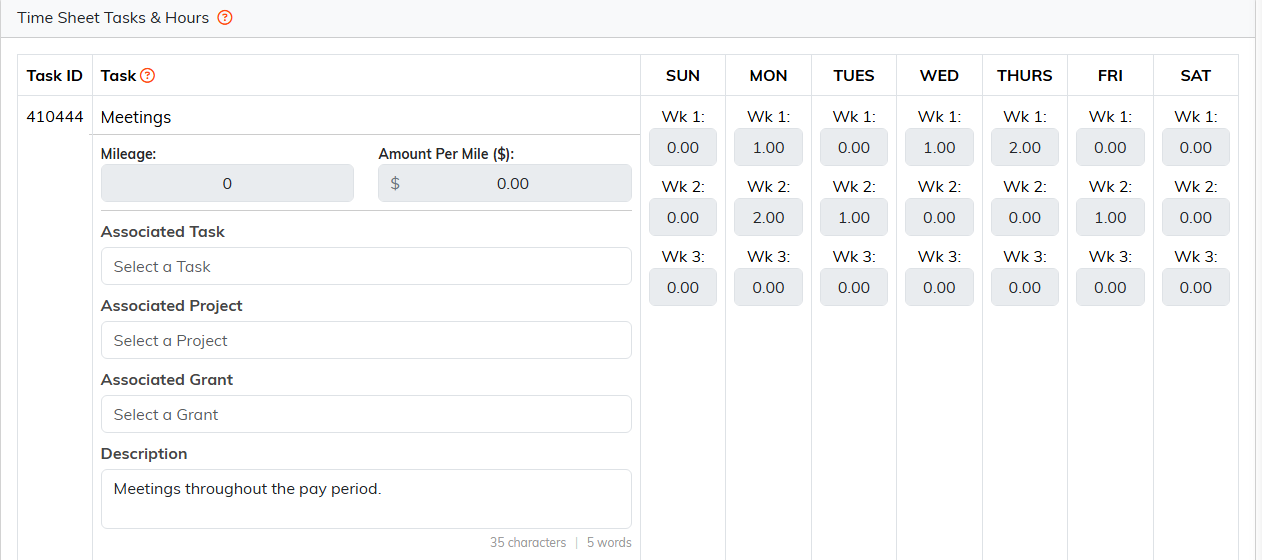
One row per piece of work, one column per day.
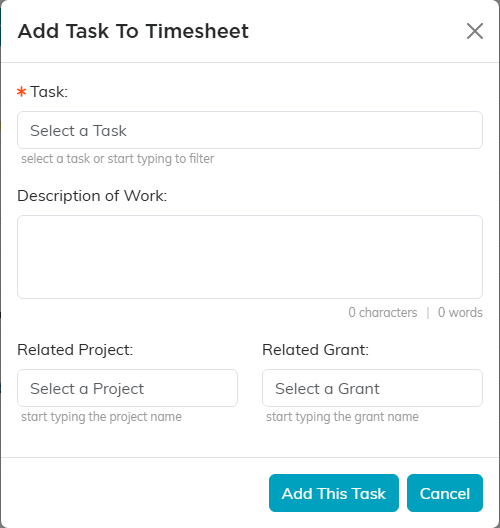
Task is the one required field in this box.

Total Hours is added up for you and cannot be typed into.
Submitting It
- Done for Now saves your work and returns you to the list, so you can keep adding hours through the week
- Submit for Approval sends the finished time sheet to the manager. Argenta asks you to confirm, and the sheet locks for editing once it is in

The buttons above the grid while the sheet is still open.
Approving as a Manager
Managers see Approve Time Sheet and Reject Time Sheet on the Tasks & Hours page. Either one asks you to confirm, and the outcome is recorded on the time sheet with your name in Approved/Rejected By, so there is a clear trail of who signed off.
Approving a time sheet also sends email. The staff member hears it was approved, the Email Address for Staff & HR Notifications is told it was approved along with the hours, and the Email Address for Financial Notifications receives the hours approved and the gross pay they come to, worked out from the staff member's Payroll Info. That figure is gross pay only: no taxes or deductions come off it, and commission is never included. When the pay cannot be worked out exactly, for example when We Pay This Staff Member is No, no Wage is on file, the wage is paid per Other, or a salaried person's sheet does not cover exactly one pay period, the email says why instead of showing a figure. Both addresses are set on Email Settings. If either one is blank, the approval still goes through and Argenta tells you which email did not go out.
A rejected time sheet reopens for the staff member, who can correct it and submit it again.

A manager sees these two once the sheet has been submitted.
Reporting
For hours across people and pay periods rather than one sheet at a time, use the timekeeping and time sheet detail reports in the Reports area.
Tips
- Enter time as you go. Reconstructing a two week pay period from memory is where errors come from
- Write descriptions someone else could read, since the manager approving it was not doing the work
- Link time to a project or grant when you have one, so grant reporting can draw on real hours
