Knowledge Base Article
How to Create an Email Template
An email template is a reusable, formatted email that can be personalized for each recipient.
- Go to Communication > Email Templates and click Add New.
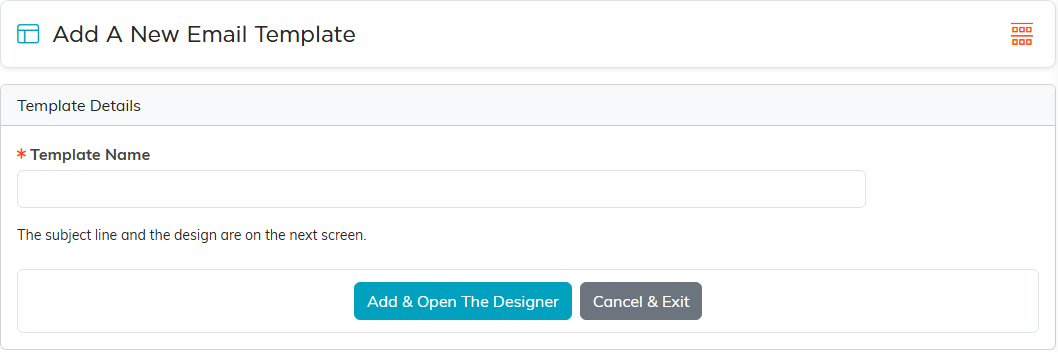
- Give it a Template Name, which is how you will find it later, and click Add & Open The Designer. Nothing is saved until you do.
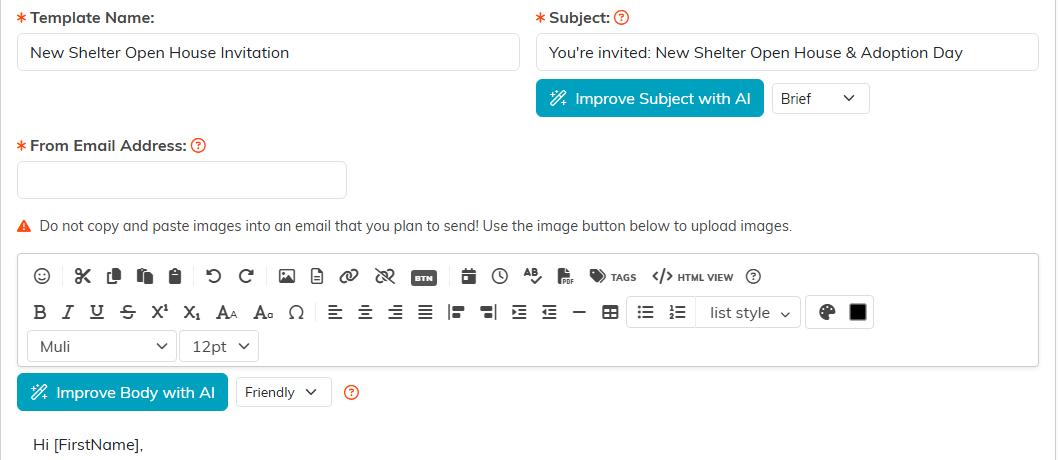
- In the designer, fill in the Subject and the From Email Address. Both are required.
- Write the email in the content editor: text, formatting, pictures, links and buttons.
- Click Save All Changes, or Save All & Exit Record to finish.
A template can also carry an Associated Campaign, and Chapter, Division, Department, District and Precinct, which is how it is narrowed to part of the organization.
Merge tags
Merge tags use square brackets, not curly braces, and they are case sensitive. [FirstName] works. {FirstName} and [firstname] do not, and a tag typed the wrong way goes out to the recipient exactly as you typed it.
So do not type them by hand. Click Tags on the editor toolbar (its tooltip reads Insert Merge Tag) and click the one you want, which drops it at the cursor with the right spelling and brackets.
What is available covers the person ([FirstName], [LastName], [ConstituentName], [Nickname], [Salutation], [Email], [Phone], [Birthday]), their mailing address, their chapter, division and department, their giving ([TotalDonated], [LastDonationDate], [LastDonationAmount], [NumberOfDonations] and more), their membership, and their volunteering.
Nothing fills in while you are writing, so the draft shows brackets rather than names. The real values are put in when the email is sent.
