Knowledge Base Article
How to Email Everyone in Your Database
Argenta can send one email to every constituent in your database. It takes two screens: first you build a mail room list that holds everyone, then you send the email to that list.
Before you start: emailing your whole database from the Send Email screen needs a user with the Mail Room Manager permission or a Master Admin. If the screen will not open for you, ask an administrator on your team to switch on Mail Room Manager for your user.
Step 1: Build a mail room list that holds everyone
- Click Constituents (CRM) > Constituent List.
- Clear any filters and any search text, so the grid is showing every constituent.
- In the - Choose Bulk Action - list, select Select All Records That Meet The Current Filter Criteria. Argenta selects the records as soon as you choose it, so there is nothing to click afterward. This selects every record matching the current filter across all pages, not only the records on the page in front of you. With no filter applied, that is everyone.
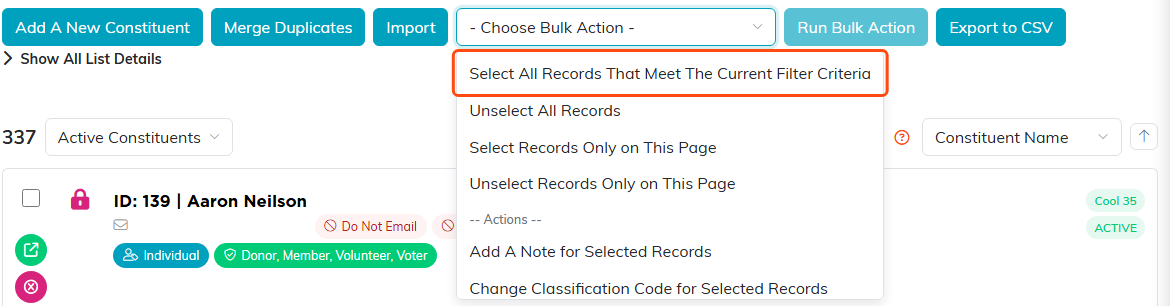
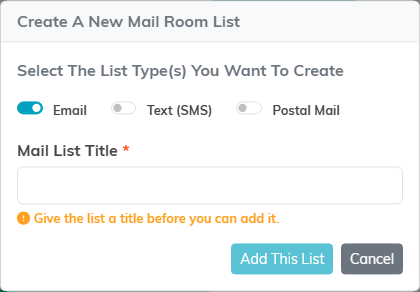
- In the - Choose Bulk Action - list, select Create A New Mailroom List With Selected Records, and then click Run Bulk Action. The Create A New Mail Room List window opens.
- Under Select The List Type(s) You Want To Create, leave Email turned on. It is on when the window opens.
- In Mail List Title, enter a name you will recognize later, such as
All Constituents. This field is required, and Add This List stays unavailable until you fill it in. - Click Add This List.
Step 2: Send the email to that list
- Click Communication > Mail Room.
- Click Send Email.

The New Campaign page opens. Work down its five steps; each one gets a green check when it is complete.
- Under Send To, choose A Mail Room List, then click your list. To find it in a long set of lists, enter part of the name in Search by list name. Argenta shows how many people the email will reach and who it leaves out, and why.
- In Send From Email Address, enter the address the email comes from, or click one of your verified addresses under the box. Beside it, Display From Name is the name shown next to that address in the inbox, and leaving it blank uses your organization name. Reply To Email Address opens holding your own address, so replies come back to you; clear it and replies go to the Send From address instead.
- In Subject, enter the subject line.
- Under Content, start from one of your templates, a gallery design, or a blank page, and write the email in the editor. Upload any images with the image tool rather than pasting them in, because a pasted image does not survive the send.
- Optional: under Send Time, choose a later time instead of Now. See How to Choose When a Mail Room Email Sends.
- Optional: in Copy All Selected Team Members, select any staff who should receive a copy.
- Click Send in the Review panel, and confirm. The question names the subject and how many people it goes to, so read it before you click.
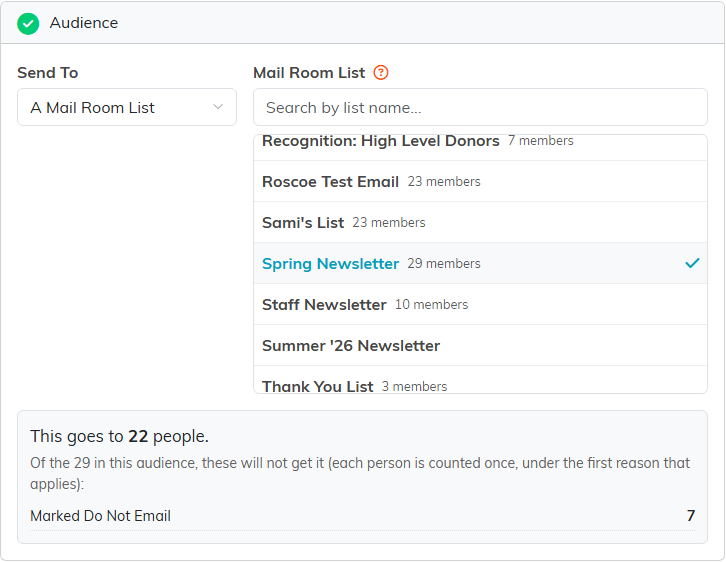
Pick the list and the count appears underneath.
Before you send, you can see the email as any recipient will and send yourself a test. The full walkthrough is in How to Send an Email From the Mail Room.
Who Argenta leaves out, automatically
You do not have to clean the list yourself. On a mail room list send, Argenta drops these people before the email goes out:
- Anyone who has unsubscribed.
- Anyone marked Do Not Email.
- Anyone marked as deceased.
- Anyone who has opted out of marketing email. A list send counts as marketing, so marketing consent is required.
- Any address that has hard bounced, been reported as spam, or been suppressed by the mail provider. Argenta keeps the constituent record and stops sending to the dead address.
Argenta also sends the same subject line to a person only once. If you send to a list twice using the same subject, the second send reaches nobody who already received it, and Argenta tells you how many it skipped. To send the same message again on purpose, change the subject line.
Why a smart list rule cannot select everyone
A smart list rule needs at least one condition, and Argenta refuses to save a rule that has none. That means a rule cannot express "everyone." Build the list from the Constituent List bulk actions, as described in Step 1.
