Knowledge Base Article
Using the Do Not Solicit, Email, Call, Text, Send Mail Features
Argenta has built in switches to ensure your constituents do not receive solicitation or communication from your organization should they decide to. Each switch has a unique feature in Argenta. In this article we will go over these five features.
Four of them sit together on one bar at the top of the Contact Info tab. The fifth, Do Not Send Mail, sits on the Addresses tab with the mailing address it belongs to.
Do Not Solicit
On the Constituent Workspace, at the top of the Contact Info tab, there is a "Do Not Solicit" switch.

Do Not Solicit, on the bar at the top of Contact Info.
When you turn this on it means the constituent wishes not to receive any marketing materials from your organization. This means when you create lists for marketing purposes, constituents with the "Do Not Solicit" check mark will not be included on the list. However, they can still receive mail or emails when these items are not marketing related.Do Not Email
On the Constituent Workspace, at the top of the Contact Info tab, there is a "Do Not Email" switch.

Do Not Email, on the same bar.
When you turn this on it means the constituent wishes not to receive any emails from your organization. This means when you create email lists in Argenta, constituents with the "Do Not Email" check mark will not be included on the list.In addition, there is a report in the Argenta Report Center > Constituent Reports that will display all the constituents flagged as "Do Not Email".
Do Not Call
On the Constituent Workspace, at the top of the Contact Info tab, there is a "Do Not Call" switch.

Do Not Call.
When you turn this on it means the constituent wishes not to receive any calls from your organization. This means when you create a call list report it will show this constituent as "Do Not Call".Do Not Text
On the Constituent Workspace, at the top of the Contact Info tab, there is a "Do Not Text" switch.

Do Not Text.
When you turn this on it means the constituent wishes not to receive any texts for your organization. This means when you create a text notification list report it will show these constituents as "Do Not Text".Do Not Send Mail
On the Constituent Workspace, in the Addresses tab, under Mailing Address, there is a "Do Not Send Mail" switch.

Do Not Send Mail sits with the mailing address, on the Addresses tab.
When you turn this on it means the constituent wishes not to receive any mail from your organization. This means when you create a Postal Mail list in Argenta, these constituents will not be included in the list.In addition, there is a report in the Argenta Report Center > Constituent Reports that will display all the constituents flagged as "Do Not Mail".
Additional Notes about the "Do Not" features
You can select one, two, or all the "Do Not" features, depending on what solicitation's you are trying to stop. When a client wishes to receive nothing from your organization its best to turn on all the "Do Not" switches to make sure they are never included on any list.
If your constituent simply doesn't want to receive mail, email, or phone calls from your organization then you would just select the option that applies to their wishes.
Seeing where email consent came from: the Consent History tab
Every constituent has a Consent History page in their workspace menu. It answers two questions: what their email consent is now, and how it got that way.
- Current Email Consent shows Email and Solicitation (marketing email) as On or Off. Email off is Do Not Email; Solicitation off is Do Not Solicit. To change either one, follow the link to the Contact Info tab.
- Consent History lists every time either one changed, newest first, with the Date, the Change (for example, "Solicitation turned off"), the Source, Details such as the page or file it came from, who made it (By), and an IP Address when the person changed it themselves online.
The source tells you where the change came from: a web form, an event registration, a donation form, the portal, an import, a staff edit or a staff bulk update, a duplicate merge, the API, the unsubscribe page or a one-click unsubscribe, the preferences page, a hard bounce or a spam complaint. Other means Argenta could not tell which of those it was, and the Details column then shows the page or process it did see. Not recorded means the change was saved by something that did not say where it came from at all. A contact with no changes yet shows a note saying none have been recorded. You can also build a Smart List from this, with the Email consent last came from condition; see What Is a Smart List?.
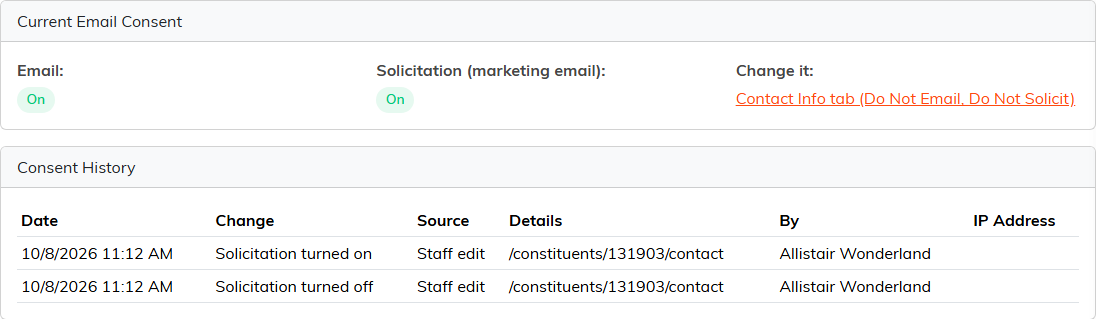
Do Not Solicit turned on and then off again by a team member, each change recorded with where it was made.
