Knowledge Base Article
Overview, Working With Mission Trip Lists
This article covers the Mission Trip List and the Mission Trip Workspace: how to open a trip, what's on each tab, how to edit it, and the rules around deleting. To create a new trip, see Add A New Mission Trip.
Open a mission trip
From the left menu, go to Mission Trips > Mission Trip List for the full list of your trips. Use the search box or the filters to find the one you want, then click the green open icon to open the Mission Trip Workspace. You can also use the orange copy icon on a row to copy a trip into a new one. The copy is titled "_COPY of" plus the original title, both its dates move three years later, and it starts with no enrollments or wait list, so rename it and check the dates before you open it up.

The search box and the filter bar sit above the trips.

1 opens the trip. 2 copies it into a new one.
The mission trip workspace tabs
The workspace opens on the Trip Details tab and includes these sections:
- Trip Details - the main trip record (title, dates, price, location, and more).
- Enrollments and Wait List - the accounts enrolled in, or waiting for, this trip.
- Participants - the people going on the trip.
- Fees and Payment Schedules - the trip's fees and any installment schedule.
- Facility Assignments, Staff Placement, Volunteer Placement, and Vehicles - the places, people, and transport for the trip.
- Checklists - checklists you build for the trip.
- Trip Files, Trip Notes, and Record Permissions.

Every tab in the workspace, with Trip Details open.
Edit a trip
On the Trip Details tab, update the fields you need (see Add A New Mission Trip for what each one does), then click Save All Changes & Continue or Save All Changes & Exit. The other tabs each have their own edits. For example, the Fees tab is where you set each fee's type, amount, and sales dates, and the Payment Schedules tab is where you set the due dates and amounts for installments. Open an enrollment from the Enrollments tab to work with its billing, payments, and refunds.
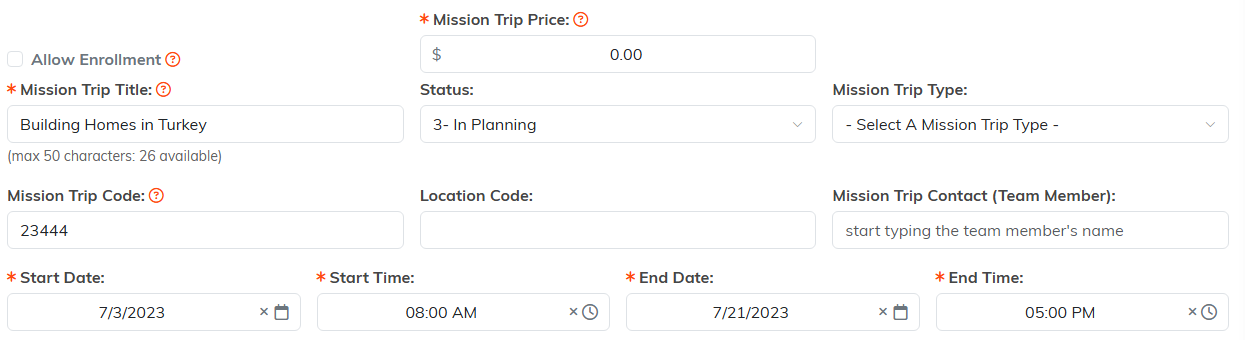
Trip Details is where the main record lives.

Save when you are done.
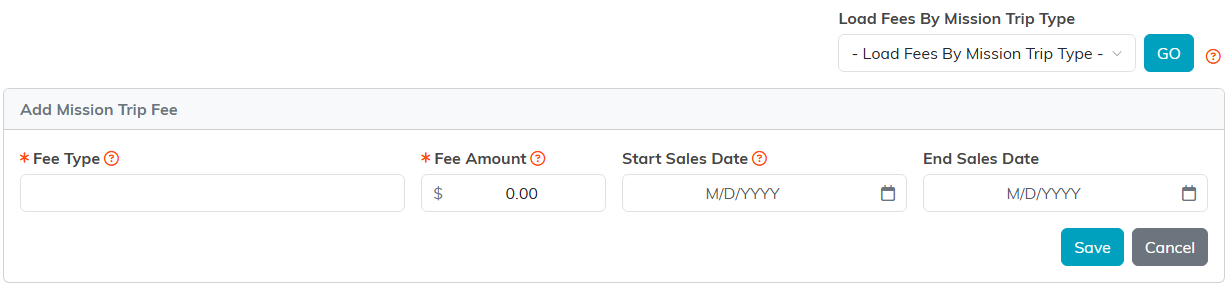
The Fees tab carries the type, the amount and the sales dates.
A change on the Fees tab reaches the enrollments already on the trip. When you add a fee, or load one with Load Fees By Mission Trip Type, it is added to every enrollment on the trip that is not cancelled and each enrollment's cost is worked out again. Deleting a fee takes it off those enrollments and re-prices them the same way. A cancelled enrollment is left alone: it keeps the fees and the cost it had when it was cancelled.
Changing a fee's amount, or turning its Active switch on or off, does not change the enrollments already on the trip. A fee must be more than $0.00. Adding or deleting any fee also puts back every active trip fee on each enrollment that is not cancelled, including one you had removed from a single enrollment by hand. A fee an enrollment already carries is kept as it is, even if its amount was edited on the trip or on the enrollment.

Payment Schedules is where the installment due dates and amounts go.
Deleting records
Wherever you see a delete icon you can remove that record, and you'll be asked to confirm. A few rules to keep in mind:
- A mission trip can be deleted only if it has no enrollments, no payments and no additional fees. A trip set to View Only can be deleted only by the person who created it, a Master Admin, or someone given access to it.
- An enrollment can be deleted only while no money has touched it: Argenta refuses the delete if it has payments, refunds, credits, additional credits, reserved credits, participant forms, or an invoice with a total. Deleting an untouched enrollment also removes its fees, payment schedule, adjustments, vehicles, requests, notes and files, and takes its people off the trip's Participants list (their own records stay).
- You can also delete a wait list entry, a fee, or a payment schedule from their tabs.

The delete icon in the workspace title bar.
Deletion is permanent and can't be undone.
