Knowledge Base Article
Add A New Mission Trip
Mission Trips are the trips you run for the organizations, households, and individuals who become Mission Trip Accounts. You build each trip in the Mission Trip Workspace.
Start a new mission trip
- From the left menu, go to Mission Trips > Mission Trip List.
- Click Add New. Argenta asks for the Mission Trip Title and the Start and End dates and times first. All of them are required, and neither time can be 12:00 AM.
- Click Add & Enter Details. The trip is created and the Mission Trip Workspace opens on the Trip Details tab, where the status, the type, the codes, the price, the participant counts and the description are set.
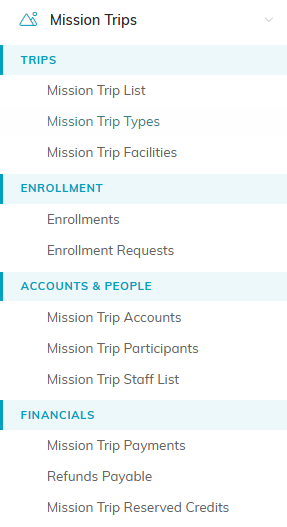
Open Mission Trips in the left menu and pick Mission Trip List.

Add New sits under the filter bar on the Mission Trips list.
Fill in the Trip Details tab
A few fields are required (marked with an orange asterisk): Mission Trip Title (up to 50 characters), and the Start Date, Start Time, End Date, and End Time. Neither time can be 12:00 AM, so pick any other time. Enter those first, then add as much of the rest as you can:
- Allow Enrollment - turn this on when you're ready to take enrollments, and the Mission Trips list shows the trip as OPEN; leave it off while you're still planning. It is a label for your team, not a lock: it does not block or allow any enrollment by itself.
- Status and Mission Trip Type - where the trip sits in its status cycle and which type it belongs to (the type sets the default fund and fees).
- Mission Trip Code, Location Code, and Brand Name - your own identifiers, if you use them.
- Mission Trip Location, Mission Trip Country, and Spoken Language - where the trip takes place.
- Mission Trip Contact (Team Member) - the team member responsible for the trip.
- Category and Target Age Range - for reporting and filtering.
- Min. Participants and Max. Participants - the size limits for the trip.
- Reserve Block and Reserve Block Reason - hold back some slots without an actual enrollment.
- Mission Trip General Description, plus Cancel Date and Cancel Reason if the trip is ever canceled.
The Enrolled, Available, and Wait List counts are read-only. Argenta keeps them up to date automatically from your enrollments.
Click Save All Changes & Continue to save and keep going.
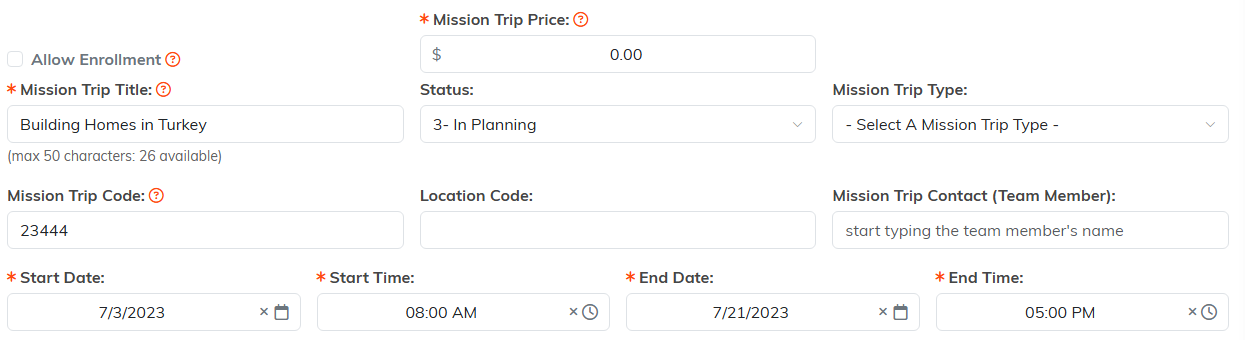
The required fields carry an orange asterisk.
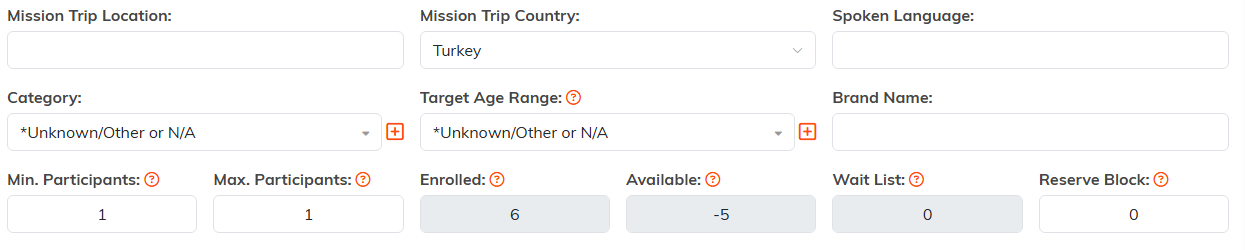
Enrolled, Available and Wait List are read-only. Argenta keeps them current.

Save All Changes and Continue keeps you on the trip.
The rest of the workspace
Once the trip is saved, the workspace has more tabs for building it out: Enrollments, Participants, Fees, Payment Schedules, Facility Assignments, Staff Placement, Volunteer Placement, Vehicles, Wait List, Checklists, Trip Files, Trip Notes, and Record Permissions. For a tour of the workspace, see Working With Mission Trip Lists.

The workspace menu across the top of a saved trip.
