Knowledge Base Article
How To Create Bulk Notes
When the same note applies to a whole group of people, add it to all of them at once rather than opening each record. Typical reasons: recording who attended an event, noting everyone who showed interest in something you have coming up, or logging the people you spoke to at an event about a campaign.
Bulk notes work from the Constituent List and from most lists of people, such as Donors, Volunteers, Members and Clients/Customers. The Board Members, Delegates and Renters lists do not have the action.
Pick the people
- Choose Constituents (CRM) > Constituent List, or whichever relationship list you want to work from: Donors, Members, Volunteers, Clients/Customers, and the rest all work the same way.
- Narrow the list down. Open the filter panel, which is named for the list you are on (Filter Constituents on the constituent list, Filter Donor(s) on donors), set your criteria, and apply it.
- Select the records you want. Open Choose Bulk Action and pick Select All Records That Meet The Current Filter Criteria. It takes effect at once, with no need for Run Bulk Action, and selects everything your filter matched, not just the rows on the page in front of you.

Any relationship list works the same way.
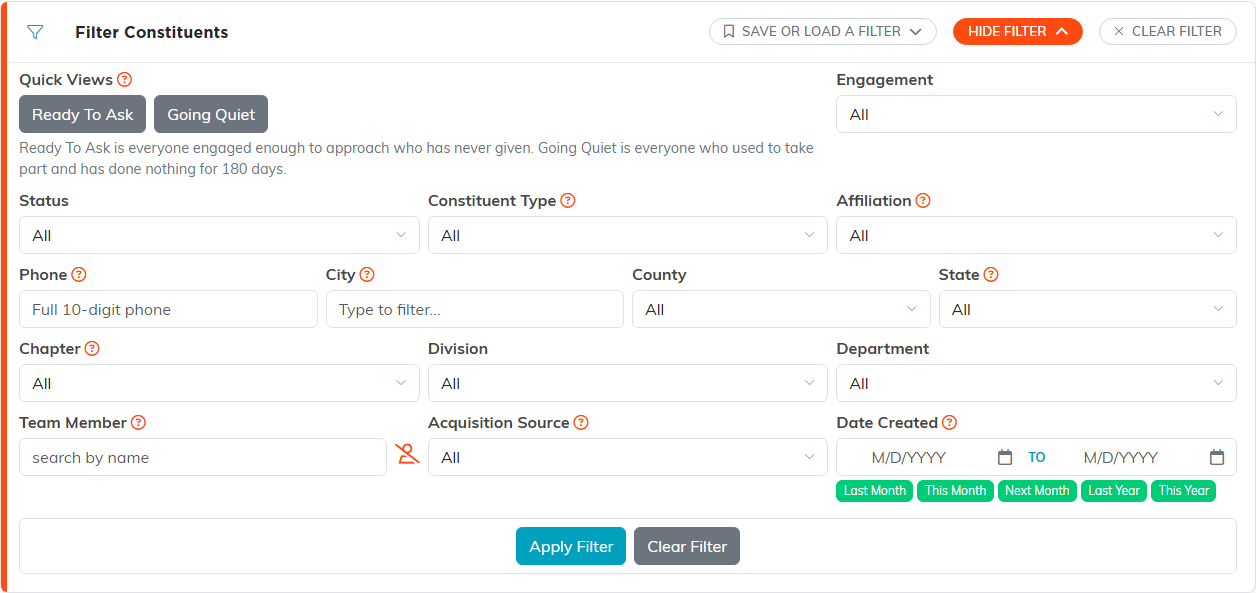
Narrow the list first, then select.
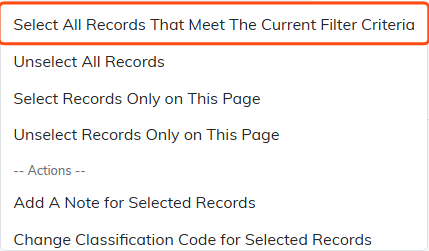
This picks everything your filter matched, not just this page.
To pick people by hand instead, tick them individually, or use Select Records Only on This Page. Unselect All Records starts you over.
Add the note
- With your records selected, open Choose Bulk Action again.
- Choose Add A Note for Selected Records.
- Click Run Bulk Action.
- Type the note and confirm. The same note is written to every selected record. Locked records, and records set to View Only for you, are skipped unless you are a Master Admin, and Argenta tells you how many were skipped.
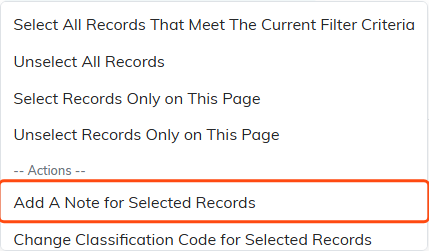
Choose it, then click Run Bulk Action.
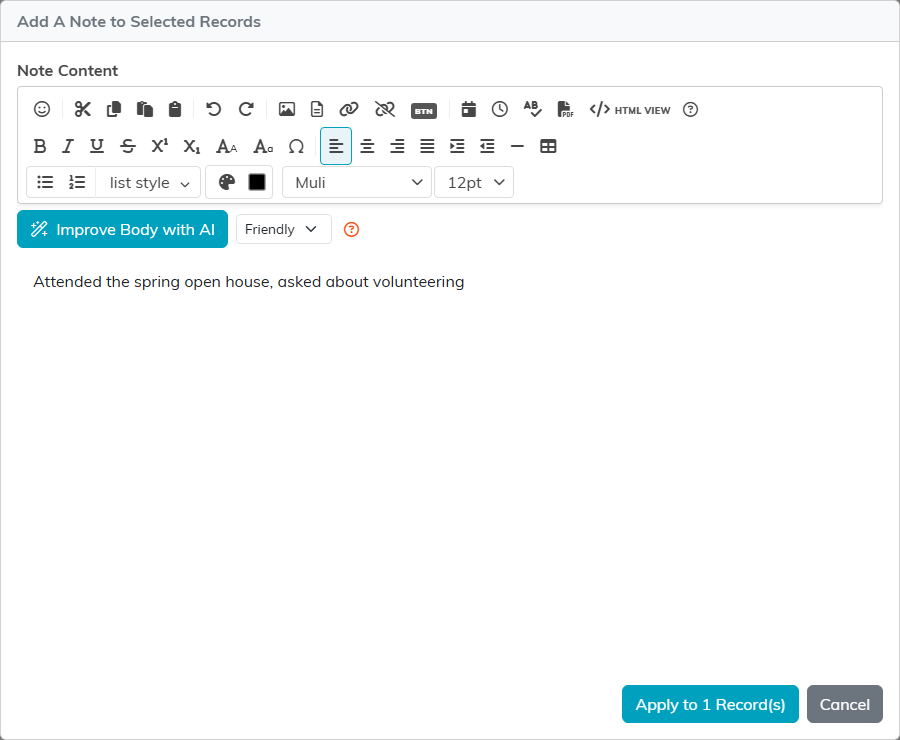
Type the note once. The Apply button counts the records you selected.
Take a moment over the wording. The note goes onto every record you selected exactly as you typed it, so write it so it still makes sense to someone reading one person's record months from now. Something like "Attended the spring open house, asked about volunteering" reads better on its own than "spoke to at event".
To add a note to a single record instead, see Add A Note to the Notes Section.
