Knowledge Base Article
View and/or Update A Campaign
Everything about a campaign lives in one place, so updating one is just a matter of finding it and opening it. This walks through both.
Find the campaign
- Go to Fundraising > Fundraising Campaigns. (The same list is under Marketing & Engagement > Campaigns.)
- The list opens on Active Campaigns, which hides anything marked Closed/Complete. Switch to All Campaigns to see those too.
- Search by campaign ID or name, or open the filters to narrow by Campaign Status, Campaign Type, Category, Coordinator, Final Outcome, a Date Range, or your Chapter, Division, and Department. Political organizations also get District and Precinct.
- Sort the list by Campaign ID, Start Date, End Date, Campaign Name, or Status. It arrives newest start date first.

Switch between Active Campaigns and All Campaigns here, and sort from the right.
Open it
Click a campaign to select it, then click the green open icon that appears beside it. That opens the Campaign Workspace on Campaign Details. The two icons under it copy the campaign into a new one, or delete it.
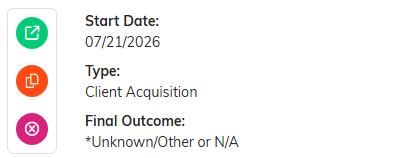
Green opens the campaign. The two beneath it copy and delete.
Update the details
Campaign Details has a short Show Me How To Use This Page video at the top right; click it to watch, and use its chapters to jump to the part you need.
Campaign Details holds the core record. You can change any of these:
- Campaign Status. Required. New, In Preparation, In Progress, Ongoing, Closed/Complete, or On Hold. Your public sales form only opens on In Progress or Ongoing. The public donation form stays open until the end date passes or you set the status to Closed/Complete.
- Start Date and End Date. A blank End Date earns a Sells indefinitely badge, so the campaign runs until you close it. An End Date before the Start Date is rejected.
- Campaign Owner. Start typing a constituent's name to hand the campaign to someone else.
- Campaign Title. Required, and it cannot be left blank. Include Title On Public Form controls whether donors see it.
- Associated Fund, UTM Code, Campaign Type, Campaign Category, Final Outcome.
- Chapter, Division, Department, plus District and Precinct for political organizations.
- Record Level Permissions. Two switches at the top. Set As View Only leaves the record readable but not editable, Lock This Record closes it off entirely. Either way, use the Record Permissions tab to name the people who should still get through.
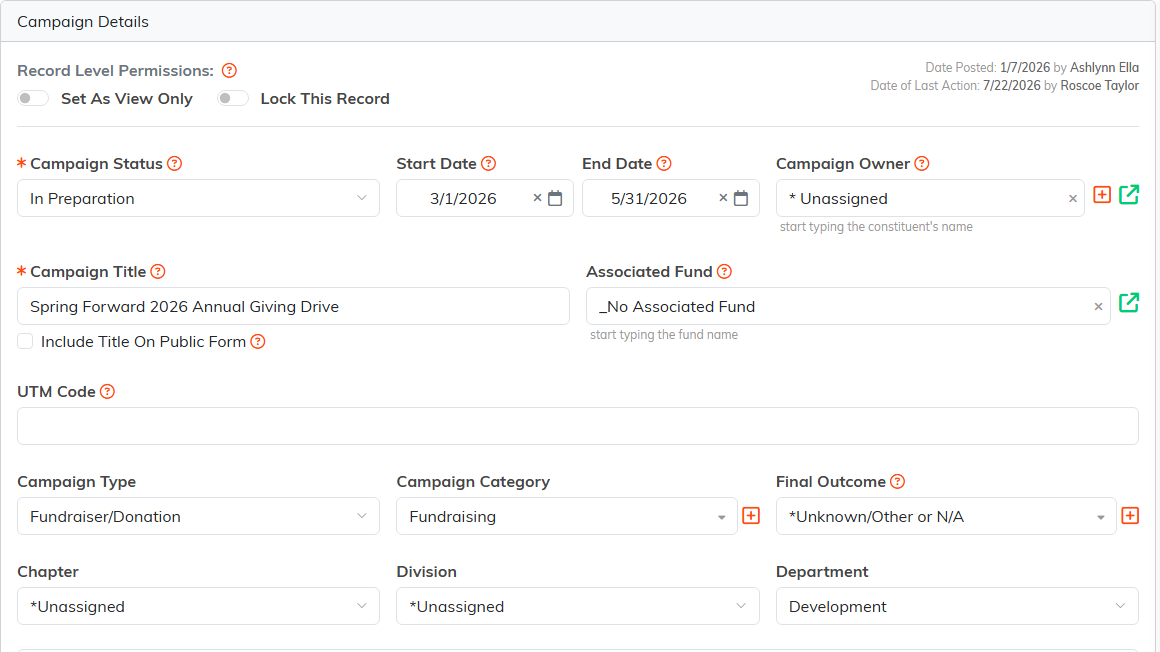
Campaign Details holds the core record.

The two Record Level Permissions switches sit at the top of the tab.
Save with Save All & Continue to stay on the record or Save All & Exit to go back to the list. The same row has Copy & Add New, Delete This Record, and Cancel & Exit.
Before you delete a campaign
Deleting a campaign does not delete what is attached to it. Its donations, payments, members and so on are set to No Associated Campaign, and that cannot be undone. Before you confirm, the delete message lists what is attached, whether you delete from this page (Delete This Record, or the delete icon under the title) or with the delete icon on the Campaigns list. From the Campaigns list the message also names the campaign by its number and title, so you can see which one you are about to delete. A campaign whose sales still carry a donation or payment will not delete until those sales are removed.
The rest of the workspace
The other tabs, across the top in the Workspace Menu, are Connections, Public Form Design, Email Batches, Sales Item Settings, Campaign Sales, Analytics & Metrics, Campaign Acquisition, Budget & Financials, Campaign Files, Campaign Notes, and Record Permissions. Each one is covered in Overview, Working with Campaigns.

The rest of the workspace runs along the Workspace Menu.
Starting a campaign from scratch instead? See Add Campaigns.
