Knowledge Base Article
Add A Mission Trip Reserved Credit
A Mission Trip Reserved Credit is a credit your organization sets aside now, on a mission trip account, to apply toward a future enrollment.
Where to go
In the left sidebar, choose Mission Trips > Mission Trip Reserved Credits.
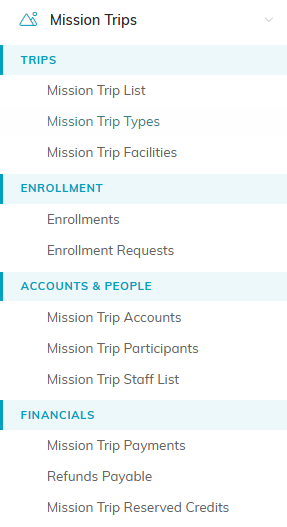
Mission Trip Reserved Credits sits under the Financials heading, inside the Mission Trips menu.
Add a reserved credit
- Click Add New. The Add A Reserved Credit window opens.
- Fill in the required fields:
- Mission Trip Account: use the lookup to find the account the credit is for.
- Date Issued: the date you are issuing the credit.
- Credit Amount ($): the amount of the credit.
- Click Add This Credit.

Add New on the Mission Trip Reserved Credits list.
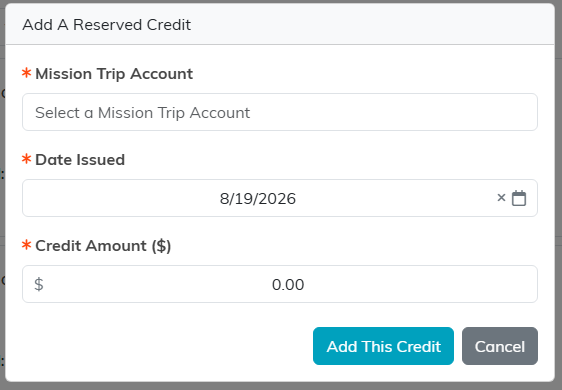
Fill in the three required fields, then click Add This Credit.
The credit appears in your list with a status of Issued. To use it, open it and apply it to an enrollment. See Apply A Mission Trip Reserve Credit To A Mission Trip Enrollment.

A new credit lands in the list with a status of Issued.
