Knowledge Base Article
Add Checklists
A checklist is an itemized set of things that need doing, kept on the record they belong to. They are for the routine work your team repeats: event setup, a new-hire process, everything that has to happen before a mission trip leaves.
Checklists are not a separate area of Argenta. They live on the record, and you will find a Checklists page on tasks, projects, events, event sessions, notebooks, meeting minutes, mission trips, and clients.
Create a checklist
- Open the record and go to its Checklists page.
- Click Add New. A new row appears with a Checklist name box.
- Type the name and click the save icon on that row. The name is required, so a blank row is refused rather than saved. Before you add one, the page reads "No checklists on file."
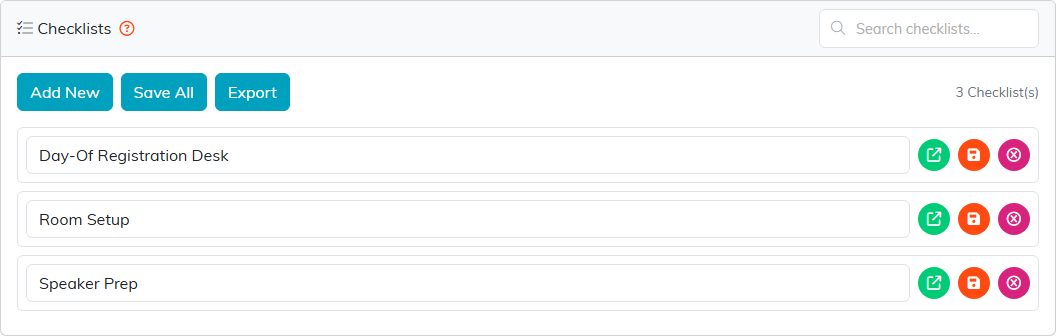
Add New opens a row with a name box.
A record can hold as many checklists as you need, so keep them separate rather than building one enormous list. Search them with the search box when there are a few.
Add the items
- Click the open icon on the checklist to go into it.
- Click Add New, type the item, and save it with the row's save icon. An item needs some text before it will save. If the item is already done, you can tick it before saving and the tick is kept. Repeat for each item.
- Click Back To Lists when you are done to return to the checklists on that record.
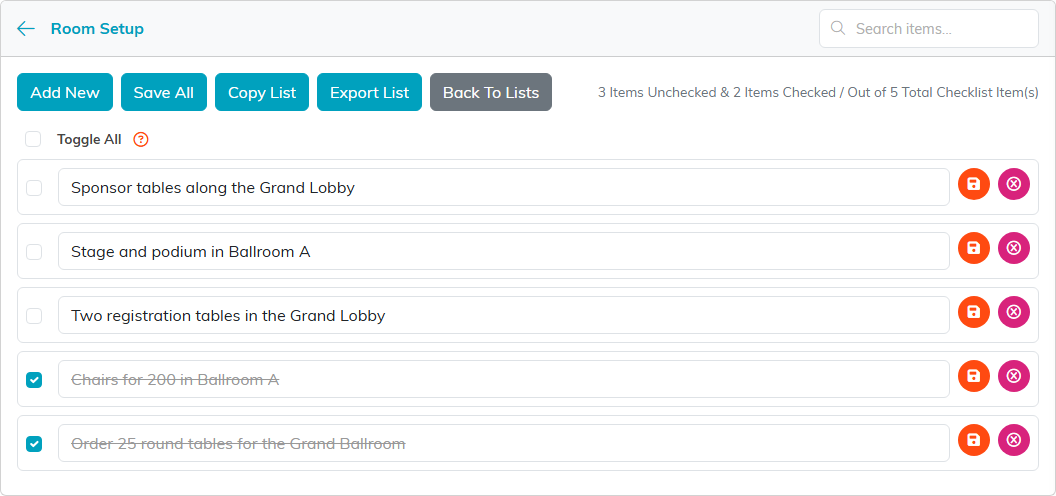
Back To Lists returns you to the record's checklists.
Each item has its own save and delete icons, and there is a search box for finding an item in a long checklist.
Work through it
Tick items off as you complete them. Toggle All flips the whole checklist at once, which is the quick way to reset a checklist you reuse, or to close one out when the whole job is done.

Toggle All flips the whole checklist at once.
Reuse a checklist
When you have a checklist you run repeatedly, do not retype it. Open it and click Copy List to duplicate it, items and all. That is the point of building them carefully once: the setup checklist you wrote for one event becomes the starting point for the next one.

Copy List duplicates the checklist, items and all.
Delete
The delete icon removes a single item, or a whole checklist from the record's checklist page. Deleting a checklist takes its items with it.

The delete icon removes one item, or a whole checklist from the list page.
For lists that are not attached to a record, see Add Lists/List Groups, which covers the standalone Lists area under Workflow & Productivity.
