Knowledge Base Article
How To Use The Google API with Argenta Calendars
You can sync an Argenta calendar with your Google Calendar so appointments stay in step in both places. There is no API key to request and no developer account to set up. It is a sign-in and a button.
Connect your Google Calendar
- Click Calendar Hub in the left menu and open the calendar you want to sync.
- Click Sync Google Calendar in the row of buttons across the top. That button sits on every Calendar Hub page, so you can start from Calendar View, Calendar Info, Default Schedule, Availability, or Notification Design.
- Click Connect Google Calendar, sign in to Google, and choose allow when Google asks for permission.
Argenta starts syncing the moment you are connected and shows Sync Complete when it finishes, along with a count of what moved each way.

Sync Google Calendar sits on every Calendar Hub page.
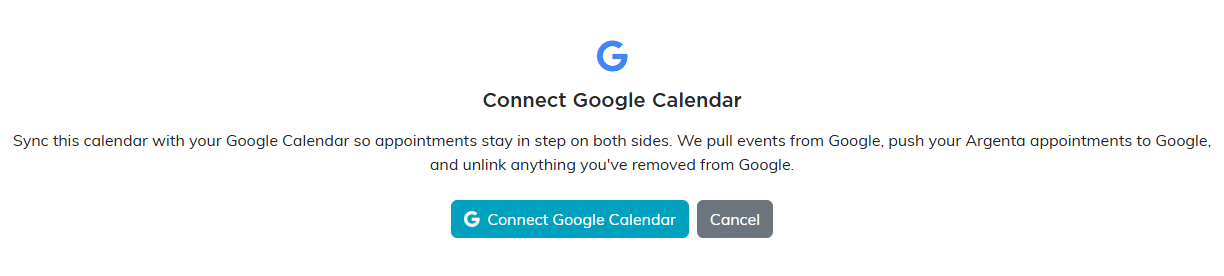
Click Connect Google Calendar, then sign in to Google and choose allow.
What the sync actually does
It works in both directions against the primary calendar on your Google account, so it does not matter which side you added the appointment on.
- Pulled from Google. New events on your Google calendar become Argenta appointments.
- Updated from Google. Events you changed in Google are updated on the Argenta side.
- Unlinked. If you deleted an event in Google, Argenta keeps the appointment but drops the link between the two. Later syncs do not put it back into Google.
- Pushed to Google. Argenta appointments that are not in Google yet get created there.
Only upcoming appointments sync. Anything already in the past is left alone on both sides.
Sync again later
Open the calendar and click Sync Google Calendar whenever you want to bring the two back in line. Because you are already connected, it goes straight into syncing without asking you to sign in again.
Disconnect
After a successful sync, click Disconnect Google on the same page and confirm. Argenta keeps every appointment you already have and stops syncing with Google. It also erases the Google sign-in it stored and withdraws its access at Google, so if you connect again you sign in to Google afresh.
If something goes wrong
- Sync Failed. The screen says in a sentence what went wrong, such as your session timing out while you were at Google. Click Try Again. If it keeps failing, click Reconnect to sign in to Google fresh, which clears up an expired or revoked permission.
- Connection Cancelled. The Google permission screen was closed or declined. Click Try Again and choose allow.
- View-only access. If your Argenta account is view-only, syncing a shared calendar is turned off and the page tells you so. You can still sync your own personal calendar.
Worth knowing
- You connect your own Google account, so each person on your team syncs their own.
- If you revoke Argenta's access from your Google account settings, syncing stops until you reconnect here.
Use Outlook instead, or as well? See How to Connect Microsoft 365 (Outlook) to Calendar Hub. If both are connected, you choose which calendar your bookings go to; until you do, they go to Google Calendar.
For the calendar itself, see How to Create a Calendar in Calendar Hub.
