Knowledge Base Article
How to Connect Microsoft 365 (Outlook) to Calendar Hub
Connect your Microsoft 365 account to Calendar Hub and two things happen. Busy times on your Outlook calendar block those times on your booking pages, so nobody books you when you are already taken. And your bookings can be added to your Outlook calendar, so the appointment shows up where you already look.
Each person connects their own Microsoft 365 account, for the calendars where they are the organizer.
Connect Microsoft 365
- In the main menu, click Calendar Hub.
- Click Sync Google Calendar. The page also holds the Microsoft 365 card.
- In the Microsoft 365 card, click Connect Microsoft 365.
- Sign in to Microsoft and approve Argenta. Microsoft sends you back to Argenta.
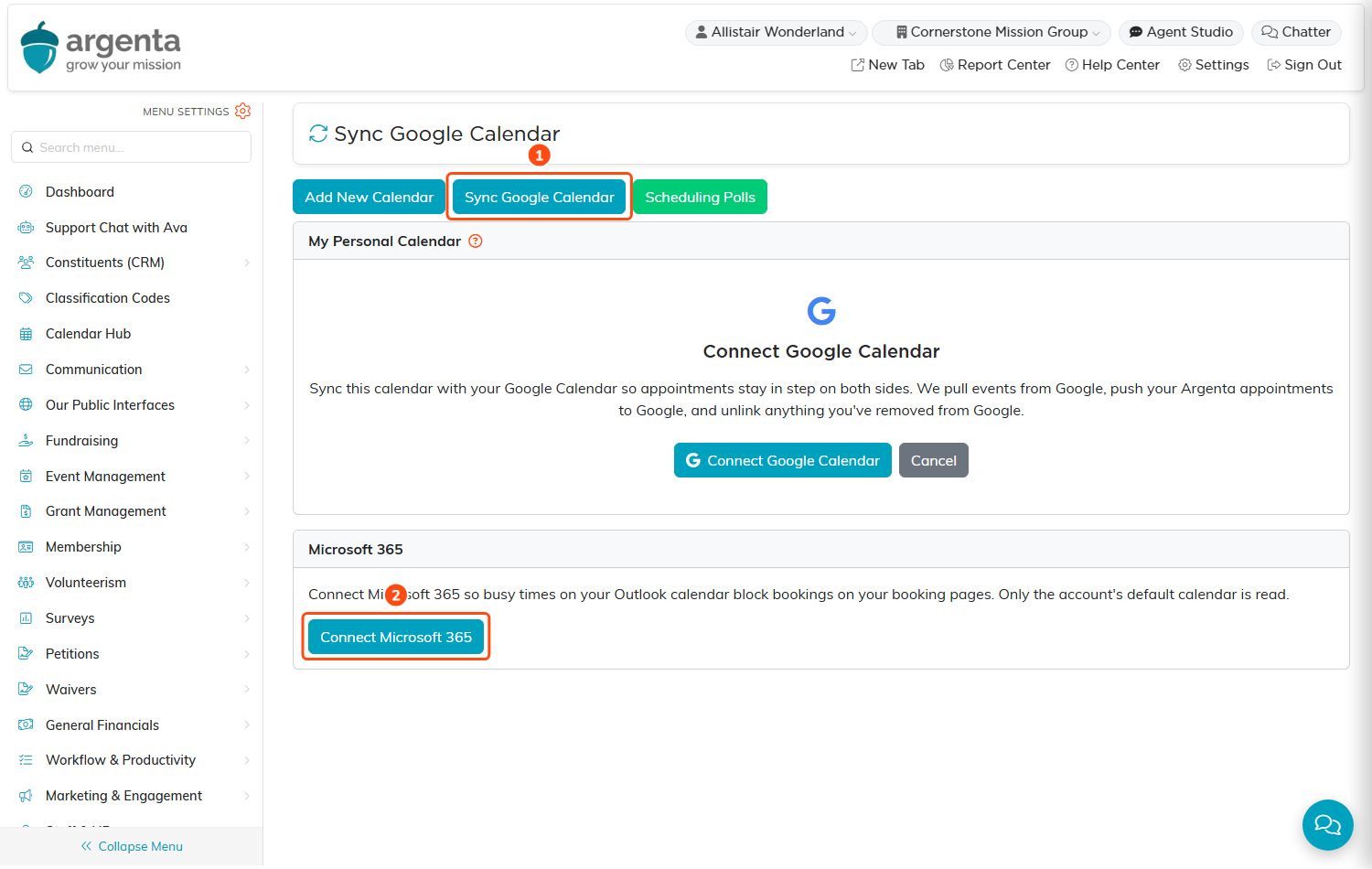
Open the sync page (1), then connect from the Microsoft 365 card (2).
You can also connect from Event Types: edit an event type and click Connect Microsoft 365 under Location.
Once you are connected, the card reads Microsoft 365 connected as followed by your Microsoft email address.
Busy times on your Outlook calendar
- Argenta reads busy times from your account's default Outlook calendar only. Other calendars in the same account are not read.
- Those times are blocked on your booking pages, the same way busy times on a connected Google Calendar are.
Adding bookings to Outlook
- If Microsoft 365 is the only calendar you connect, bookings from your booking pages are added to your Outlook calendar. The Microsoft 365 card says Bookings from your booking pages are added to it.
- If you connect both Google Calendar and Microsoft 365, the Microsoft 365 card shows Add bookings to with a choice of Google Calendar or Outlook. Until you choose, bookings go to Google Calendar, as they always have.
- When you switch the choice, Argenta confirms with Bookings from your booking pages now go to Outlook (or Google Calendar). Bookings already made move to the new calendar within about 15 minutes.
- A booking that is rescheduled moves on your Outlook calendar, and a booking that is canceled is removed from it.
If Microsoft 365 stops working
If your Microsoft sign-in expires or is withdrawn, the Microsoft 365 card says Your Microsoft 365 sign-in stopped working, so Outlook is not being read. Click Connect Microsoft 365 again to reconnect.
Disconnect Microsoft 365
- On the sync page, in the Microsoft 365 card, click Disconnect Microsoft 365.
- Confirm. Argenta deletes its copy of your Microsoft sign-in and stops reading your Outlook calendar.
To remove Argenta from your Microsoft account as well, use myapps.microsoft.com for a work or school account, or account.live.com/consent for a personal account.
Keep reading: How To Use The Google API with Argenta Calendars and How to Set Up Calendar Availability for Appointments.
