Knowledge Base Article
What Are Argenta Volunteer Portals and How Do They Work?
A Volunteer Portal gives your volunteers their own private, branded corner of Argenta. They sign in, see the tasks that are open, claim the ones they want, keep their own details current, read your documents, and talk to each other. You stop being the middle of every conversation, and everything they do flows straight into your Argenta records.
This is a step past the public task sign-up form. The public form lets anyone grab a shift. The portal is for people you have vetted and given a login to.
How someone becomes a volunteer
The portal login screen has a Sign Up To Become A Volunteer link, and you can put that same link straight on your own website. Either way it opens your public Volunteer Interest Form.
The form has two sections:
- Contact Information. Name, email, mailing address, and phone numbers.
- Volunteer Information. Areas of interest, skills and experience, and a free-text box for anything else they want you to know, such as availability or an allergy.
The choices in those two pickers are yours. Volunteer Needs becomes the areas-of-interest list and Constituent Skills becomes the skills list, both managed under Classification Codes. See How To Manage Classification Codes in Argenta.
They finish by clicking Submit My Volunteer Interest Form.
What happens when they hit submit
- A constituent record. Argenta looks for a match on the person first. If there is no match it creates one, then fills in everything from the form.
- A lead, or an engagement. If they are not a volunteer yet, Argenta creates a lead marked as a potential volunteer, with anything they wrote in the extra box saved as a note. If they are already one of your volunteers, it logs an engagement on their record instead so you can see they filled the form out again.
- An email to you. A "Volunteer Interest Form Received" notice goes to your organization email address and to the volunteer notification address set under Settings, Email Settings.
Submitting the form does not create a portal login and does not email the volunteer. That next step is yours, on purpose, so nobody gets access before you have vetted them.
Giving them a login
Once you are happy with a new volunteer, convert the lead into a volunteer. If your organization has the portal turned on and the constituent has an email address, Argenta creates the portal account automatically and emails them their "Volunteer Portal Account Information".
To do it by hand, or to check on an existing account:
- Go to Our Public Interfaces > Portal Users.
- Click Add New.
- Start typing the constituent's name, pick them, and click Add Portal User & Enter Details.
- On the Portal User Workspace, set the Portal Type to the volunteer portal and type a password in New Password (5 to 50 characters). Click Save All Changes & Exit.
From the Portal Users list you can also send someone a Send Password Reset Link, or use Make User Inactive to switch off access without deleting anything. If they are signed in at the time, their session ends within about five minutes.
An account can also arrive without you doing anything. When someone signs up for a shift on your public task sign-up form and is not a volunteer yet, Argenta creates the volunteer record, and on a team with the portal turned on it creates the portal account alongside it. Their user name is the email address they signed up with, and they get the same "Volunteer Portal Account Information" email. Someone who already has a volunteer portal account under that email keeps the account they have.
Signing in
Volunteers go to your portal address, enter their email and password, and click SIGN IN. Forgotten passwords are self-service: click Forgot Password?, enter the email address on the account, and click SEND ME A RESET LINK. Argenta emails a link to choose a new password, and the link works for one hour. Passwords are case-sensitive, so capital letters have to match the way the password was set.
Staff can jump to the login page from Volunteer Portal Link in the main menu, which opens it in a new tab. That is the same address to hand out to volunteers or drop on your website.
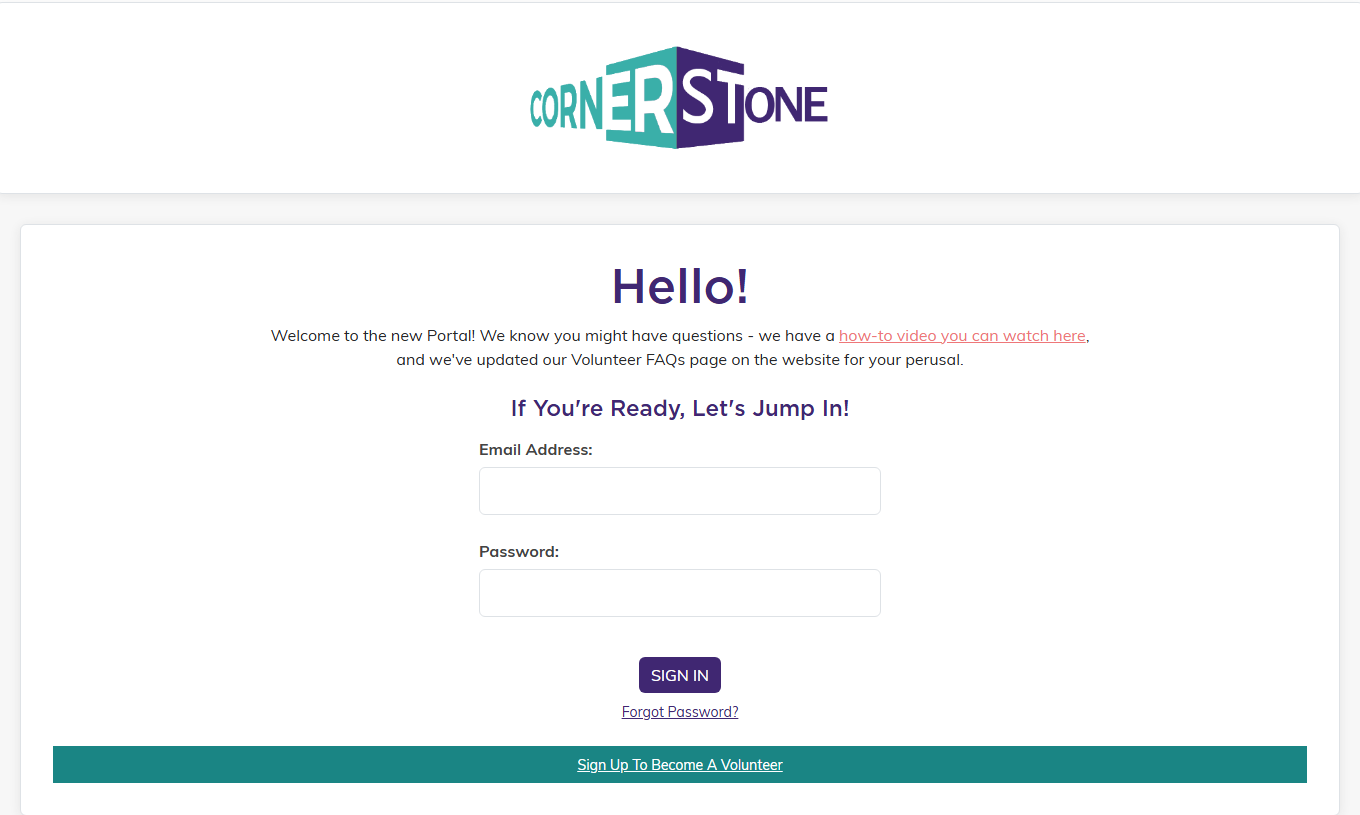
Your own logo sits at the top. A volunteer who has not signed up yet can do it from the bar at the bottom.
Inside the portal
The menu is always on the left, and it holds:
- Dashboard
- My Profile
- Available Tasks
- My Tasks
- Document Library
- My Private Documents
- Discussions
- Settings
- Sign Out
Dashboard
The landing page greets them by first name and shows four counts: Tasks Available, My Pending Tasks, Tasks I've Completed, and Team Tasks Completed. That last one is deliberate, it lets a volunteer see the whole group's effort and not just their own.
Above all that you can run your own message. Go to Our Public Interfaces > Portal Dashboard Message, write whatever your volunteers need to know this month, and click Save Message. It is the full Argenta editor, so images and formatting are fair game.
My Profile
Volunteers keep their own contact details, license, and insurance information up to date here, which saves your coordinator a great deal of chasing. If your organization sends text messages, this is also where they give text consent, which matters for staying on the right side of US messaging rules.
The page refuses a save it cannot store faithfully. A name, address, city, license or insurance value longer than the field holds is rejected, with the field named and its limit given, rather than being shortened without anyone being told. A volunteer saving from a tab that loaded before someone else's save landed is warned that the record has changed since they opened it; pressing Save a second time goes through and overwrites deliberately.
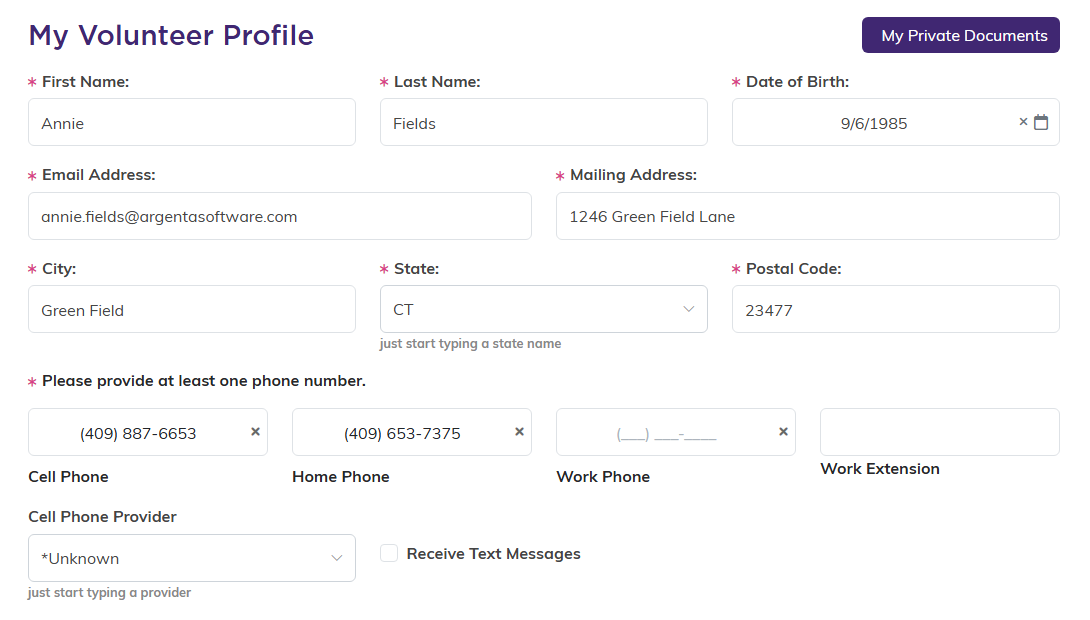
The volunteer keeps this up to date themselves, and it writes straight back to their constituent record.
Available Tasks and My Tasks
Available Tasks is the private version of your public task sign-up. Volunteers can Filter the list, hit Reset to start over, and use Details on any task to read the full description, special instructions, and contact. The location is a link, so it opens straight into Google Maps, and a shift with no address of its own shows its task group's location instead.
The Search box finds shifts by task group, task or place as they type, and Sort By lists them by Date or by Task Group. The list shows 20 shifts at a time, with First, Previous, Next and Last buttons below it, and the count covers every shift that matches.
To claim a task they click Sign Up, then Confirm Sign-Up. Argenta emails your volunteer notification address, sends the volunteer a "You've Signed Up for A Volunteer Task!" confirmation, and queues a reminder for 24 hours before the task.
My Tasks lists everything they have claimed, plus any shift you have assigned to them directly, including one that was never published on the public sign-up list. Each one has Open and Add to Calendar, and an upcoming shift that is still open also has Cancel. Once a shift has started or been closed, the volunteer can no longer cancel it. Add to Calendar downloads a calendar invitation that opens in Google Calendar, Outlook, or anything else that reads a standard invite.
To back out, they click Cancel (or Cancel My Assignment from the task page), then Confirm Cancellation, and a "Volunteer Task Cancelled" notice reaches your coordinator. Never Mind gets them out of the cancel screen if they clicked it by accident.
Documents
Document Library is the shared shelf: handbooks, waivers, training material, anything the group needs. Volunteers can search it, Download anything on it, and use Add Document to contribute their own. A volunteer can Edit or Delete only the documents they uploaded themselves, so nobody can remove your handbook.
My Private Documents is their own storage, visible to nobody else.
Either way, a volunteer can only attach a file type Argenta accepts. That covers PDFs; Word, Excel and PowerPoint, along with their OpenDocument equivalents from LibreOffice and OpenOffice; Apple Pages and Publisher files; rich text, plain text, Markdown and CSV; pictures; and zip files. Anything else is refused, both when they pick it and again when they send it, with a message naming what can be uploaded.
On your side, Our Public Interfaces > Portal Documents is where you manage the shelf, including the Required Read for Users flag for documents every volunteer has to see.
A document carrying that flag shows volunteers a REQUIRED badge in their Document Library, with an I have read this button beneath it. When a volunteer uses that button the badge changes to READ and the library records the date they confirmed. On the document itself you see a confirmed read count, so you can tell at a glance how many people have worked through it.
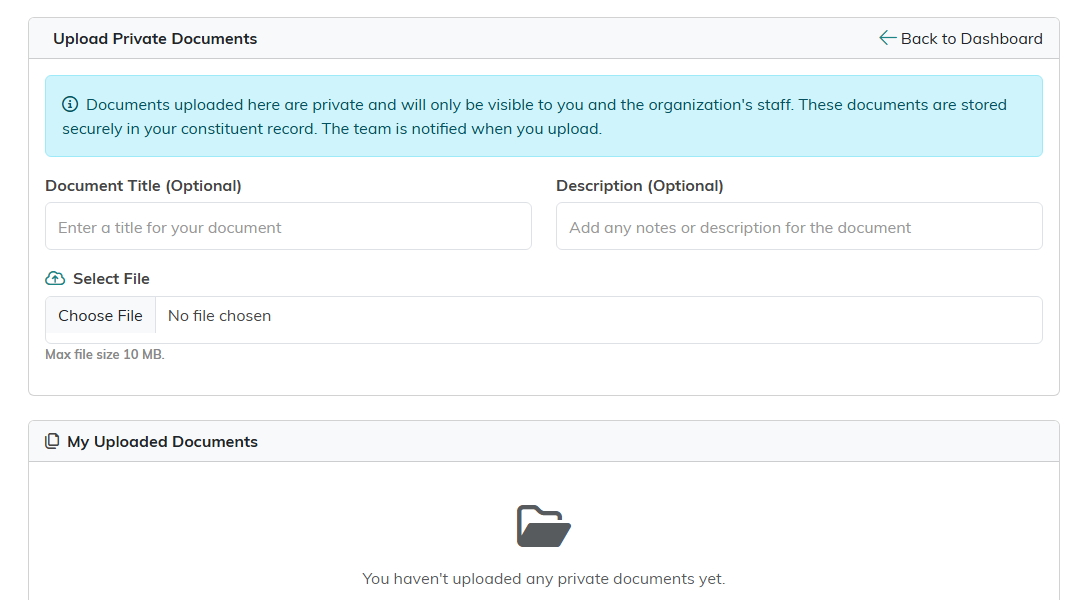
Anything uploaded here is private to the volunteer and your staff, and it lands on their constituent record.
Discussions
Discussions is a simple forum where volunteers talk to each other and to you.
- To start a thread, fill in the Subject and Topic under Start a New Discussion (Topic is a plain text box, not a formatting editor), and click Post Discussion.
- To reply, open a thread, write under Add a Response, and click Post Response. Replies are called responses throughout.
- Editing and deleting. Inside the portal a volunteer can only edit or delete their own posts and responses. Your team can edit or remove anything from Our Public Interfaces > Portal Discussions. Deleting anything in the portal asks the volunteer to confirm first, the same way the rest of Argenta does, whether it is a discussion, a post, a response or one of their own documents.
- Notifications. Every response emails the person who started the thread, your organization address, and your volunteer notification address, so nothing sits unmoderated.
It is worth setting expectations with your volunteers in writing before you turn Discussions on. Say plainly that the forum is a work space and that respect and professionalism apply, the same as anywhere else in your organization.
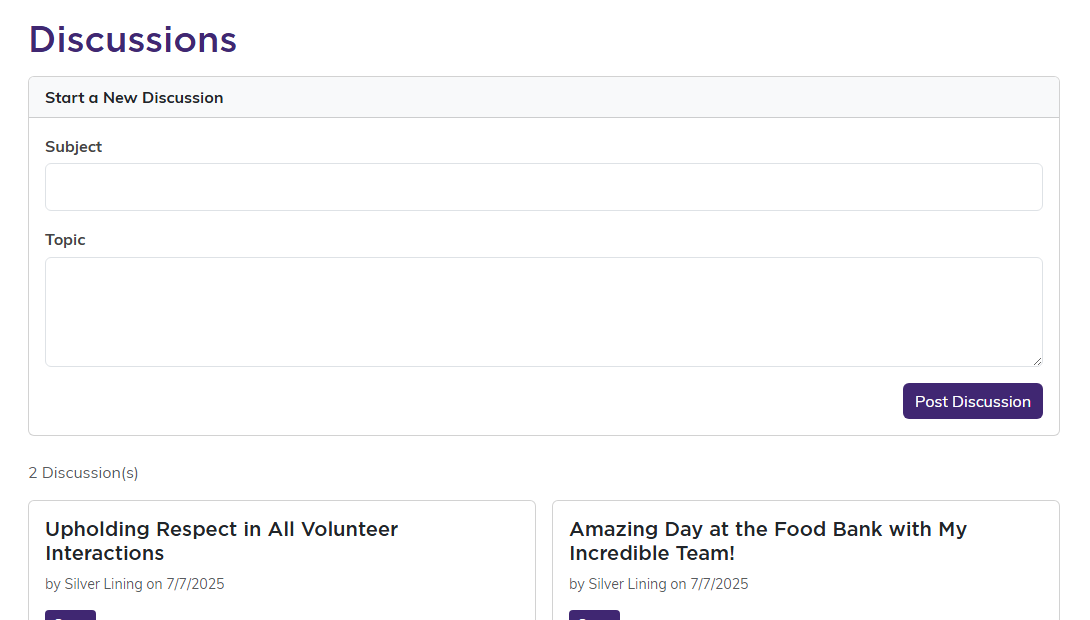
Volunteers start their own threads here, and everyone in the portal can see them.
Account Settings
Under Settings, volunteers manage the account itself: profile photo, name, email address, and Change Password.
There is also a Become An Inactive Volunteer section. Untick Active Volunteer, pick a reason, add a comment, and click Make me inactive. Argenta blocks it if they still have open tasks, which stops a shift quietly losing its volunteer.
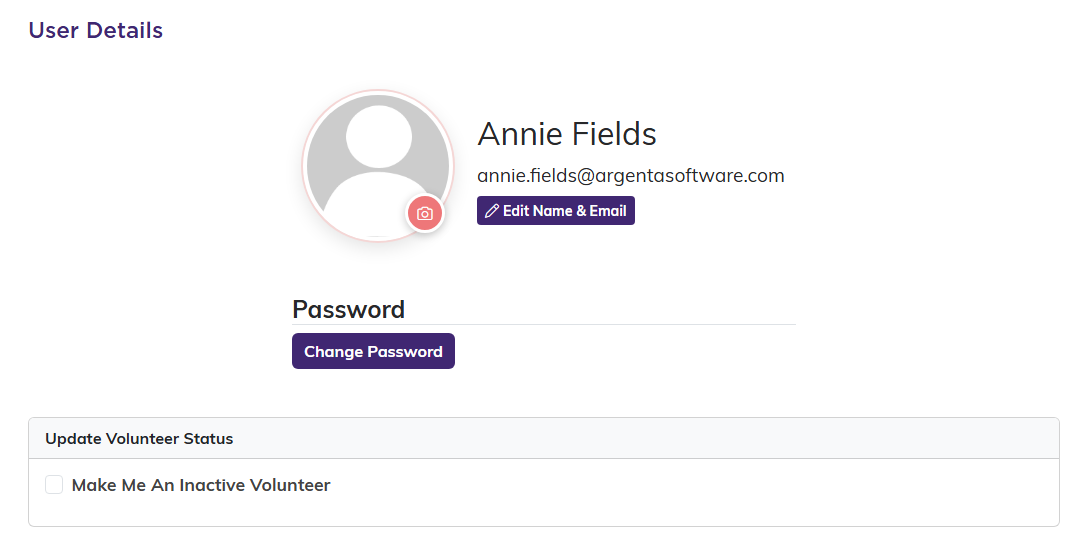
This is also where a volunteer steps back. Ticking the inactive box updates their volunteer record for you.
What you manage from Argenta
Everything on the staff side lives under Our Public Interfaces in the main menu:
- Portal Users. Create accounts, reset passwords, deactivate access.
- Portal Sign-In Log. Who signed in and when.
- Portal Dashboard Message. The message on their dashboard.
- Portal Documents. The shared library and required reading.
- Portal Discussions. Moderation for the forum.
These pages need the portal manager permission or administrator rights. One setting worth checking early is Email Address for Volunteer Notifications under Settings, Email Settings, because that single address receives the interest-form notices, the task sign-ups and cancellations, the discussion replies, a notice whenever a volunteer uploads a private document, and a notice when a volunteer makes themselves inactive. Point it somewhere a real person reads.
If the Volunteer Portal is not switched on for your organization and you would like it, contact Argenta support and we will get it set up.
