Knowledge Base Article
How to Use an Event's Session Roster
The Session Roster lists everyone signed up for an event's sessions on one page, session by session in start-time order. Use it as the plan for the day, print it as a check-in sheet, or export it to Excel.
Open the Session Roster
Open the event and click Session Roster in the Sessions group of the workspace menu, next to Event Sessions. On an event that sells tickets, that group is called Tickets & Sessions.

Session Roster sits next to Event Sessions.
What the Roster Shows
Each session gets its own box. Its heading shows the date and time, the session name, and how many people are signed up against the session's maximum, such as 24/200. A session with no maximum shows the number signed up instead. Click the session name to open that session's Session Participants page.
Under the heading, everyone signed up is listed with their name, email and phone. Someone marked as a no-show carries a No-Show tag. Cancelled sign-ups are left out. A cancelled session is marked Session Cancelled, and a session nobody has signed up for says so.
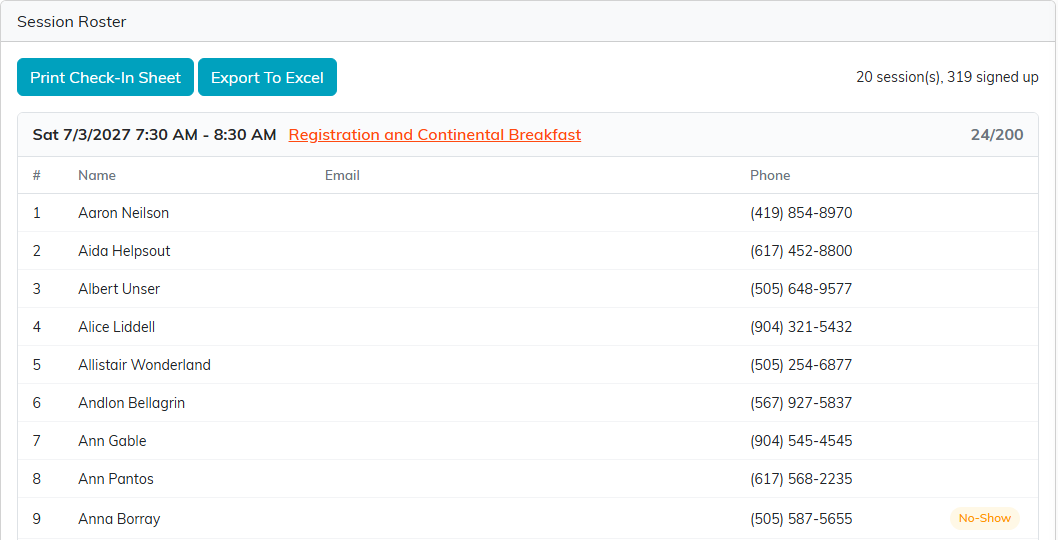
One box per session, in start-time order.
The count at the top right shows how many sessions and sign-ups are on the page. Sessions without a start time come last. Archived sessions are left out, as they are on Event Sessions.
You see only the sessions you can open yourself. When record permissions keep some from you, a note above the roster says how many are not shown. For a participant or constituent record you are locked out of, the name shows but the email and phone read Restricted.
Print a Check-In Sheet
Click Print Check-In Sheet to print the roster with the event's name at the top. Each session keeps its own heading, and each person gets an In box to tick at the door, then their number, name, email, phone and a No-Show column.
Export to Excel
Click Export To Excel to download the roster as a spreadsheet, one row per person. Each row also carries the session's start and end, its name, its signed-up count and whether it was cancelled. A session nobody signed up for still gets a row of its own. The button shows only for administrators and users allowed to export.
To add, cancel or move the people on a single session, see How to Manage Session Participants and the Waitlist.