Knowledge Base Article
How to Use Quick Actions on Your Phone
Quick Actions puts four jobs you do away from your desk on one page made for a phone: checking guests in at an event, photographing a receipt, recording a volunteer's shift, and talking to your agent. Each one is a short version of the full page and saves the same way the full page does.
Opening Quick Actions
On your phone, tap Tools at the top of the screen, then tap Quick Actions. You can also go straight to argentasoftware.com/quick and save it to your home screen.
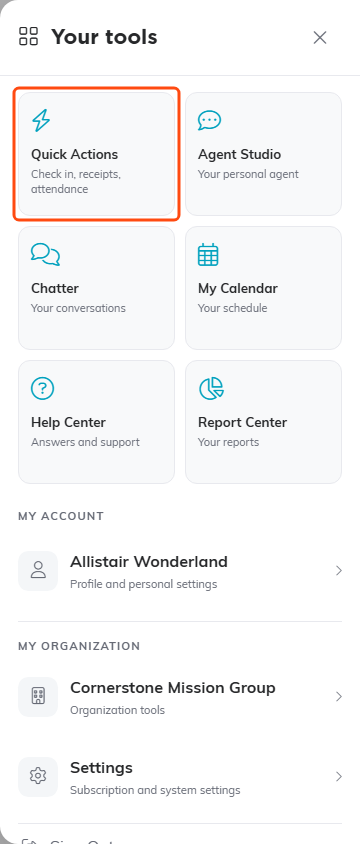
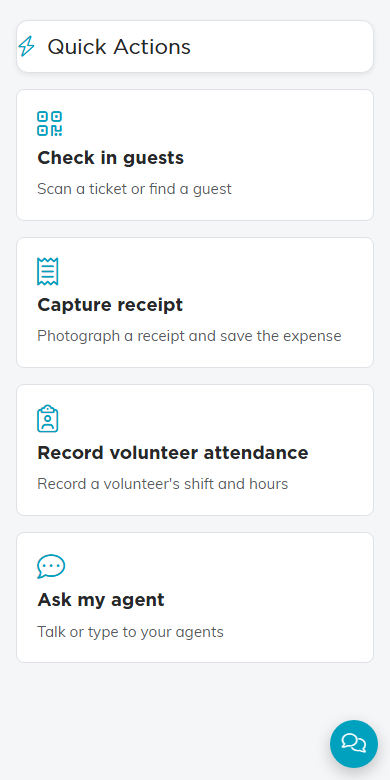
The page shows only the actions your login can do:
- Check in guests for any login that is not view-only.
- Capture receipt for an Expense Manager, a Finance Manager or an admin.
- Record volunteer attendance for a Volunteer Manager or an admin. Teams that record volunteer bakes do that on the Bakes page instead, so they do not get this one.
- Ask my agent when you have an agent in Agent Studio. A view-only login keeps this one, because asking a question saves nothing.
If your phone loses its connection, a notice says you are offline and nothing you do is saved until you are connected again. What you have typed stays on the screen.
Check in guests
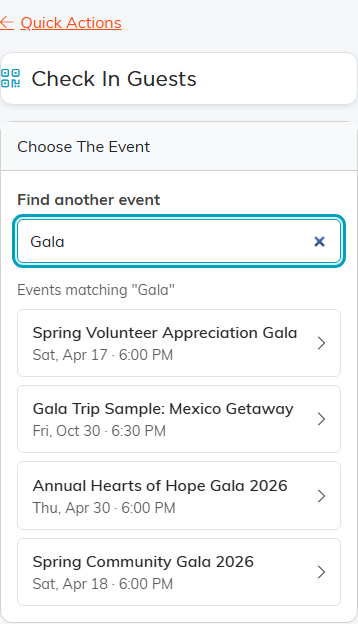
- Tap Check in guests. Events happening today are listed first.
- To find a different event, type part of its name in Find another event.
- Tap the event.
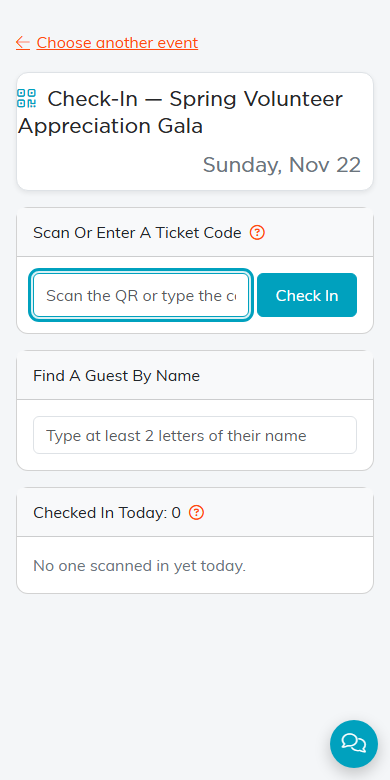
The event's check-in page opens. Scan or type a ticket code, or find a guest by name, just as you would at the door. On a phone whose browser can read QR codes, such as Chrome on Android, a Scan With Camera button uses the phone's camera right on the page. Choose another event at the top takes you back to the list. For everything the check-in page does, see QR Ticketing and Phone Check-In for Events.
Capture receipt
- Tap Capture receipt.
- Tap Take Photo to use the camera, or Choose A Photo for one you already took. The image has to be under 10 MB.
- Argenta reads the receipt and fills in Paid to, Purchase date and Total amount. Check each one and fix anything it read wrong, then add What was it for?
- Tap Save Expense. Nothing is saved until you do, and the payee is matched by name when you save.
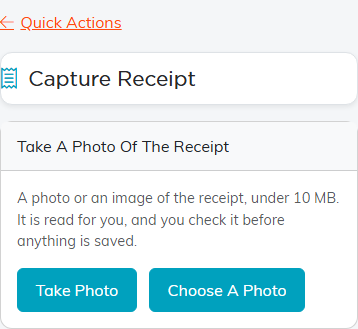
Once it is saved, Open The Expense takes you to the new expense and Capture Another starts again. Cancel throws the photo away without making an expense.
A receipt you have read but not saved waits at the top of the page so you can finish it, for up to four hours. Signing out throws away the ones you have not saved.
Record volunteer attendance
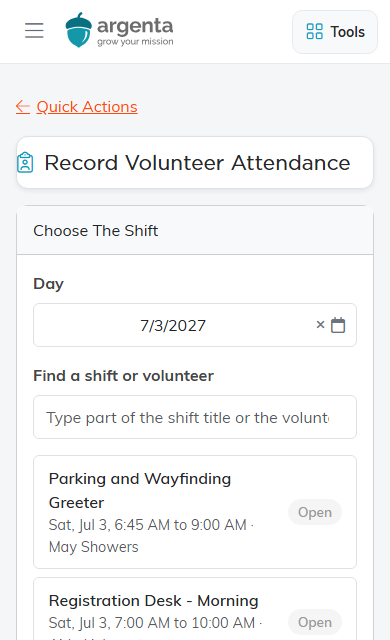
- Tap Record volunteer attendance. Today's shifts are listed. Change Day to see another day, or type in Find a shift or volunteer to narrow the list.
- Tap the shift. A shift that is already recorded shows its hours instead of Open.
- Check the Volunteer, and set Started and Finished to the times they actually worked. The line under the times shows about how many hours that is.
- Tap Record Attendance.
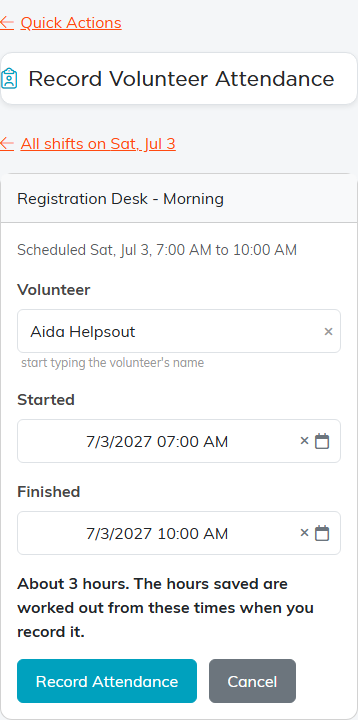
Recording closes the shift with those hours, the same as closing it on the shift's own page. Attendance can only be recorded once a shift has started. If the volunteer has another shift at the same time, you are asked whether to record the hours anyway.
To change hours already recorded, open the shift with Correct It and change them there.
Ask my agent
Ask my agent opens Agent Studio, where you can talk or type to your agent.