Knowledge Base Article
QR Ticketing and Phone Check-In for Events
The short version: When you sell event tickets through Argenta's public ticket sales form, every order now comes with scannable QR-code tickets automatically, and you check guests in at the door using any phone. No scanner hardware, no app to download.
What your ticket buyers get
When someone buys tickets on your public Event Ticket Sales form, they:
- Choose their ticket type and quantity.
- Add an optional donation at checkout, if you've turned that on.
- Pay, and get a confirmation email with one scannable QR code for each guest their order admits.
So a buyer who orders four tickets gets four QR codes, one per guest. They can show a code right from the email on their phone or print it, whichever they prefer.
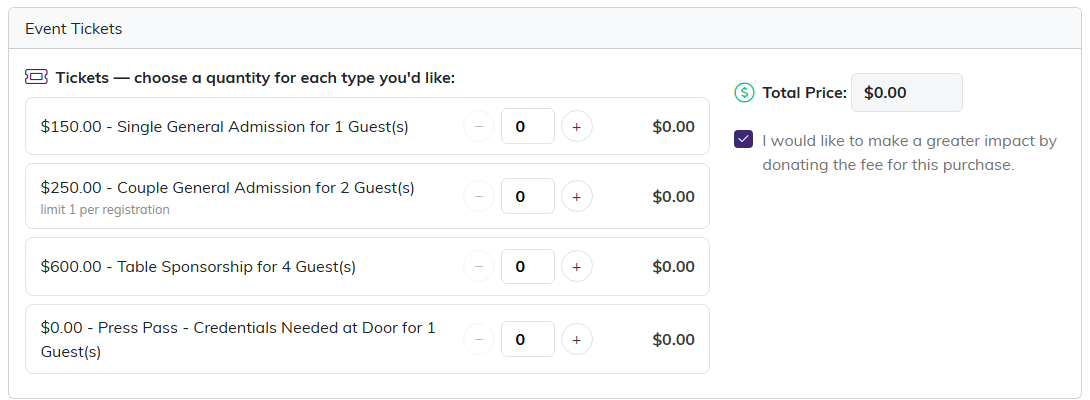
Buyers pick a type and a quantity on your public form.
Setting up your ticket types
You build ticket types the same way you always have, with one new option: an admit window.
An admit window sets when a ticket type is valid for check-in. It's built for multi-day events. Say you're running a three-day fair:
- A "Wednesday Only" pass gets an admit window covering Wednesday, so it only works at the door on Wednesday.
- A "Season Pass" with no admit window works every day of the event.
Leave the admit window blank and the ticket is valid for the whole event. Set a start and end, and the ticket only checks in during that window.
Ticket types are set on the event's Ticket Settings page, which has a short Show Me How To Use This Page video at the top right; click it to watch, and use its chapters to jump to the part you need.
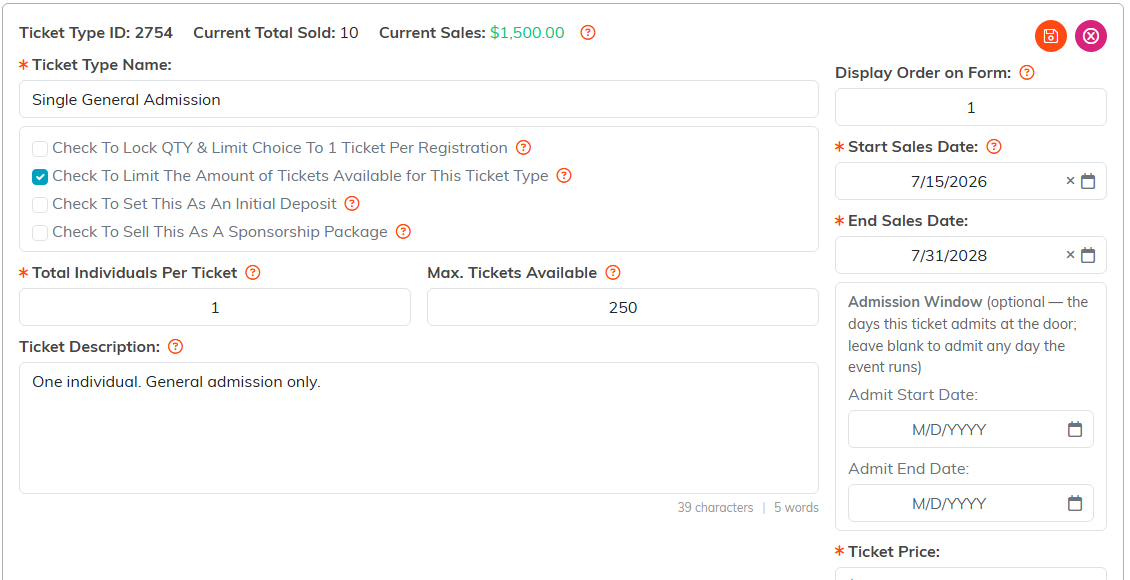
The admit window sets which days the ticket works at the door.
Adding a donation at checkout (optional)
Each event has a toggle that adds an "Add a Donation" field to your public form. Turn it on and buyers can give a little extra alongside their tickets. Leave it off and the field doesn't appear.

One switch adds the donation field to your public form.
Checking guests in on event day
On the day of your event, open the event's check-in page on any phone. It's a web page, so there's nothing to install.
Scan a guest's QR code, whether it's on their phone screen or printed from their email. The page:
- Marks the guest checked in.
- Shows a live running count of everyone who's checked in.
- Warns you if a code has already been used that day ("already checked in today").
- Rejects a code that isn't valid for the day ("not valid today"), based on its admit window.
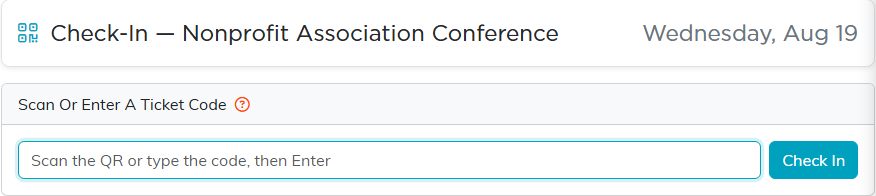
The check-in page is a web page, so there is nothing to install.
Each code checks in once per day. That's what lets a multi-day pass re-enter on each day of your event.
Finding a guest by name
A guest who can't find their ticket, or who registered without one, is found by name. Below the scan box, type at least two letters of their name in Find A Guest By Name. Each match shows with the rest of their party (everyone on the same ticket order, or a guest and their plus-one), with their table, seat, room when the event has more than one, and meal.
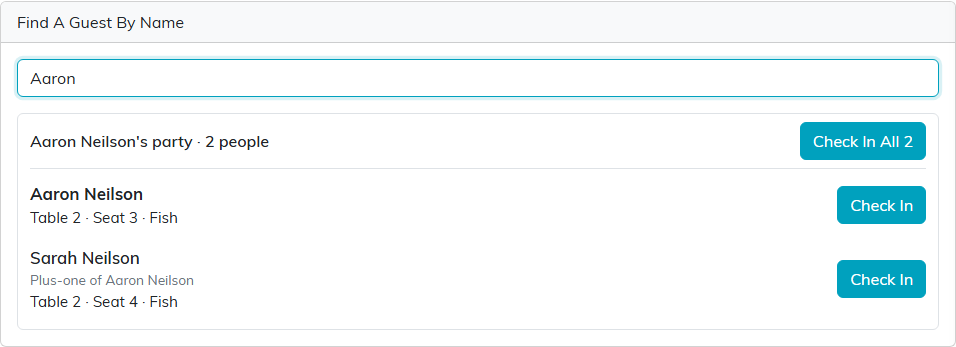
Search by name to see the whole party and where they sit.
Click Check In beside one person, or Check In All to bring in everyone in the party who hasn't arrived yet. A guest on a ticket is checked in through one of that ticket's codes, so a later scan of the same ticket says they're already in. Scanning a ticket that belongs to a named guest shows where they sit too. The gate check-in page has the same box, and there an Undo, wrong person button appears for about two minutes after a check-in.
A note on open-ended ticket sales
If you set an open date for registration but leave the close date blank, your event now correctly stays open for sales. Leave the close date empty to sell open-endedly, or set one to stop sales on a specific date.

Leave the close date empty and sales stay open.
Frequently asked questions
Do my attendees need to print anything?
No. They can show the QR code straight from their confirmation email on their phone, or print it if they'd rather. Both scan the same way.
Do I need a scanner or a special app?
No. Any phone with a camera and a web browser works. You open the check-in page and scan.
Can one person's order cover several guests?
Yes. Each admitted guest on an order gets their own QR code, so one buyer can bring their whole group.
What stops someone from using the same ticket twice?
Each code checks in once per day. Scan it again the same day and the page tells you it's already been used.
How do multi-day passes work?
A ticket with no admit window, or one that spans the whole event, can check in once on each day. A ticket with a single-day admit window only works on that day.
