Knowledge Base Article
How Families Book a Session From the Participant Portal
A family who has booked with you before can book their child's next lesson or package from the Participant Portal. They pick the child, say whether anything has changed, and go straight to choosing a time, without typing the child's details in again.
Offer an Event in the Participant Portal
Open the event and go to Event Details. Turn on Offer in Participant Portal, then click Save All Changes. The switch is there only when your organization has a Participant Portal.
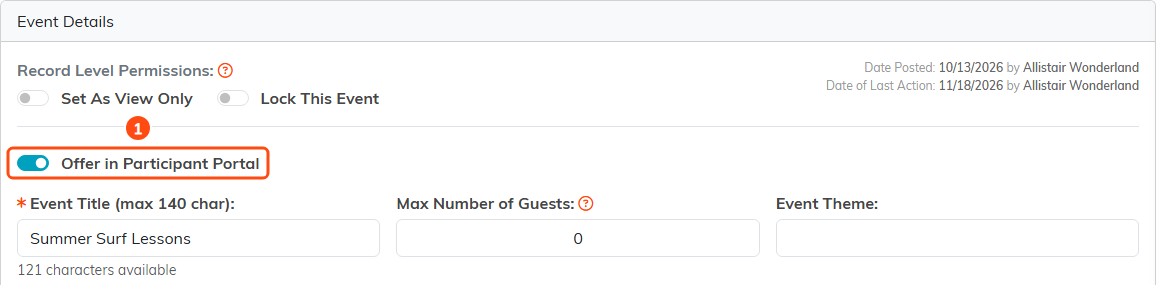
Offer in Participant Portal sits at the top of Event Details.
Families can book an event only when it also has at least one active product of the Event Session Products type, marked for resale, linked to it. That is the same product list the booking form offers in its first step. Turn the switch off and the event stops being offered in the portal; bookings already made are not touched. A change to the switch is written to the event's Modification Log.
The Events export includes an IsParticipantPortalBooking column, so you can see which events are offered.
What Families See
While at least one event is offered, a family signed in to the Participant Portal sees Book a session on their home page, next to Buy a season pass when you sell season passes.

Book a session on the family's home page.
Book a session opens the Book a Session page:
- Under Who is this session for?, the family picks the child. The list holds every child they have finished a booking for before. With only one child, that child is already picked.
- When you offer more than one event, they pick it under What would you like to book?. With only one, it is picked for them.
- Argenta asks whether any of the child's information has changed since the last booking, such as address, phone, accessibility, medical or behavioral notes.
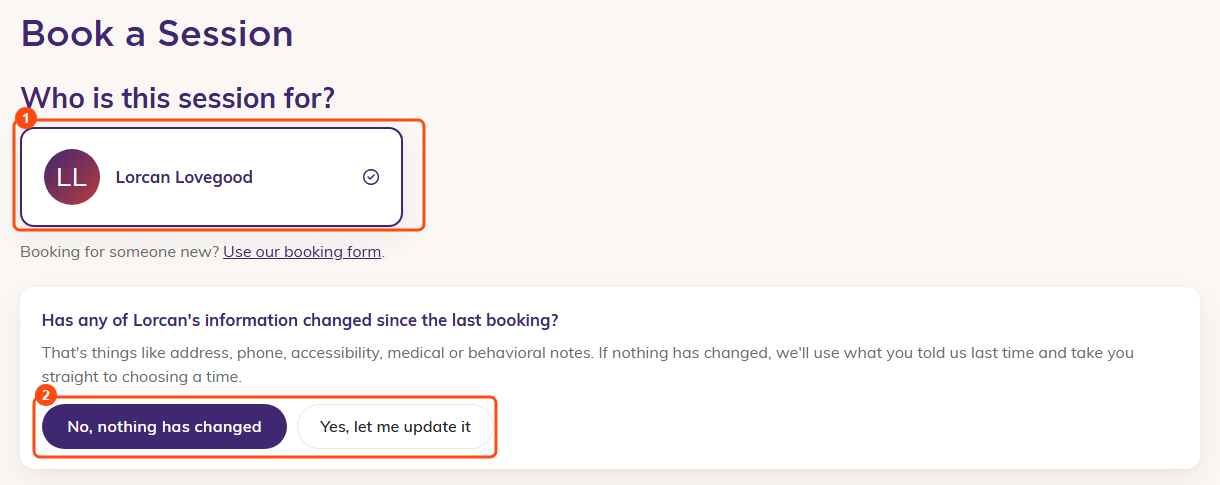
Pick the child, then say whether anything has changed.
No, nothing has changed opens the booking form with the child's answers from last time saved as they were given. The Accessibility and Participant Info steps are skipped, so the family chooses the product, then the location and time, then Final Details. The waiver is accepted again for each booking.
Yes, let me update it opens the same form with every step shown and last time's answers already filled in, ready to change.
A child the family has never booked for is not on the list. Booking for someone new? Use our booking form opens your ordinary booking form. A family with no earlier booking sees Book your first session, which opens the same form.
Paying
The family pays on the form's Payment step, as on any booking. When you use family balances and the family has something left on theirs, the step also shows Have season pass sessions? Use your balance for this booking, which takes them to that booking's payment page in the portal to pay from their balance. See How to Use Family Balances and Season Passes.
When Booking Is Not Open
When no event is offered, the home page shows no Book a session button. A family who opens the Book a Session page anyway is told that booking from their account isn't open right now and asked to check back or get in touch.
A family can book only for their own children, and only into an event you have switched on. Changing the link to another child or event does not reach anyone else's record; the form sends the family back to start again from their account.