Knowledge Base Article
How to Use a Task's Contact Log
A task's Contact Log keeps a dated record of every call, meeting, or message about the task: who made the contact, when, and what was said. Open the task and click Contact Log in the workspace menu.
Read the contact log
Each entry shows the Date of Contact, who it was Contact Made By, the Log Type, and the Contact Description. Entries made on the task carry the log type Tasks. Emails sent from the task's Notifications page are logged here too, starting with Email Sent To: and the address.
- To find an entry, type in Search contact log.
- To change an entry, click the orange edit icon, make your changes, and save. Back To Contact Log returns without saving.
- To delete an entry, click the pink icon and confirm.
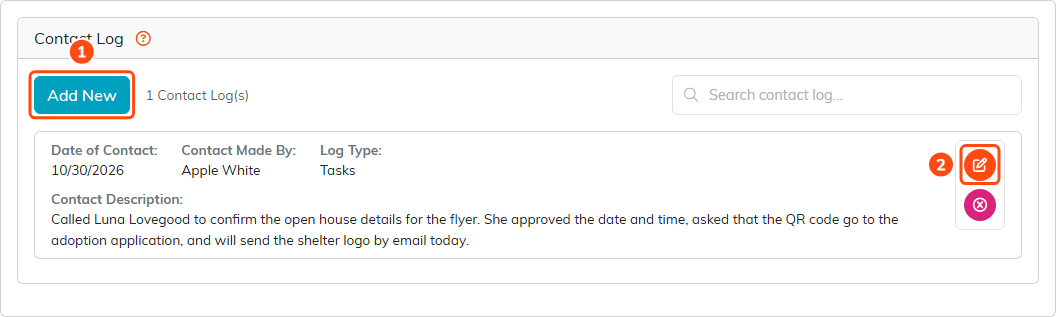
Add New (1), and the edit icon (2) on Apple White's call with the client.
Add an entry
- Click Add New.
- Check the Contact Date. It starts as today.
- Pick the Team Member who made the contact. It starts as you.
- Write what happened in Contact Description. This is the only required field; Save stays unavailable until it has text.
- Click Save.
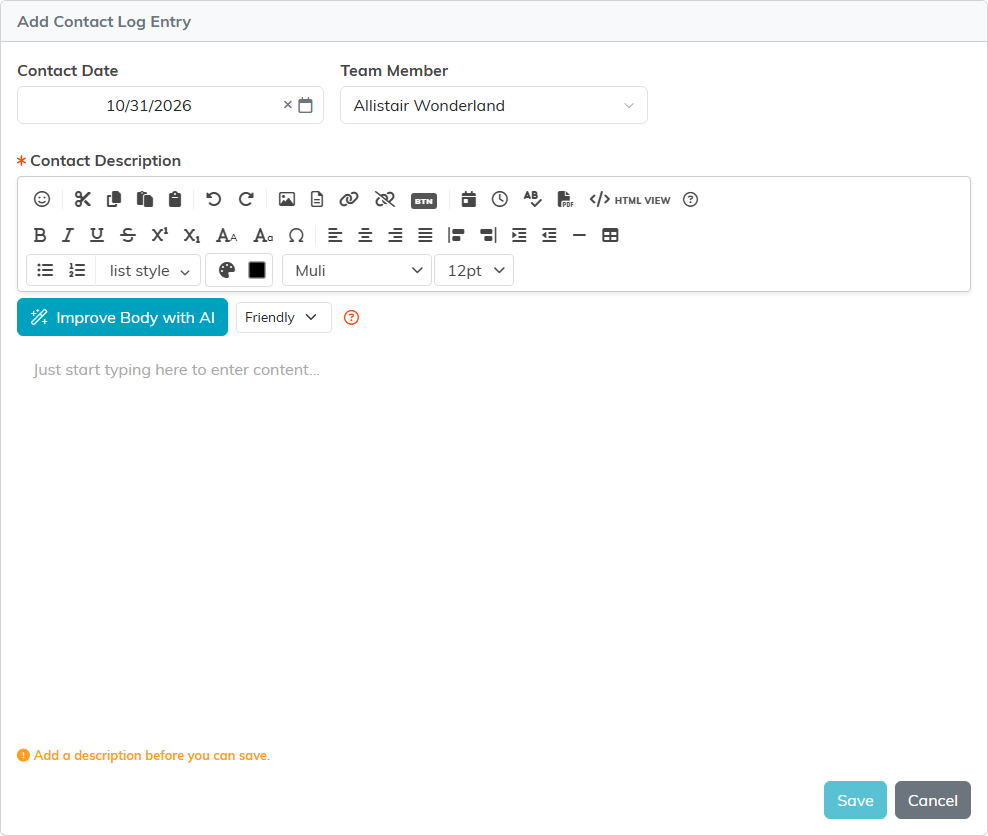
Save turns on once the description has text.
If the task is set as view only or locked and you are not on its Record Permissions lists, you can read the log but not add, change, or delete entries.
To log contact with a person rather than a task, see How to Use the Contact Log to Track Interactions.
