Knowledge Base Article
How to Use the Contact Log to Track Interactions
The Contact Log records your interactions with a constituent, so you have a running history of your conversations and outreach.
Open the Contact Log
- Open the constituent record.
- Click Contact Log in the workspace menu.
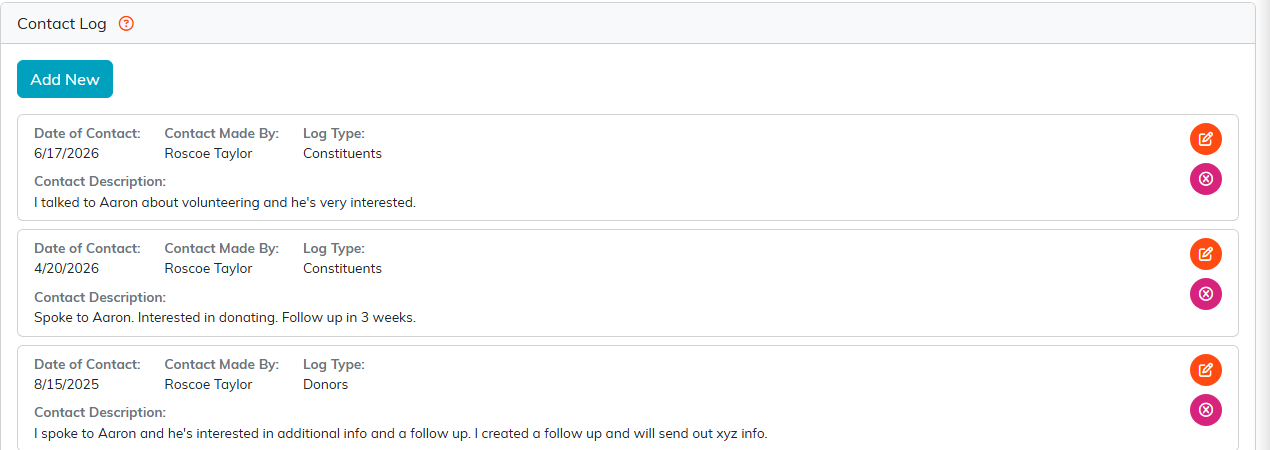
The Contact Log, with Add New at the top.
Add a contact log entry
- Click Add New to open the Add Contact Log Entry form.
- Fill in:
- Contact Date: when the interaction happened (defaults to today).
- Team Member: who from your organization made the contact (defaults to you).
- Mark Contact As An Engagement?: leave it as "Do Not Mark Contact As Engagement", or pick an engagement type to also record this as an engagement.
- Contact Description: a rich-text summary of the conversation. It is required; Save stays off until you type something.
- Click Save.
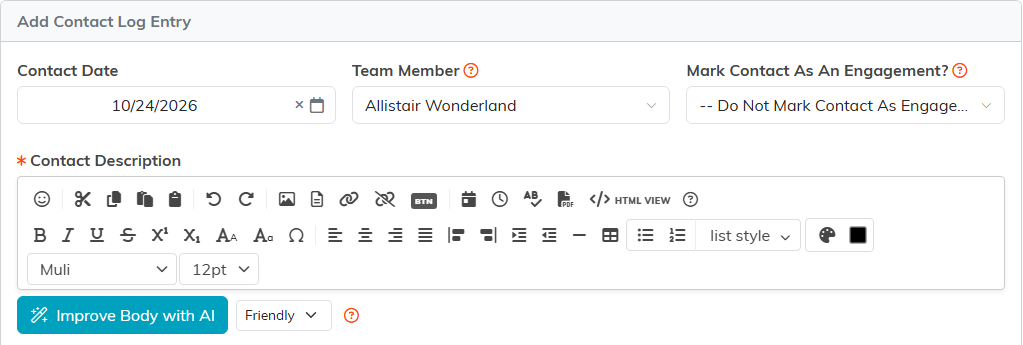
The Add Contact Log Entry form. Contact Description is the one required field.
Review and edit
Each entry shows the Date of Contact, who made it under Contact Made By, and the Contact Description. Use the orange pencil to edit an entry or the pink icon to delete one. Reviewing a constituent's contact log before you reach out shows you recent conversations and anything you promised to follow up on.
