Knowledge Base Article
How to Keep Meeting Minutes on a Task
A task's Meeting Minutes page keeps the minutes of meetings about that task in one place. Minutes you add here belong to the task and also appear in your organization's main Meeting Minutes list.
See the task's minutes
Open the task and click Meeting Minutes in the workspace menu. Each entry shows its ID and title, the meeting date, the short description, and its client, category, and department.
- To find minutes, type in Search by title.
- To reorder the list, pick Meeting Date, Title, Date Posted, Client, Category, or Department in Sort by, and click the arrow beside it to switch direction.
- To download the list, click Export To CSV. This button appears for admins and users who are allowed to export.
- To open minutes, click the green icon on the entry. To delete them, click the pink icon and confirm.
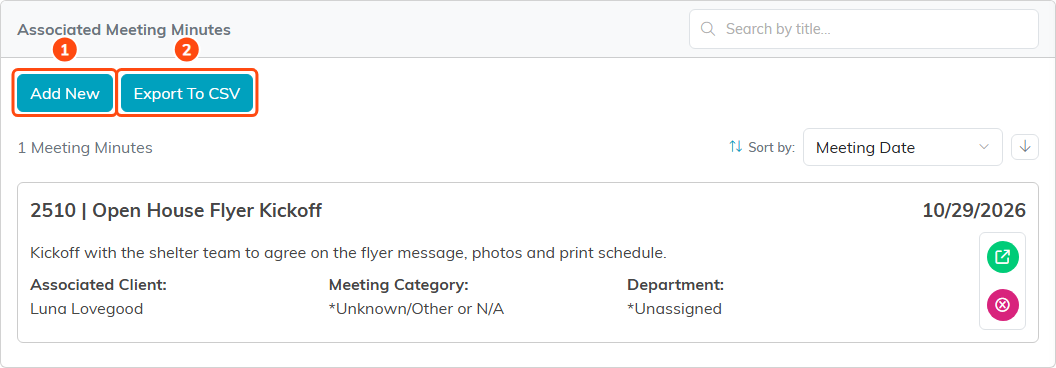
Add New (1), Export To CSV (2), and the kickoff meeting's minutes.
Add meeting minutes
- Click Add New.
- Enter the Meeting Date and a Minutes Title of up to 150 characters. Both are required.
- Click Add & Enter Details.
Nothing is saved until you click Add & Enter Details. Cancel & Exit goes back without adding anything.
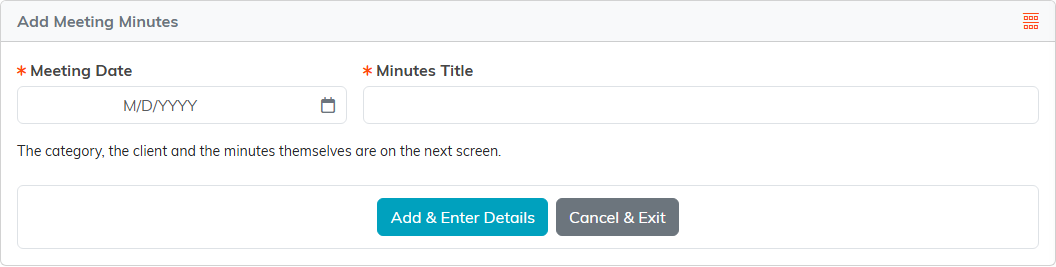
Only the date and title are needed to start.
Write the minutes
The new minutes open in their own workspace. On Meeting Minutes Details, set the category, client, short description, and chapter, division, and department, then save. Then:
- Click Meeting Minutes (Text) in the workspace menu.
- Type the minutes in the editor.
- Click Save and Continue or Save and Exit.
The same workspace has pages for files, checklists, notes, connections, and record permissions on the minutes.
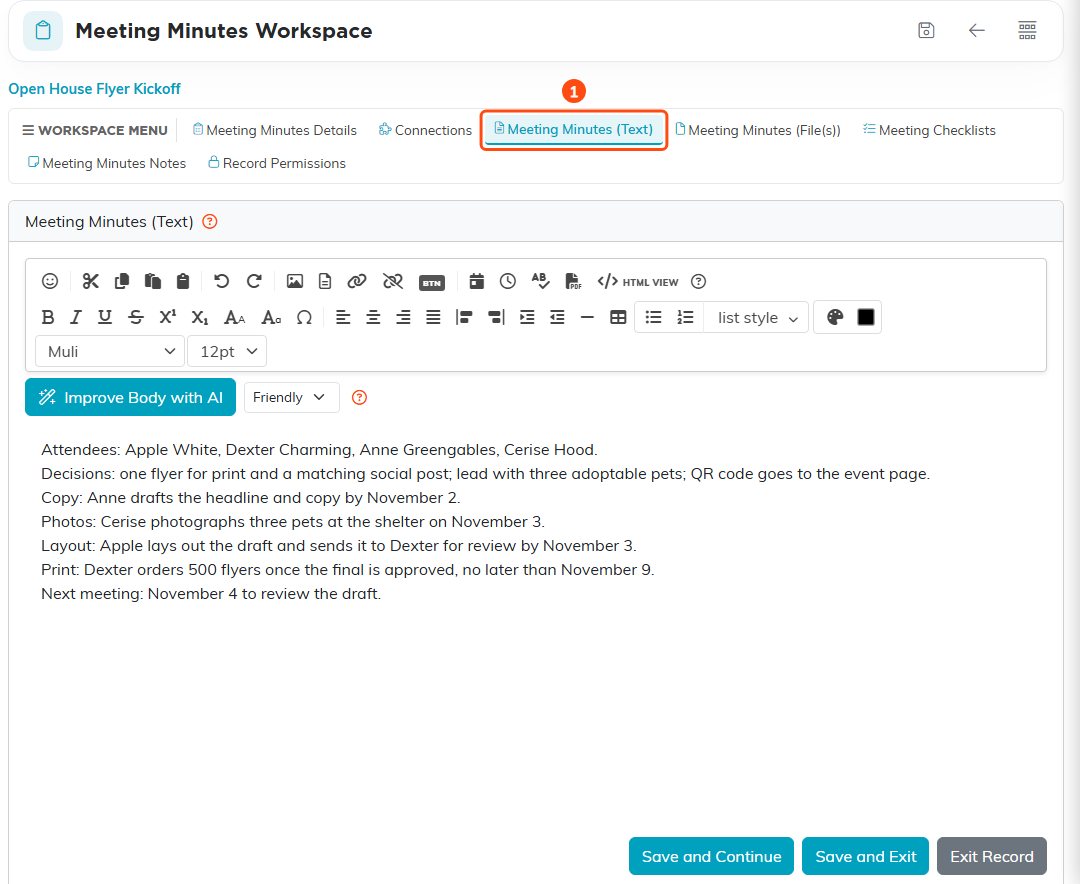
The kickoff minutes on Meeting Minutes (Text) (1).
For everything else the minutes workspace does, see How to Create and Track Meeting Minutes.
