Knowledge Base Article
How to Create and Track Meeting Minutes
Meeting Minutes record what happened in a meeting and what was decided. The record itself holds the meeting's details, and the write-up and any follow-up items live on their own pages beside it.
Go to Workflow & Productivity > Meeting Minutes. Projects and clients/customers also have their own Meeting Minutes page in their workspace, for meetings about them.
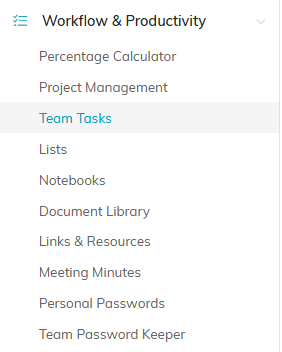
Meeting Minutes sits under Workflow & Productivity in the left menu.
Creating Meeting Minutes
- Click Add New. A short form opens asking for the Meeting Date and the Title of Meeting Minutes. Fill those in and click Add & Enter Details, and Argenta creates the record and opens the Meeting Minutes Workspace. Cancel & Exit leaves nothing behind.
- Fill in Meeting Minute Details. Two fields are required: Meeting Date and Title of Meeting Minutes.
- Add a Category, a Short Description, an Associated Client/Customer if the meeting was about one, and your Chapter, Division, or Department.
- Save.
For a meeting you hold regularly, use the orange Copy & Add New icon on the list instead of starting from scratch.

Add New opens a short form asking for the Meeting Date and the Title of Meeting Minutes.
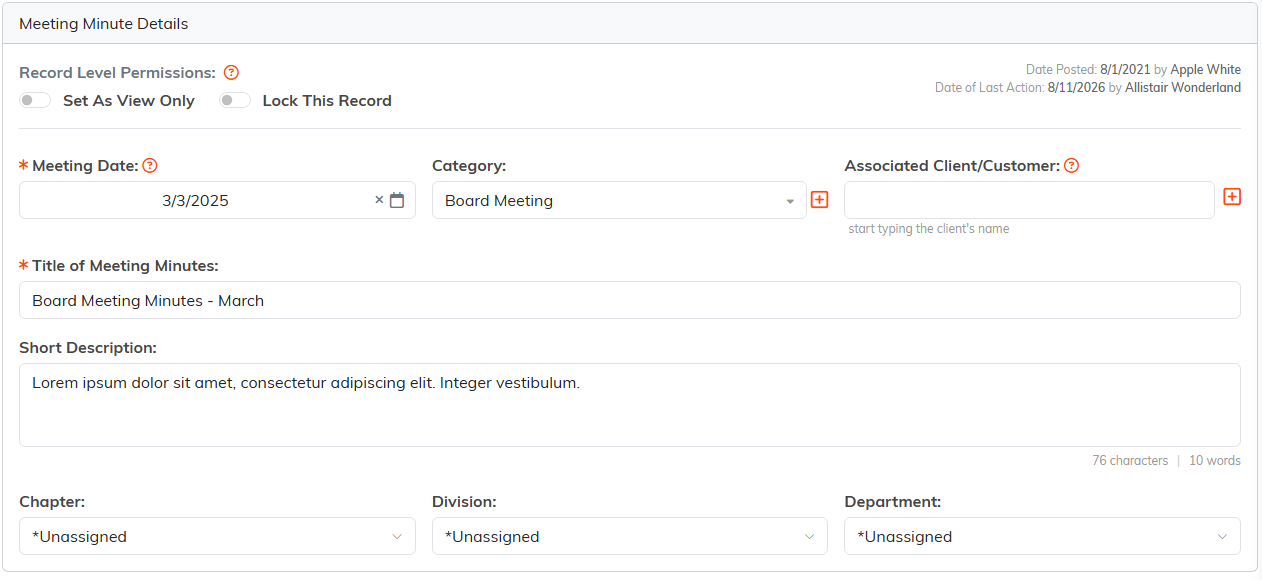
Meeting Date and Title of Meeting Minutes carry the orange asterisk.
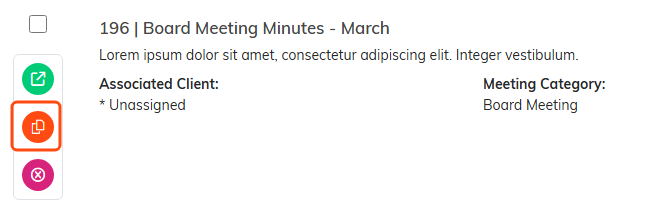
The orange icon copies a regular meeting into a fresh record. The copy is named A Copy of followed by the original's title, so you can find it by searching for the original.
Where the Actual Minutes Go
The details page is just the header. The write-up goes on one of two pages, and which you use depends on how your organization works:
- Meeting Minutes (Text) - type or paste the minutes straight into Argenta, where anyone who opens the record can read them on its Text page
- Meeting Minutes (File(s)) - attach a document instead, for minutes drafted and signed off elsewhere
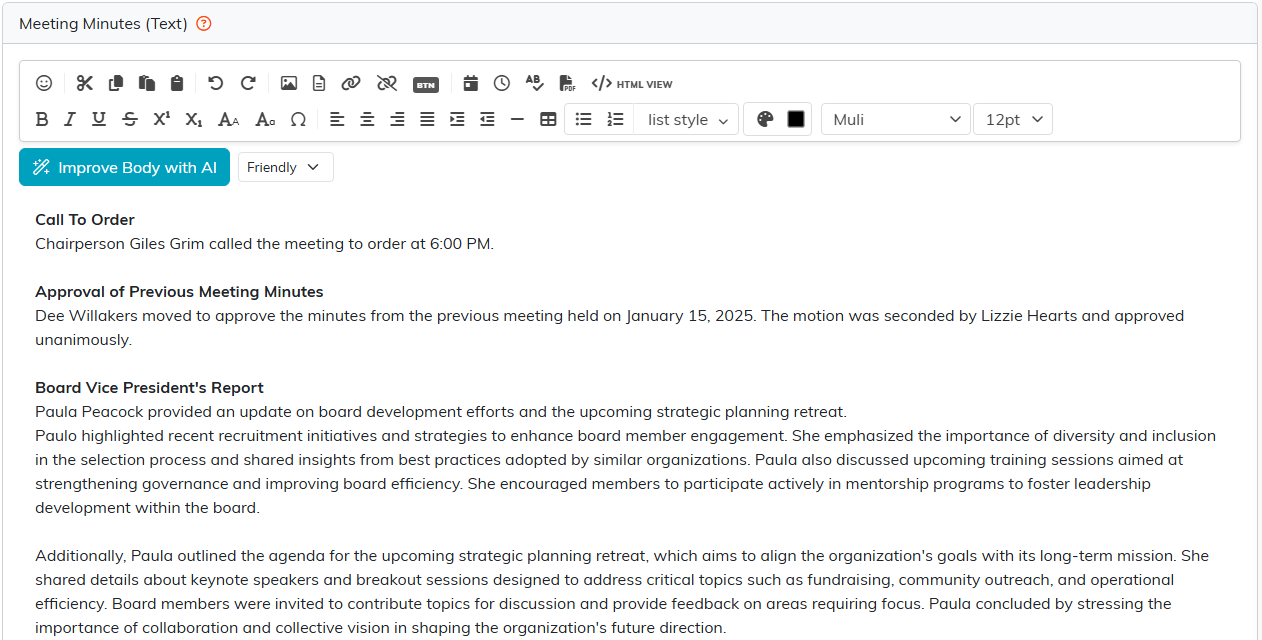
Minutes typed here are read on the meeting's Text page.
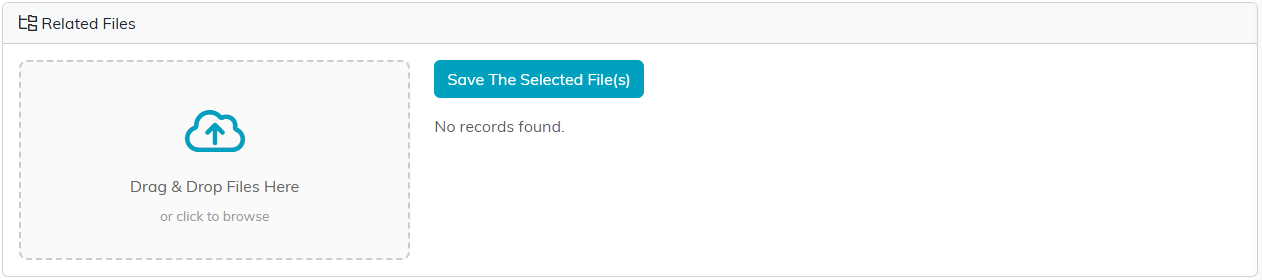
Attach the document here instead when the minutes were signed off elsewhere.
Action Items
Use Meeting Checklists for the follow-ups that came out of the meeting, ticking each one off as it gets done. That keeps the commitments attached to the meeting that produced them rather than scattered across people's own lists.
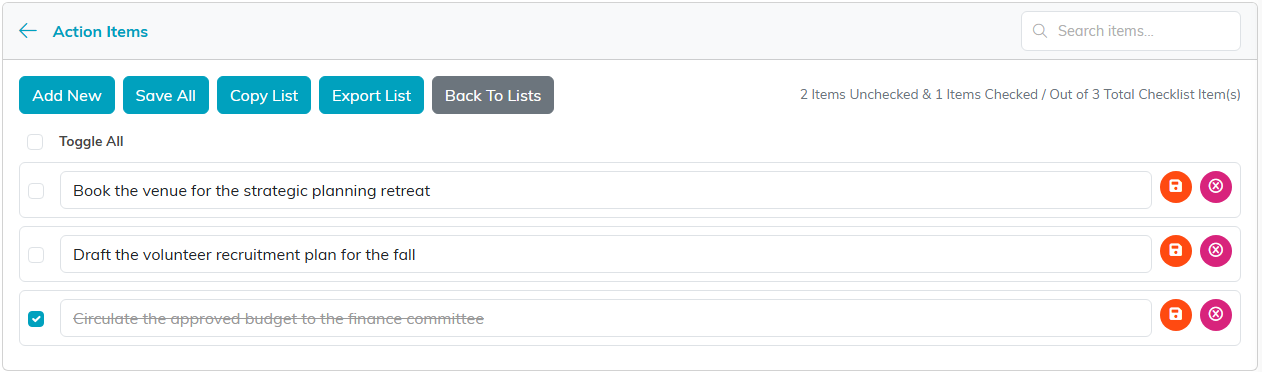
Each follow-up gets its own line, ticked off as it gets done.
Linking a Meeting to Other Records
The Connections page ties the minutes to a client, event, project or task the meeting concerned. Clients/customers and projects list their connected minutes on their own Meeting Minutes page. The minutes list itself searches by ID and title only, so give each meeting a clear title. Each connected record gets a green open icon beside it, which opens that record in a new tab.
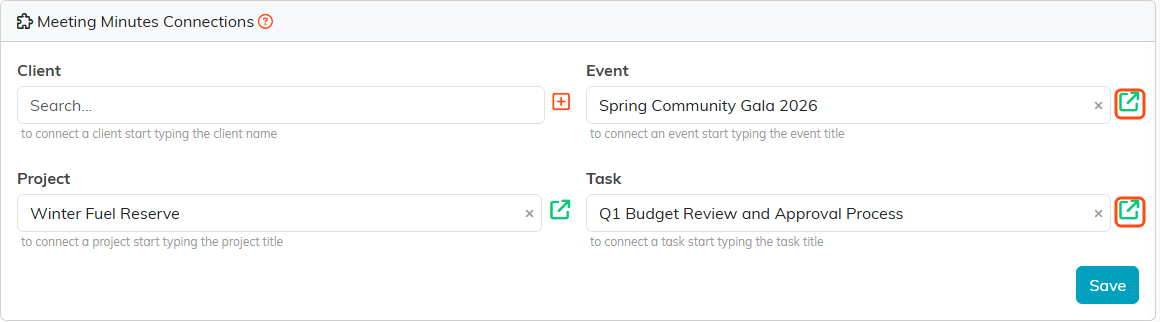
Connections ties the minutes to the records the meeting concerned.
The Meeting Minutes Workspace
- Meeting Minutes Details - date, title, category, description
- Connections - links to related records
- Meeting Minutes (Text) and Meeting Minutes (File(s)) - the minutes themselves
- Meeting Checklists - action items
- Meeting Minutes Notes - internal notes
- Record Permissions - who can view or edit

Every page of the record is on this bar.
Finding Minutes Later
Search the list by ID or title, and export to CSV. Titling minutes consistently, for example "Board Meeting 2026-07" rather than just "Meeting", is what makes them findable a year on.

Search by ID or title, or send the whole list out to CSV.
