Knowledge Base Article
How to Track Time Spent on a Task
A task's Time Tracking page shows the time your staff logged against it on their time sheets, and what that time costs at the task's hourly rate. Hours are not entered on this page; they come from time sheets.
Read the Time Tracking page
Open the task and click Time Tracking in the workspace menu. The top of the page shows how many time sheet entries point at the task, their Total Hours, and the Total Cost. Each entry shows:
- Staff Member: whose time sheet the hours are on.
- Timesheet Item and Description: the kind of work, as set up on the time sheet.
- Hours and Cost: the entry's hours, and those hours times the task's Hourly Rate ($) from Task Details.
If the task has no hourly rate, the costs read No rate set instead of $0.00. Set the rate on Task Details.
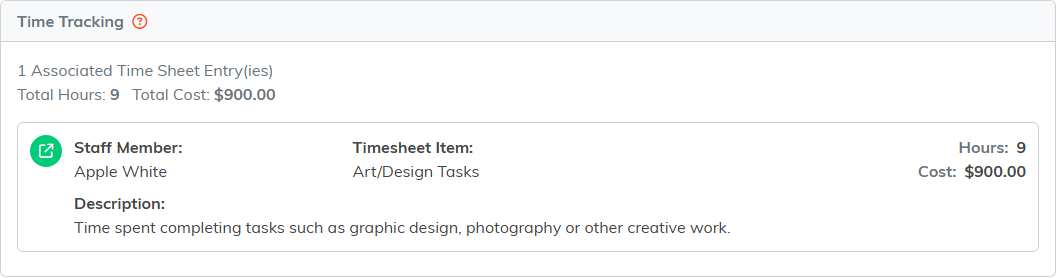
Nine hours from Apple White's time sheet, at the task's 100 dollar rate.
Log time against a task
- Open the staff member's time sheet from Time Sheets, on its Tasks & Hours page.
- On the row for the work, start typing the task's title in Associated Task and pick it from the list. The link saves as soon as you pick it.
- Enter the hours for each day on that row.
The hours then appear on the task's Time Tracking page. You can change the link and the hours while the time sheet is still open; once it is submitted for approval, its tasks and hours can no longer be edited.
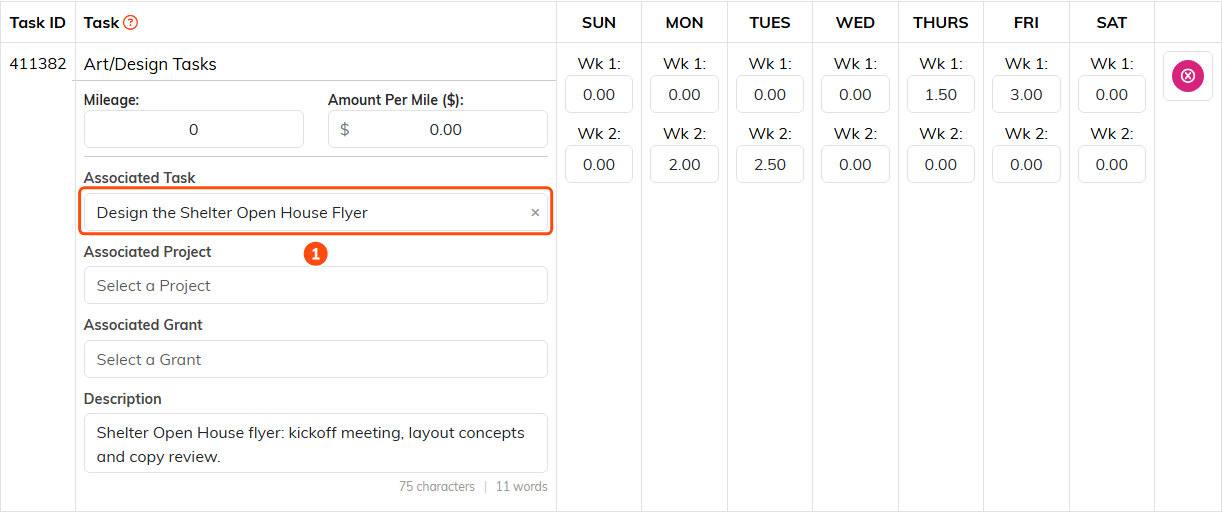
The time sheet row linked to the task in Associated Task (1).
For setting up and submitting time sheets, see How to Use Time Sheets to Track Staff Hours.
How logged hours are used
- Task Spark shows them as Logged Hours beside the task's estimate.
- Task Billing does not add them up by itself. It bills the Billable Hours (#) on Task Details, so enter the hours you mean to bill there. See How to Bill a Task and Generate Its Invoice.
