Knowledge Base Article
How to Bill a Task and Generate Its Invoice
The Task Billing page works out what a task costs the customer and turns it into an invoice. Open the task and click Task Billing in the workspace menu.
What the totals mean
- Billable Hours: the Billable Hours (#) on the task's Task Details. Hours logged on time sheets are not added here by themselves; enter the hours you mean to bill on Task Details.
- Hourly Rate: the Hourly Rate ($) on Task Details.
- Total Cost: billable hours times the hourly rate.
Generate an invoice
- On Task Details, make sure the task has an Associated Client/Customer, Billable Hours (#) above zero, and an Hourly Rate ($), then save.
- On Task Billing, click Generate An Invoice.
Argenta creates one invoice to the task's client with a single line, the task's title, priced at the total cost, and shows it on the page. Nothing is emailed to the customer. The invoice takes the task's chapter, division, and department, and its view only and lock settings.
Generate An Invoice appears only for a Finance Manager or a Master Admin, only while the task has billable hours and no invoice, and only if the task is not view only or locked for you. If the task has no client, Argenta does not create the invoice and asks you to pick one on Task Details.
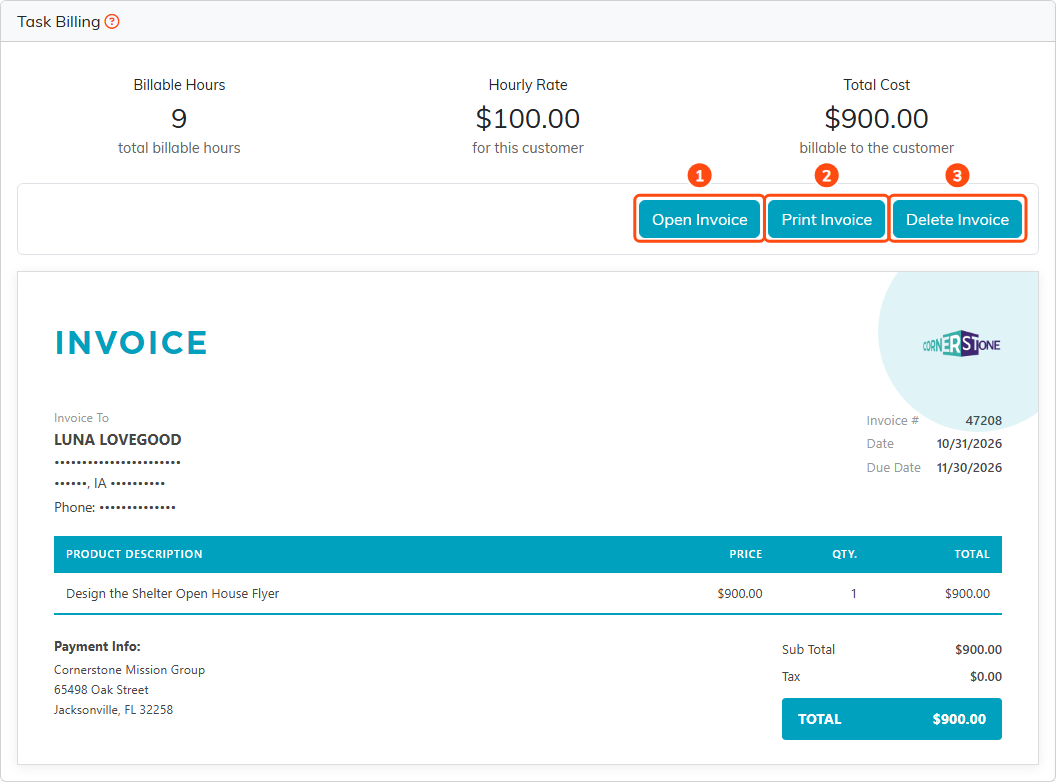
The task's invoice, with Open Invoice (1), Print Invoice (2), and Delete Invoice (3). The customer's address is hidden in this picture.
Work with the invoice
- Open Invoice opens the invoice's own details page.
- Print Invoice makes a PDF of the invoice to print or save.
- Delete Invoice deletes it after you confirm, so you can generate a new one. It appears only if you are allowed to delete that invoice.
A task has one invoice at a time. To bill a change in hours, delete the invoice and generate it again, or change the line on the invoice's own page.
To log the hours spent on the task, see How to Track Time Spent on a Task.
