Knowledge Base Article
How to Plan Sprints for a Task
A sprint is a short, dated stretch of work. On a task's Sprint Planning page you set up sprints, put the task's sub-tasks into them, and watch each sprint's progress. A task can have only one active sprint at a time.
Open Sprint Planning
Open the task and click Sprint Planning in the workspace menu. Sprints are listed under Sprint Management on the left, each with a status badge (Upcoming, Active, or Completed), its dates, and how many of its sub-tasks are done. Click a sprint to see its overview on the right: how many sub-tasks are planned, completed, and remaining, and the sub-tasks in that sprint.
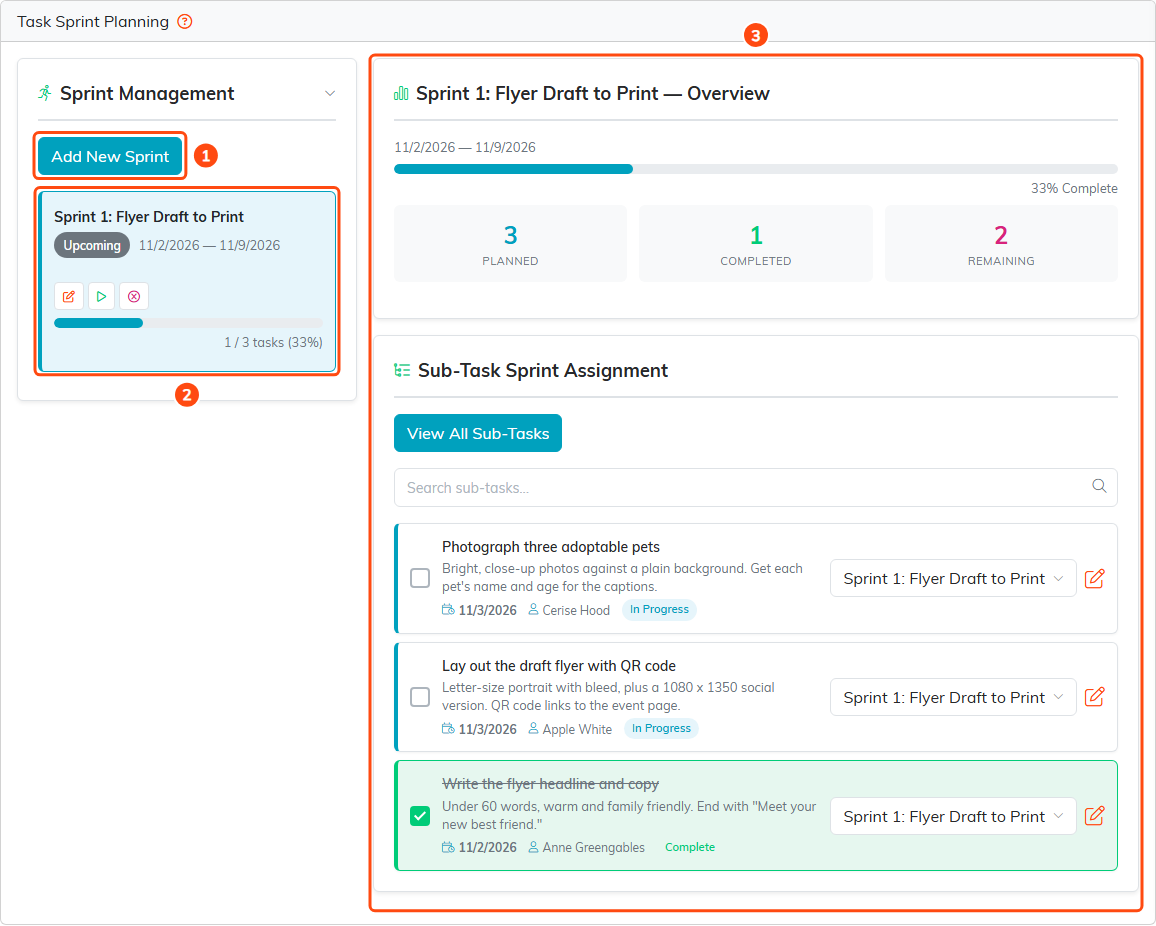
Add New Sprint (1), a sprint and its buttons (2), and the selected sprint's overview and sub-tasks (3).
Add a sprint
- Click Add New Sprint.
- Enter a Sprint Name, a Start Date, and an End Date.
- Click Save.
A new sprint starts as Upcoming.
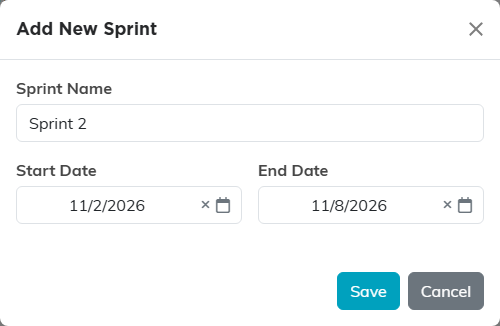
Name the sprint and give it its dates.
Run a sprint
Each sprint has small buttons under its dates. Which ones you see depends on its status.
- Edit (orange): change the sprint's name or dates.
- Activate (green arrow, on an upcoming sprint): makes it the task's active sprint. Any other active sprint on the task stops being active.
- Complete (on the active sprint): marks it completed. Argenta tells you how many of its sub-tasks were not finished.
- Carry Forward (on a completed sprint that still has unfinished sub-tasks): moves those unfinished sub-tasks into another sprint you pick. Finished ones stay where they are.
- Delete (pink): deletes the sprint after you confirm. Its sub-tasks are not deleted; they are left with no sprint.
Put sub-tasks into a sprint
- To move one sub-task, pick a sprint in the dropdown on its row under Sub-Task Sprint Assignment.
- To move every sub-task that has no sprint into the active sprint at once, click Assign All Unassigned to Active Sprint. This button appears only while a sprint is active.
- When you have clicked a sprint, only its sub-tasks are listed. Click View All Sub-Tasks to see them all again.
You can also tick a sub-task done, or click its orange edit icon to change it, from this list. To create sub-tasks, see How to Break a Task into Sub-Tasks.
If the task is set as view only or locked and you are not on its Record Permissions lists, you can see the sprints but not change them.
