Knowledge Base Article
How to Break a Task into Sub-Tasks
Sub-tasks break one task into smaller steps that you can hand out and tick off one at a time. They belong to that task alone. Their hours and assignees do not change the task's own Work Hours or who the task is assigned to, and they never appear on the main task list. If a piece of work needs its own status, client, or billing, make it a task of its own instead.
Open the sub-task list
Open the task and click Sub-Tasks in the workspace menu. The list shows how many sub-tasks are done, the percentage complete, and the total hours of all the sub-tasks.
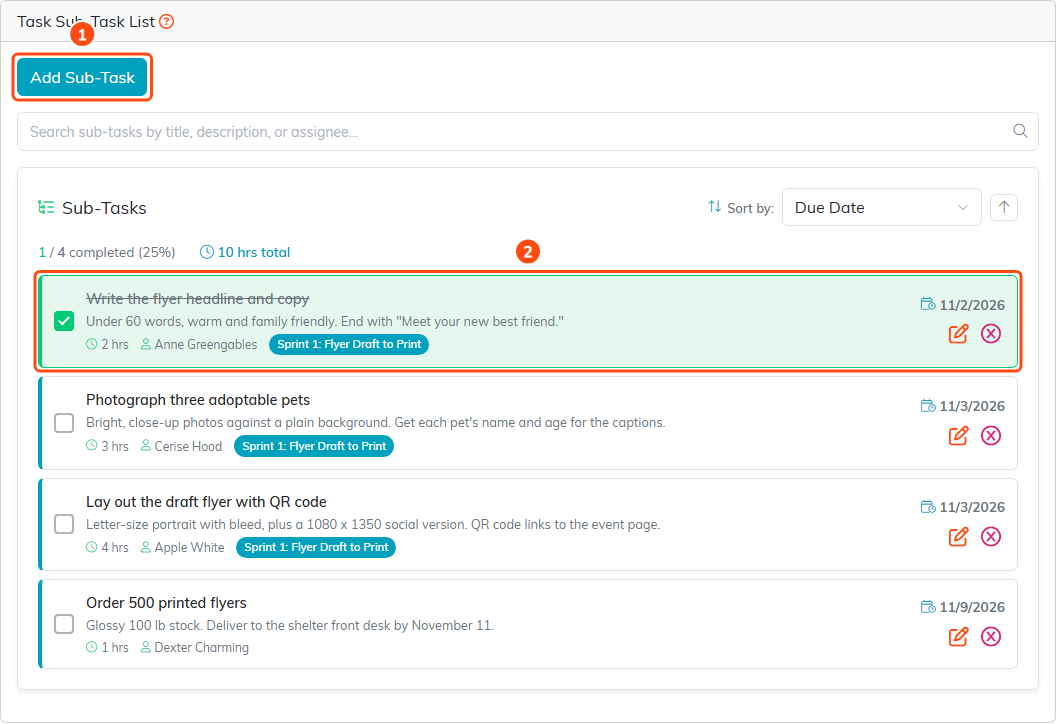
Add Sub-Task (1), and a finished sub-task (2) shown ticked and crossed out.
Add a sub-task
- Click Add Sub-Task.
- Enter the Sub-Task Title. This is the only required field.
- Optional: Enter a Description, the Hours it should take (quarter and half hours such as
1.5are fine), and a Due Date. - Optional: In Assignee, start typing a team member's name and pick them from the list.
- Optional: Pick a Sprint. The list shows the sprints set up on the task's Sprint Planning page.
- Click Save.
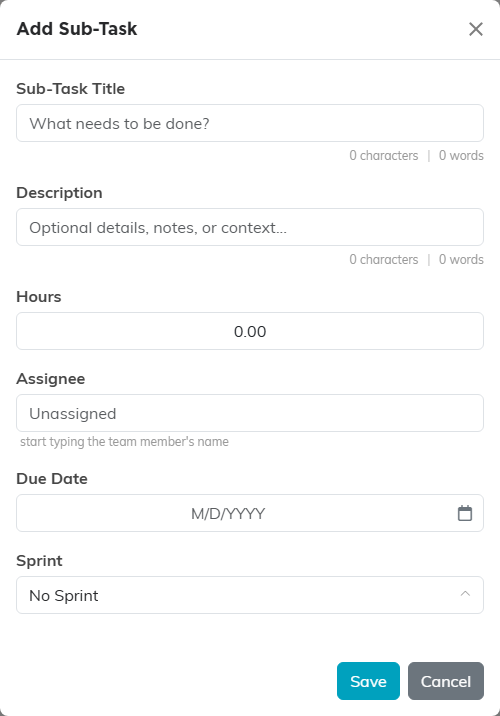
Only the title is required.
Work with the list
- To mark a sub-task done, select its checkbox. Clear the checkbox to reopen it.
- To change a sub-task, click the orange edit icon on its row.
- To delete a sub-task, click the pink icon on its row and confirm.
- To find a sub-task, type in the search box. It searches titles, descriptions, and assignees.
- To reorder the list, pick Due Date, Task Name, or Team Member Assigned in Sort by, and click the arrow beside it to switch between ascending and descending.
If the task is set as view only or locked and you are not on its Record Permissions lists, you can read the sub-tasks but not add, change, tick, or delete them.
To group sub-tasks into time-boxed sprints, see How to Plan Sprints for a Task.
