Knowledge Base Article
How to Write Task Specifications
The Specifications page holds the full write-up for a task: what is being asked for, what finished looks like, and anything the person doing it needs to know. Whatever you write here is saved as the task's description, so Task Spark and Notifications use this same text.
Write the specifications
- Open the task and click Specifications in the workspace menu.
- Type the specifications in the editor. Headings, lists, links, and tables all work.
- Optional: To have the wording tidied, pick Friendly, Formal, or Brief and click Improve Body with AI.
- Click Save and Continue to stay on the page, or Save and Exit to save and go back to the task list.
Exit Record leaves without saving.
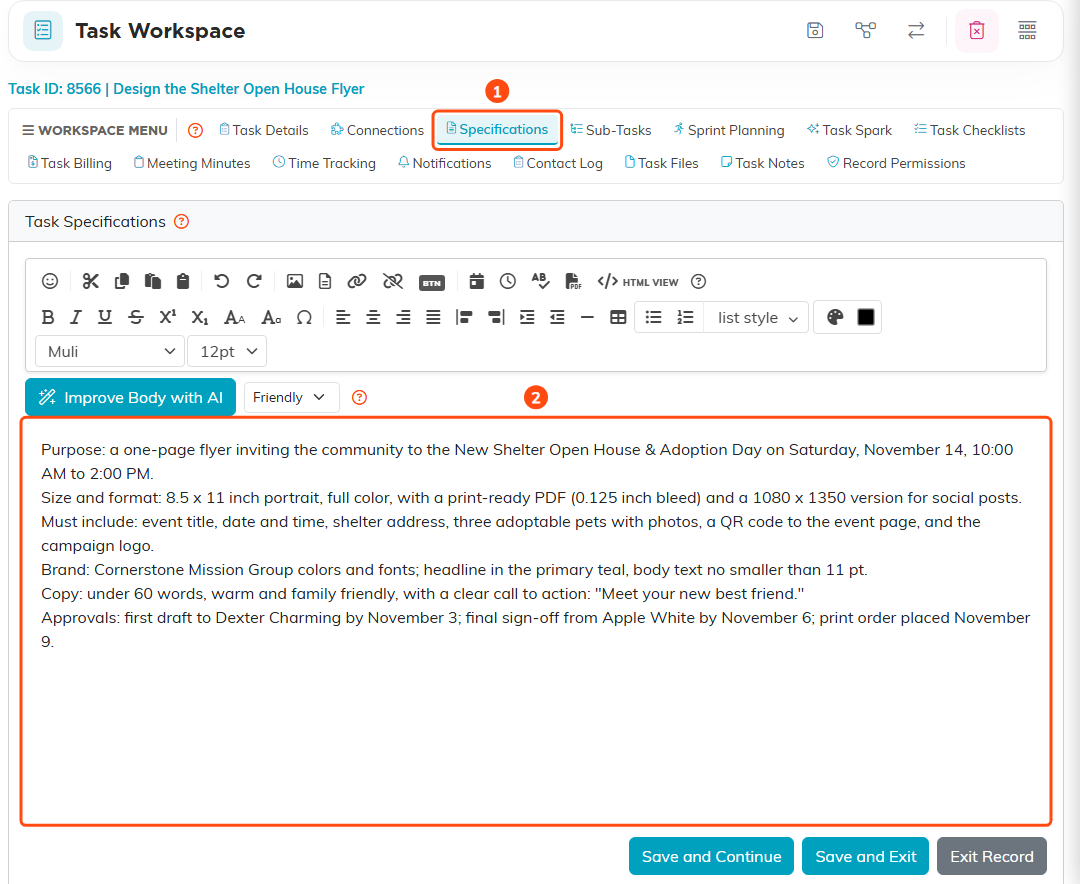
Specifications (1) in the workspace menu, and the write-up for the flyer (2).
When you cannot edit
If the task is set as view only or locked and you are not on its Record Permissions lists, the editor is read-only and the two save buttons do not appear.
If someone else saves the task while you have the page open, Argenta does not save over their change. It tells you, so you can reload and see what they wrote, or click save again to replace it with what is on your screen.
Where the specifications are used
- Task Spark: Use Specs for AI Breakdown copies the specifications into the planner so it can suggest sub-tasks.
- Notifications: the starting email message includes the specifications under the task's assignment line.
For the rest of the task, see Add Tasks in the Task Management Module.
