Knowledge Base Article
How to Record Bank Withdrawals
A withdrawal records money your organization took out of one of its bank accounts, such as petty cash or a bank fee. Each withdrawal can post to your books as a General Journal entry, so your bank account and your chart of accounts stay in step with the statement. Withdrawals are open to admins and to anyone with the Finance Manager permission.
Find your withdrawals
Go to General Financials > Withdrawals. The list shows each withdrawal with its ID, description, bank account, amount, date, the team member who made it and the account it posts to. The line above the list adds them up, for example 1 Withdrawal(s) Totaling $100.00.
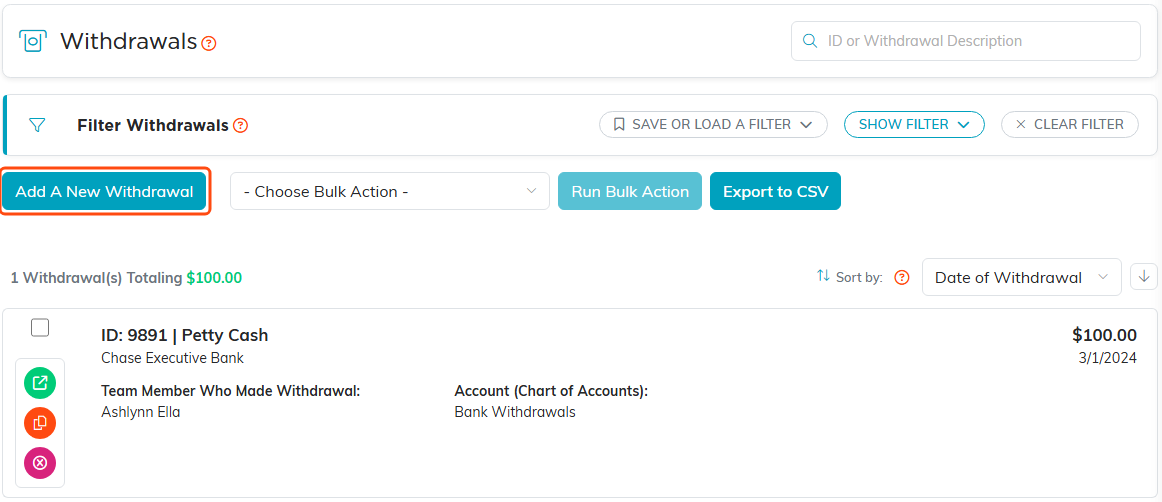
Add A New Withdrawal sits above the list.
- To find one withdrawal, enter its ID or part of its description in the search box at the top right.
- To narrow the list, click Show filter and choose a Deposit Account, an Account (Chart of Accounts), a Date of Withdrawal Range or a Withdrawal Amount Range. Save or load a filter keeps a filter you use often.
- To download the list, click Export to CSV.
Add a withdrawal
- On the Withdrawals list, click Add A New Withdrawal.
- In Constituent, start typing the name of the person or business the money went to, then pick them from the list.
- Click Add & Enter Details. The withdrawal is created and the Withdrawal Workspace opens on Withdrawal Details.
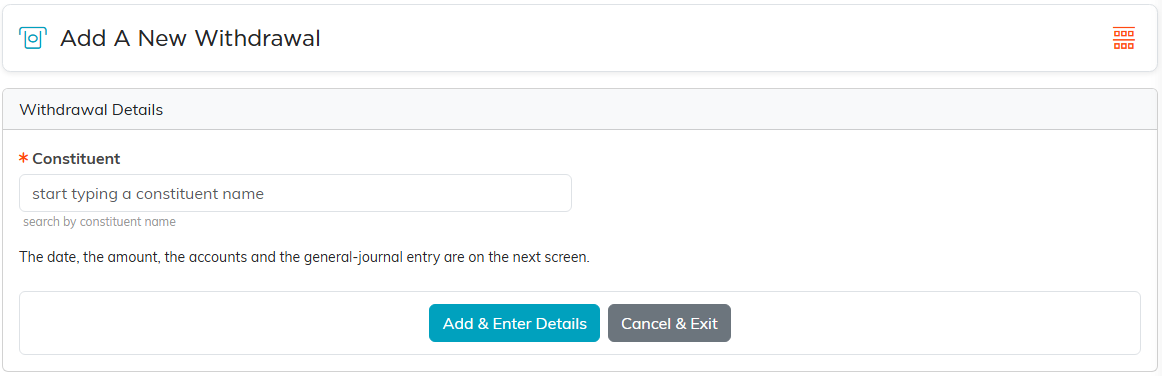
The first step asks only for the constituent.
Nothing is saved until you click Add & Enter Details, so Cancel & Exit leaves no record behind. A new withdrawal starts at $0.00, and it will not save again until you enter its amount on the next screen.
Fill in the details
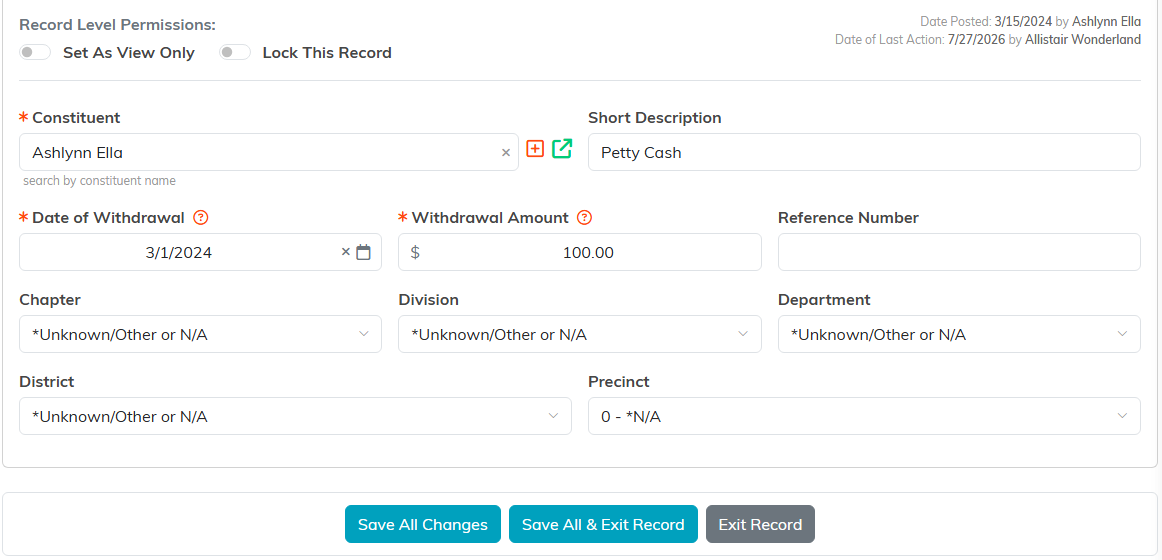
The fields with an orange asterisk are required.
- Constituent (required): who the money went to. The plus icon adds a new constituent without leaving the page.
- Short Description: what the withdrawal was for, such as
Petty Cash. This is the text the list search looks in. - Date of Withdrawal (required): the date on the bank statement, so the withdrawal lines up when you reconcile.
- Withdrawal Amount (required): how much left the account, entered as a positive figure. It must be more than zero.
- Reference Number: a check number or bank reference, up to 50 characters.
- Chapter, Division and Department: the part of your organization the withdrawal belongs to. Political organizations also see District and Precinct; choose the district first.
Click Save All Changes to save and keep working, or Save All & Exit Record to save and go back to the list.
Post it to the General Journal
The top of Withdrawal Details holds the accounting entry. While Add To General Journal is on, saving posts the withdrawal to your books: Argenta debits the account you choose and credits the bank account.
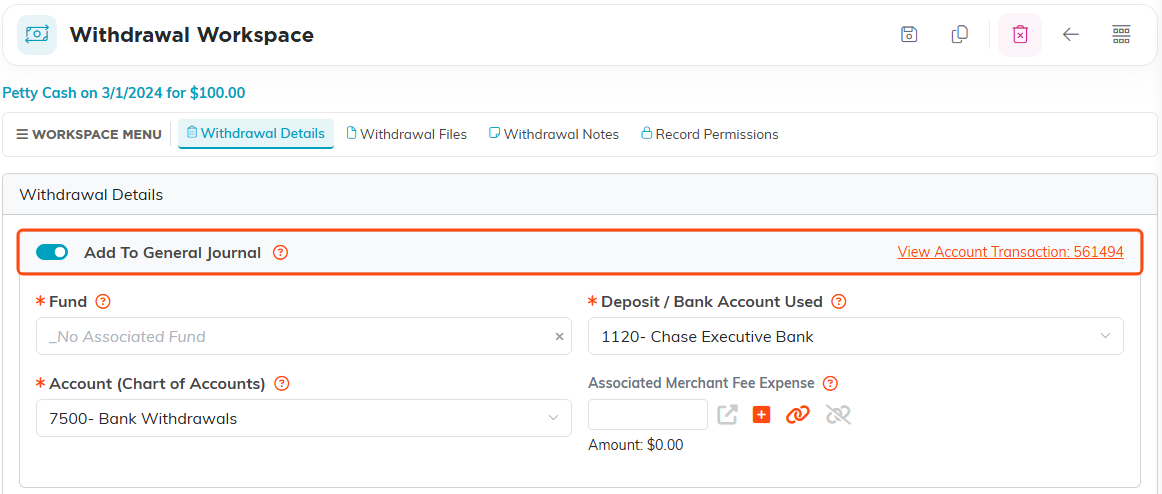
A posted withdrawal links to its account transaction.
- Turn on Add To General Journal.
- Choose the Fund the money came from.
- In Deposit / Bank Account Used, choose the bank account the money left.
- In Account (Chart of Accounts), choose the account it posts against, such as an expense account.
- Click Save All Changes.
If Add To General Journal is on and either Deposit / Bank Account Used or Account (Chart of Accounts) is empty, Argenta does not save and names the box to fill in. Choose it, or turn Add To General Journal off. Once posted, View Account Transaction opens the entry in your books.
Saving a new amount on a posted withdrawal replaces its ledger entries, so the books follow the change. After the entry is reconciled, Argenta refuses a change to the amount; un-reconcile the entry first, or post an adjusting entry.
Copy or delete a withdrawal
- To copy a withdrawal, click the copy icon on its card in the list, or Copy This Withdrawal in the workspace title bar. The copy is dated today, so change its Date of Withdrawal if the money left on another day.
- To delete a withdrawal, click the delete icon on its card, or Delete This Withdrawal in the title bar. Deleting also removes its entries from your books. A withdrawal whose entry is reconciled cannot be deleted.
- To delete several at once, select their check boxes and use the Choose Bulk Action list.
Files, notes and permissions
The Withdrawal Workspace also has Withdrawal Files for a receipt or bank slip, Withdrawal Notes for internal notes, and Record Permissions for who can see or change the record. The Set As View Only and Lock This Record switches on Withdrawal Details limit who can change or open it.
Bring in many at once
To import withdrawals from a spreadsheet, or to export them, use the Withdrawals entry in the Import & Export Hub. See Using the Import & Export Hub.
