Knowledge Base Article
Using the Import & Export Hub
The Import & Export Hub is one page where you bring data into Argenta or take your data out of it. Every record type sits on the same page, imports all follow the same five steps, and every run is logged so you can see what happened.
Where to find it
Click Settings in the top bar, then Import & Export. You need to be a Master Admin or a Subscription Admin to open the hub. What you can do once you are inside depends on your other permissions, which are covered further down.
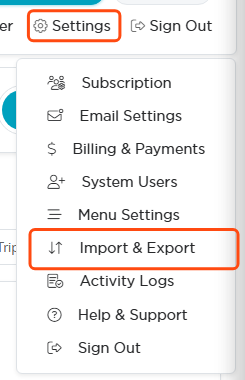
Settings in the top bar, then Import & Export.
How the page is laid out
- Import / Export toggle. Top right of the page header. Import mode lists only the record types you can bring in. Export mode lists everything you can take out.
- Search and category pills. Search record types by name, or filter to People, Giving, Membership, Events, Volunteers, Finance, Operations, Organization, or Mission Trips.
- Record type cards. Each card shows what that record type holds, how many you have today, and when you last imported or exported it. The buttons on the card take you straight into an import or open the export options.
- The five-step strip. In Import mode, a reminder that every import walks the same path: Upload File, Resolve Duplicates, Map Fields, Review, Import.
- Recent Activity. Your last 25 imports and exports, with the date, the record type, how many rows, who ran it, and how it finished.
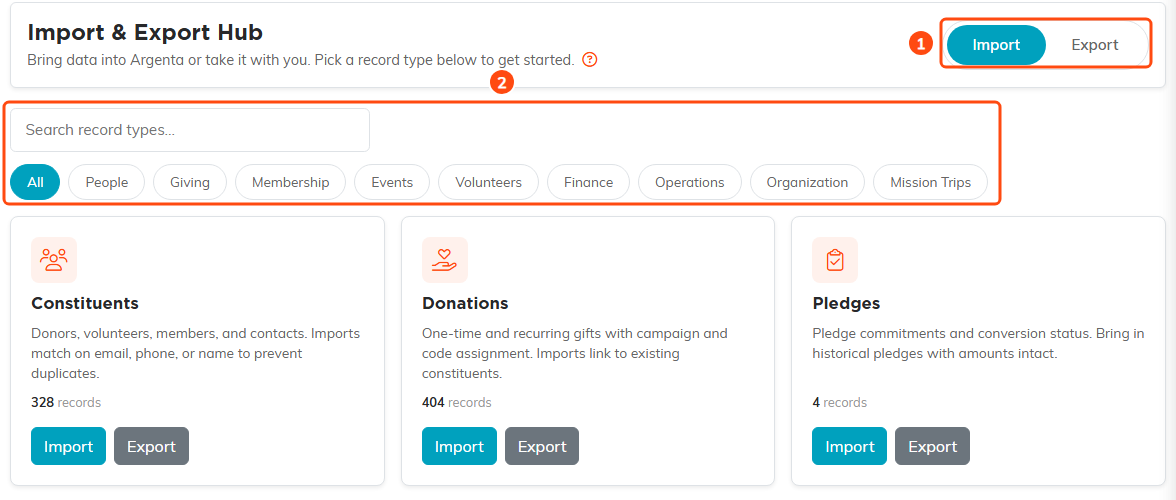
1 switches between bringing data in and taking it out. 2 finds a record type by name or by category. Each card shows what that type holds and how many you have.
What you can import and export
There are just over a hundred record types in the hub, covering constituents and donors, gifts and pledges, grants, memberships, events, volunteers, your whole finance side (accounts, funds, budgets, invoices, payments, expenses), operations records like documents, notebooks and email templates, and your organization structure.
Some are export only, so they appear in Export mode but not in Import mode. The ones most organizations will meet are:
- Recurring Donations. Recurring gift schedules are managed by the payment processor, so a schedule cannot be created by importing a row. A Donations import file can still carry a Recurring column, but each gift it marks as recurring comes in as a one-time donation, with a warning at Review. Open the donation afterward and use Make Recurring to set up its schedule.
- Account Transactions. These are produced by the entries you post, so you build them through your accounting screens rather than a file.
- Event Ticket Sales. Created when someone buys a ticket through your event forms.
- Payroll Distributions. Export only.
- Users and Portal Users. Logins are created in Settings > System Users, not through a file.
The whole Mission Trips category is export only as well, so if you use that module you can take those records out but not bring them in through a file.
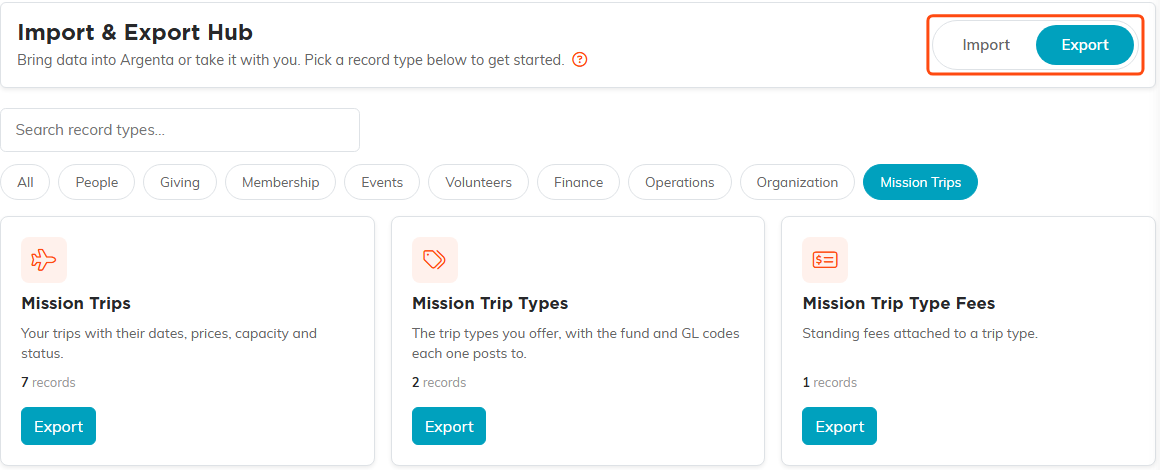
In Export mode, a record type you cannot bring in through a file offers only an Export button. The whole Mission Trips category works this way.

The same five steps every time, whatever you are importing.
Step 1: Upload your file
Export your records out of your current system as a CSV or Excel file, then drop it on the upload box (or click to browse). Argenta accepts CSV, TXT and XLSX files up to 25 MB. An older Excel file ending in .xls has to be saved as .xlsx or CSV first. A TXT file is read as delimited text, and a workbook is read from its first worksheet.
- Where is this data coming from? This dropdown is optional and it helps the auto-mapping. Pick your old system if it is listed (Blackbaud / Raiser's Edge, Little Green Light, Bloomerang, DonorPerfect, Neon CRM, Salesforce NPSP, or Other), or leave it on CSV / Spreadsheet.
- How did the people in this file agree to hear from you by email? Imports that can add people to your contacts ask this, and you cannot continue until you choose an answer: the constituent import, and the people imports when they are set to create anyone they cannot match. Imports that add no contacts, such as Grants, Passwords, Websites, Campaigns, Events and Event Sessions, do not ask. It is saved on each new contact's Consent History, with the file name, so you can show later where their email consent came from.
- No file yet? Click Download the full import template. The template has a column for every field Argenta can import for that record type, plus one sample row. Fill in what you have and delete the columns you do not.
- Picked the wrong file? Click Remove and choose another.
Click Continue to Duplicate Check when your file is loaded.
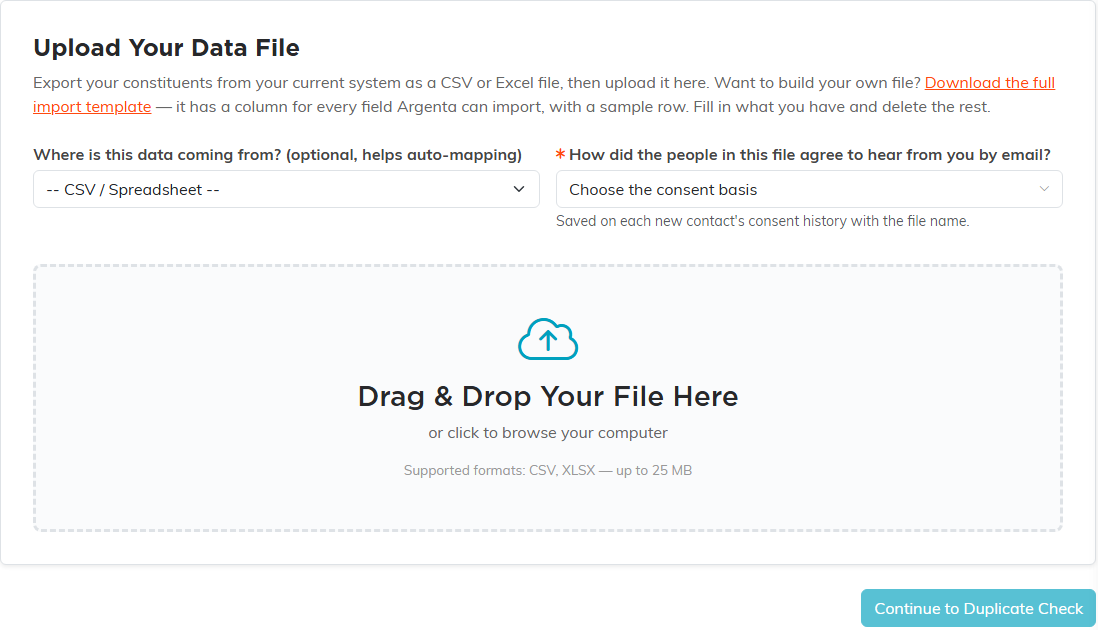
Pick your old system if it is listed, then drop your file on the box. The template link builds you a file with a column for every field Argenta can import.
Step 2: Resolve duplicates inside your file
This step looks at your file only, not at what is already in Argenta. It flags rows that look like the same record listed more than once, naming whatever you are importing, so a product import reads the same product listed more than once. That is common in a file stitched together from several sources.
- Each group shows the rows it thinks are the same, with name, email, phone, and address so you can judge.
- Pick which row to keep with the radio button. The one marked Keep This One is the row that survives.
- Click Merge to combine the group, or Keep Separate if they really are different people.
Merging fills in the gaps: any field that is blank on the row you kept is filled from the other rows in the group, and those extra rows drop out. Merge All Duplicates and Keep All Rows Separate handle every group at once. The three counters at the top show your total rows, how many duplicate groups were found, and how many unique rows you will end up with.
Some record types have no duplicate check because repeats are normal there. A donations file should have ten rows from the same donor if that donor gave ten times. On those imports the Duplicates step says plainly that it does not check for repeated rows and hides the group and unique counters, so a zero there never means a check ran and found nothing. Constituents, members, volunteers and event guests are the imports that do check.
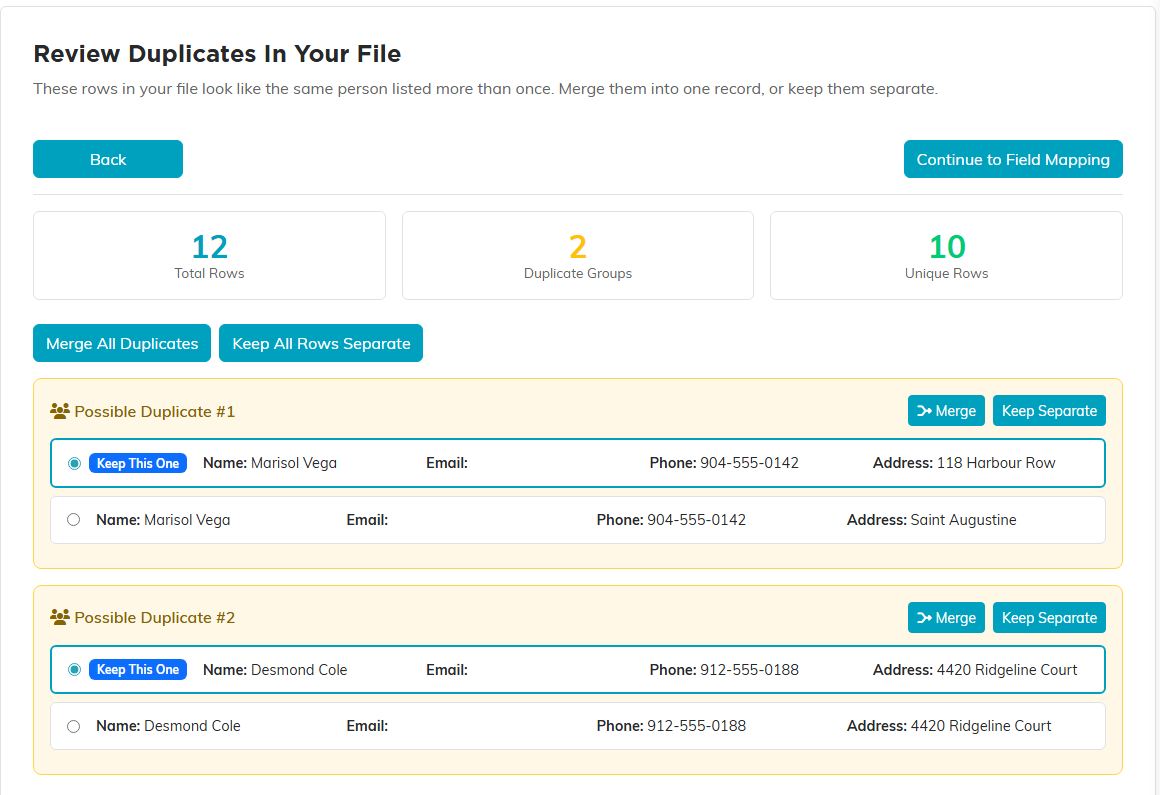
Each group shows the rows it thinks are the same person. The row marked Keep This One is the one that survives, and the counters track what you started with against what you will end up with.
Step 3: Map your fields
This is where you tell Argenta what each column in your file means. Argenta auto-maps everything it recognizes first, using the column name, common variations of it, and the source system you picked in step 1. Auto-mapped columns are marked with a small wand icon. When a column name could fit more than one field, Argenta picks the field it names most fully, so Board Member Position goes to the board position rather than the name; a column it cannot place with confidence is left for you to map. On the imports that bring in people (constituents, members, member visits, volunteers, event guests, parents, participants, board members, delegates, staff members, voters and the members archive), a column headed Company or Company Name is never auto-mapped to the person's name, because on a list of people it is their employer. Imports where the record can be a business, such as vendors, partners, leads and recipients, still map it to the name. If your file lists organizations under a Company column, map that column to the name yourself.
- Change any mapping by clicking the field dropdown. You can search it by field name or by description, and the fields are grouped so related ones sit together.
- Leave a column out by choosing Do Not Import. Columns you never map are simply ignored.
- Show only unmapped fields hides everything Argenta already matched so you can work through what is left.
- Re-run Auto-Map starts the matching over, and Clear All Mappings empties every one so you can map by hand.
- Sample Data shows a real value from your first row next to each column, which is the fastest way to catch a column whose header lies about its contents.
- One column per field. A field can only be fed by one of your columns. Point a second column at a field that is already taken and the first one is released back to unmapped, so you can see which column lost it rather than having one of the two silently discarded.
- More columns than fields. A column with no Argenta field to go in is left out of the import. To keep what those columns hold on a constituent import, combine them into one column in your spreadsheet before you upload (for example, one column reading "Shirt size: L; Allergies: peanuts"), then map that column to ConstituentDescription — Description / Notes. Pointing each of them at Description / Notes one by one keeps only the last, because of the one-column-per-field rule above.
You need at least one mapped column to continue.
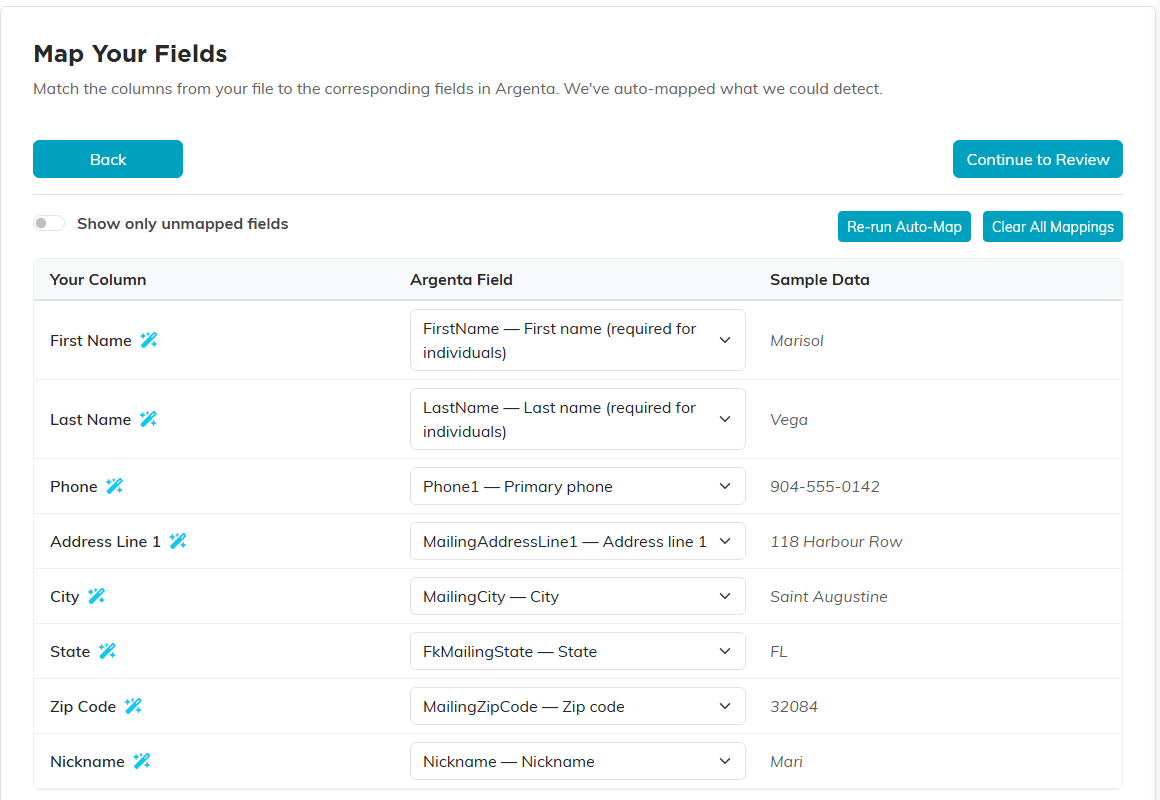
Argenta auto-maps what it recognizes and marks those columns with a wand. Sample Data shows a real value from your first row, which is the fastest way to catch a column whose header lies about its contents.
Step 4: Review before anything is written
Nothing has been saved at this point. This screen shows exactly what will happen.
- The counters across the top: how many rows will be imported, how many are being skipped for errors, and how many carry warnings. Record types that get checked against what you already have carry a fourth counter for the rows that check sets aside. Record types that stand on their own are never checked, so they show three counters and no skipped-existing count. Accounts, funds, chapters, districts, departments, divisions and precincts still check their name: a row whose name is already used, in Argenta or by an earlier row of your file, is an error on that row and is skipped, the same way adding one by hand refuses it. Precincts also check their number: a precinct number already used by another precinct in the same district, in Argenta or by an earlier row of your file, is an error the same way.
- The match panel lists rows that match records already in Argenta, and what will happen to each. If your account is limited to certain chapters, divisions, departments or precincts, a match outside them shows as A constituent outside your access instead of a name and email; it still counts as already in Argenta, so no duplicate is created. If a match is wrong, flip that single row to Add Anyway, or use Skip All and Add All Anyway for the whole set. Families often share one email address, so when a row's email belongs to more than one record and the name in your file cannot single one out, that row is listed in its own panel and skipped rather than guessed at. Add first and last name columns to the file, or merge the duplicate records, then import again. The Budget Items import offers neither, because a budget holds one line per account and fund: a line that already has amounts is skipped, and a line still at zero, like the ones the budget's Lines tab creates, is filled in from your file. Only income and expense accounts can go on a budget, so a row naming any other kind of account is an error.
- Unmatched values get their own warning. If your file has a type, state, or category that is not on your own list (the same choices your dropdowns show), the import tells you how many values did not match, shows examples, and leaves that field blank on those rows rather than guessing. A field the import requires is the exception, such as the auction on an Auction Items import: a value there that matches nothing marks the row as an error on Review, and that row is skipped. The Fund Type and Category columns on a Funds import work the same way, so a fund is never saved with a default type or category in place of the one your file named.
- A full name with no first or last name gets a warning too. On an import that can create a new person, a row with only a Name filled in is created as an Organization when it matches nobody already in Argenta, so Review warns about it. For a person, fill in First Name and Last Name, as the template's sample row does. Vendors, Grantors and Grant Applicants imports skip this warning, since those records are usually organizations.
- State columns take either the full name or the two-letter code, for US states, Puerto Rico, and the Canadian provinces and territories. A value matching neither is left blank rather than guessed at.
- Event columns, on the imports that attach rows to an event (event guests, sessions, sponsorships, donations and others), take either the event's title or its Event ID from the Events list. When more than one of your events has that title, the row is an error asking for the Event ID, rather than being put on the oldest event with that name.
- The File column on a Document Library import is refused when it names a file already on your team that the library does not have, such as one used in an email or a form. Upload that document on its own page instead of importing the path.
- Dates and times need their whole value. A date written without a year, such as Mar 5 or 3/5, or a time with no date, such as 9am, is an error on its row naming the field, rather than being saved with this year or today's date. A date before 1/1/1753, such as the 1/1/0001 some systems export for a blank date, is a warning instead, and so is 1/1/1900, the date Argenta itself uses to mean no date: a new record comes in without that date, and a record already in Argenta keeps the date it has. When the date is required, such as a donation's date, it is an error on its row.
- Consent columns on a constituent import (Email OK, Mail OK, Phone OK, and Solicit OK) read Unsubscribed, Opted Out, and Do Not Contact as No. Any other value they cannot read is an error on its row, so nobody is left opted in by accident.
- Validation issues lists the first 50 problems, each with its row number and field. The row number is the row in your spreadsheet, blank rows included, so you can go straight to it.
- Data preview shows your rows 25 at a time with a status on each: Ready, Warning, Skip, or Error. Use Errors Only to jump to the problems.
If something is wrong, click Back, fix the mapping, or start over with a corrected file. The circular arrow at the top right of the page restarts the wizard at any point.
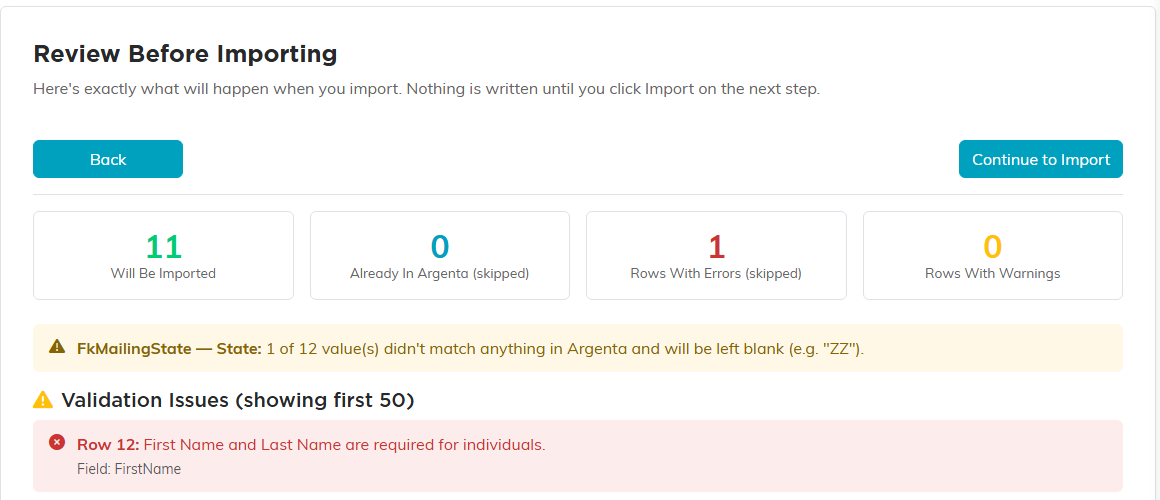
The counters tell you what will happen before anything is written. An unmatched value gets its own warning, and validation problems are listed with their row number and field.
Step 5: Run the import
The last screen tells you how many records will be added and how many will be skipped. Click the import button and Argenta works through the rows, showing live progress with running counts of added, skipped, and failed. When a row matches somebody already in Argenta and fills in their record rather than adding a new one, a count of updated appears beside them. Filling in only ever adds what is missing: on the Grant Applicants, Grantors, Renters and Voters imports, for example, a matched person gets the type and category from your file only if they did not have one yet, and a type or category already chosen is left as it is.
- Keep the tab open until it finishes.
- Cancel Import stops the run. Rows that were already imported are kept, so you can fix your file and import the rest.
- The summary gives you the final counts, with Updated (already in Argenta) kept apart from the records that were newly added, plus a list of the rows that could not be saved (the first 100, if more than that failed), each with its row number, name, and the reason.
- Each row is saved on its own. A row that fails is rolled back completely, so a failure never leaves you with half a record.
From there you can go straight to your records or click Start Another Import.
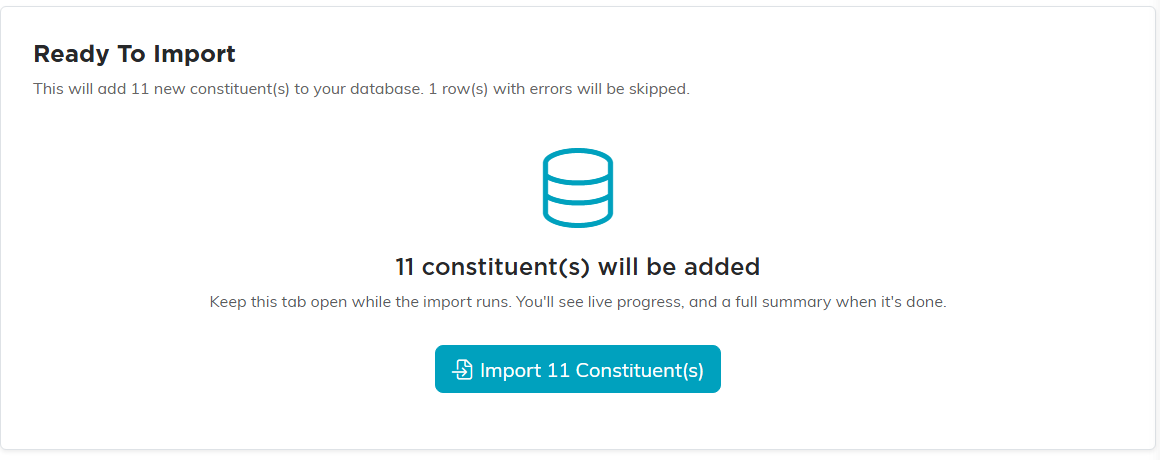
The last screen before anything is written. It repeats the count and the number being skipped, and the import does not start until you click the button.
Errors, warnings, and skips
- Errors keep a row out. A missing required value (a donation with no amount) or a date Argenta cannot read will exclude that row from the import. So will a Yes/No column holding anything other than Yes or No (Y, N, True, False, 1 and 0 work too), and a name two of your records share, such as two campaigns with the same name; put that record's ID in the column instead. A value the record's own page would refuse is an error too, such as a negative amount, a quantity of 0, an end date before the start date, or a transfer whose From and To name the same account or the same fund. If your account is limited to certain chapters, divisions, departments or precincts, a row that would save into one you do not have access to is an error too.
- Warnings still import. A value longer than the field allows is saved but trimmed to fit. A value that should be a number or a dollar amount but is not gets flagged so you can check it, and that field is imported as if the cell were blank. A whole-number field, such as Qty On Hand, counts 2.5 as not a number.
- Skips are on purpose. Depending on the record type, a row is skipped because it matches something you already have, or because it has nothing to attach to. On imports that add the people they cannot match, a row whose email address belongs to more than one person already on file is skipped too, counted as Shared Email (skipped), because Argenta cannot tell which person it is for.
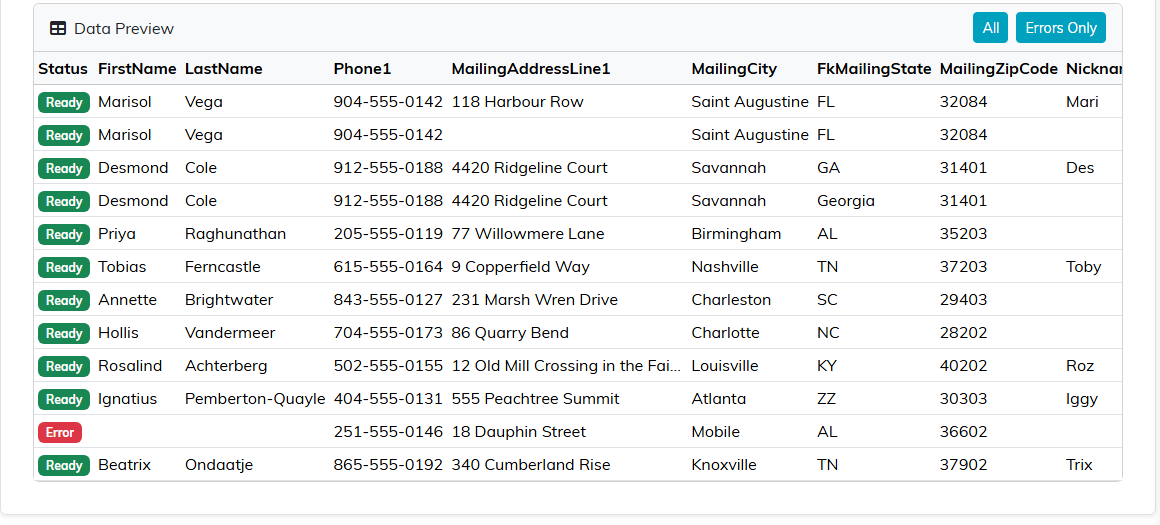
Every row in the preview carries its own status. Errors Only jumps straight to the rows that will be left out.
How Argenta avoids creating duplicates
On the record types that get checked at all, Argenta compares your rows against records you already have before importing. It matches on your source system's own ID if you mapped one, then on email address, then on name plus zip code. When comparing names, Argenta ignores capitalization, spaces, punctuation and accents, so José García in your file matches Jose Garcia in Argenta. Record types behave in one of four ways:
- Skip what you already have. Constituents work this way. A row that matches an existing person is skipped by default so a re-import does not duplicate anybody. You can override any single row.
- Link only, never orphan. Donations and pledges work this way. A row imports only if it matches the constituent it belongs to. Rows with no match are skipped rather than saved with nobody attached, so import your constituents first and then bring in the gifts. Member visits ask one thing more: the matched person must hold a membership, active or lapsed, or Review skips the row, so import memberships before visits.
- Attach or create. Memberships work this way. A row that matches an existing constituent attaches to that person, and a row with no match creates the constituent and then attaches, so a person new to Argenta is not left out. Review tells you how many rows attach to people you already have and how many new constituents will be created, counting several rows for the same new person once, and the last screen repeats both numbers before you import. Someone who already has the membership, volunteer profile or guest record is not skipped either: the empty fields on that record are filled in from your file. The one exception is a row whose email address belongs to more than one person in Argenta when its name cannot say which one: Review lists it, and it is skipped rather than attached to a guess. Add first and last name columns, or merge the duplicate records, and import it again. On these imports, a row whose email address is not a valid address is an error, marked Invalid email format, and is left out. Correct the address or clear the cell in your file, and import the row again.
- No duplicate check at all. Record types that stand on their own work this way: links and resources, funds, events, products, budgets, campaigns, departments, documents and the rest. There is no person to attach them to, and Argenta does not compare them against what you already have, so every row in your file is imported as a new record. Import the same file twice and you get two copies. The Review screen shows no skipped-existing counter on these types, because no check runs.
Exporting your data
Click Export on any card and choose what you want:
- Which records. Only the records your own list pages show you: a user limited to certain chapters, divisions, departments or precincts, or to their own programs, gets just those. A record you are locked out of comes through as its ID and name only, marked in a Locked Record ID column at the end. An auction item or sponsorship also comes through that way when the auction, event or program it belongs to is locked to you. Within that, choose All records, Active only (offered on record types that have an active or inactive state), or a date range. The date range uses that record's own main date, so donations filter on the gift date and most other types filter on when the record was created.
- Fields. All fields gives you every field on the record, with readable names filled in for things stored as codes (state and country names, type and category names). Grid columns only gives you the shorter set of columns you see on that record's list page.
The file downloads as a CSV named for the record type and today's date, and every export is written to the activity log. A value that starts with =, +, - or @ is written so a spreadsheet shows it as text instead of running it as a formula, and a file exported here imports back exactly as it was exported. Large exports stream as they are built, so a big file starts downloading right away. If you are moving contacts into email or calendar tools, see Import A CSV File from Argenta into Outlook 365.
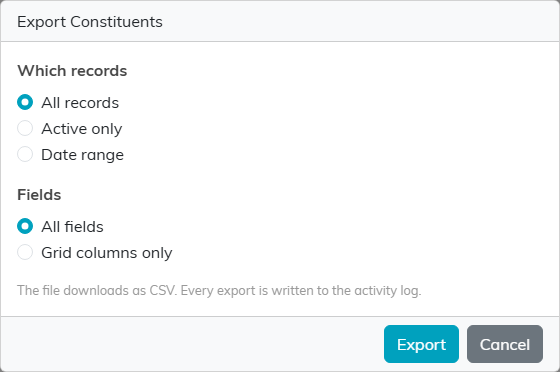
Choose which records you want and how many fields to bring with them, then export.
Sensitive data in exports
A full export contains everything on the record. For your saved credentials that includes usernames and passwords in readable form, and for staff records it includes pay and identifying details. That is deliberate, because your data belongs to you and you should be able to take it with you, but it does mean an export file deserves care. Store it somewhere safe, and delete it when you are done with it.
Who can do what
- Opening the hub requires Master Admin or Subscription Admin.
- Exporting requires Master Admin or the Can Export Lists To Excel permission. Without it the Export buttons do not appear.
- Importing a record type requires the manager permission for that area (donations, memberships, and so on) or Master Admin. Board members, parents, and voters are constituents underneath, so importing them takes Constituent Manager. Grantors and grant applicants take Grant Manager, participants take Participant Manager, and renters take Constituent Manager or Property Manager, the same people who manage those records. Districts, precincts, calendars, email templates, and links and resources have no manager permission of their own, so importing them needs none. Constituents are the exception: importing them requires Master Admin or Subscription Admin, so a constituent manager who is neither no longer sees an Import button on the Constituents list. Chapters, divisions and departments take the same two roles, Master Admin or Subscription Admin, because other users' access is built on them. Sponsorships need Event Manager, and are also checked row by row: a row for a program needs Program Manager, a row for an auction needs Auction Manager, and a row for an event, auction or program that is locked or view-only for you is flagged on the Review step with a message saying why, so it never counts toward what will be imported. A sponsorship row with a negative amount is flagged there too; $0 is allowed.
- View-only accounts see a message on the import page explaining that importing is not available to them.
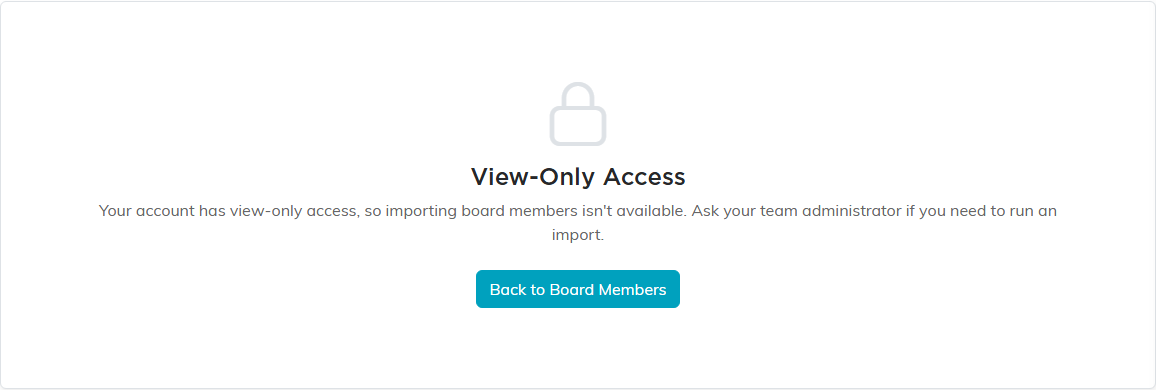
What a view-only account sees on an import page.
Import some things before others
A few record types point at other records by name, so the order you import in decides whether those links land:
- Import Chapters and Divisions before Departments.
- Import Districts before Precincts.
- Import Constituents before donations, pledges, and memberships.
- Imported donations and payments come in without general ledger entries. To post them to your books, ask Argenta support, who can post a whole import at once to the bank account, income account and fund you choose.
Getting the order wrong does not break anything. The link is simply left blank, and you can set it later or re-import.
Importing events
Events carry more rules than most record types, because an imported event has to be one the Add Event form would have accepted. A row that breaks any of these is reported as an error and left out, so you can correct your file and import it again.
- Start Date and Start Time are required columns, along with Event Title. A row missing one is marked Missing required value and left out, while the rest of the file still imports; if the column is not mapped at all, every row is left out. This matters more than it sounds: an event with no start date does not appear on the Active Events list, so one created that way looks as though the import did nothing at all.
- The dates are checked against each other. The end date cannot be before the start date, the end time cannot be before the start time, and registration cannot close before it opens.
- Years run from 2000 to 2100. A date outside that is treated as a typo rather than a date.
- Maximum guests has to be a whole number, not negative, and no higher than 999,999.
- An online or webinar link has to be a full web address starting with http:// or https://.
Importing auctions
An imported auction has to be one the auction's own page would save, so a row that breaks these rules is reported as an error and left out.
- Auction Title, Start Date and End Date are required columns. A blank date, or 1/1/1900, is marked Missing required value; if a date column is not mapped at all, every row is left out.
- Times can come in their own columns or inside the date. Start Time and End Time take values like 6:00 PM or 18:00. Without them, the time written in the Start Date and End Date cells is used. A time Argenta cannot read is an error on its row.
- The auction cannot end before it starts, counting the times as well as the dates.
- A row with no start or end time still imports, with a warning: the auction starts or ends at 12:00 AM on that date, so change the time on the auction's page if that is not right.
- Fundraising Goal and Target Budget cannot be negative. A negative amount, including one written in parentheses like (25,000.00), is an error on its row, the same as on the auction's Details page. $0.00 is allowed.
Importing auction items
An imported auction item needs the same bidding values that adding an item by hand would accept, so a row that breaks these rules is reported as an error and left out.
- Item Value and Min Bid Increment are required columns, and each must be more than $0.00. A blank cell is marked Missing required value, and an amount of 0 is refused.
- Starting Bid can be 0 or left blank, but it cannot be less than $0.00.
- An amount Argenta cannot read is an error in any of those three columns, rather than being saved as 0.
- An item with no bids takes its Starting Bid as its Next Bid. If your file gives such an item a different Next Bid, the Review step warns you, and the Starting Bid is what gets saved. An item your file gives bids to keeps the file's Next Bid.
- Every imported item comes in as a silent item, not live and not Fund A Need, because the import has no column for either. Once it sells, it shows as Sold on Auction Results and counts on Auction Profit and Loss and on the winner's Bidder Statement. To make one a live item, tick Live Auction Item on the item after the import. The import has no column for the winner either, so to record who won an imported lot, open the item and choose them under Highest/Winning Constituent Bidder.
Importing volunteer tasks
- Every row needs a Start Date. A row whose Start Date is blank or 1/1/1900 is marked as an error on the Review step and is left out, because without a start the task would be saved as a 4-hour shift from the moment of the import that counts 0 hours. Add the Start Date to the file and import that row again.
Keeping track of what ran
The Recent Activity table at the bottom of the hub lists your last 25 runs with the date, whether it was an import or an export, the record type, the row count, who ran it, and the outcome (Completed, a count of rows skipped, Failed, or Running).
Every record an import creates is also stamped with a batch label for that run. Open Settings > Activity Logs and go to the Activity Log tab, then search that label to see everything a single import added.
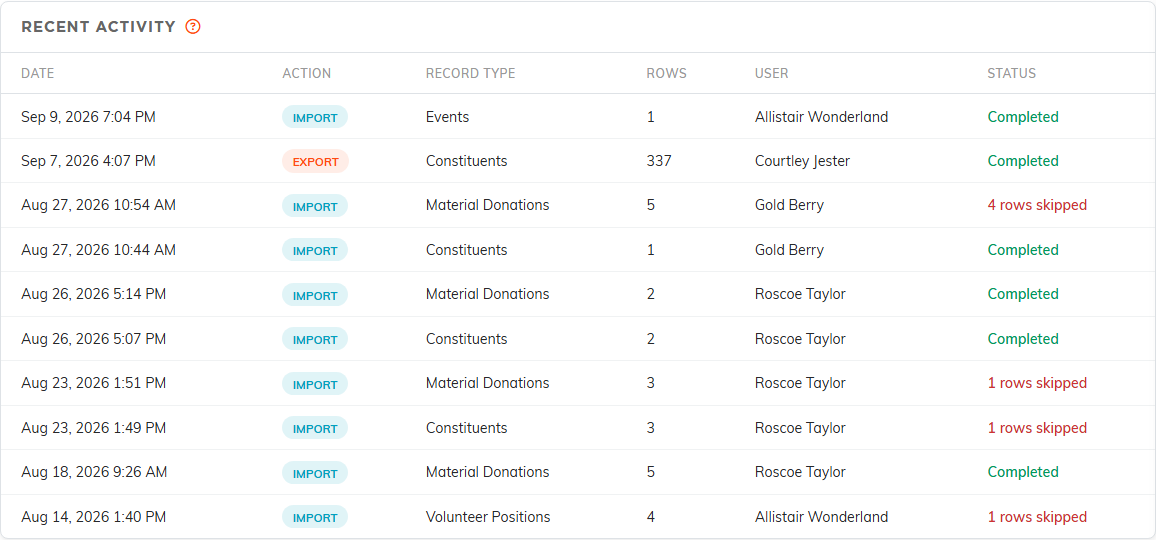
The last 25 runs, with who ran each one and how it finished.
Tips for a clean import
- Test with a small file first. Ten rows will surface a mapping problem in two minutes and cost you nothing to clean up.
- Export before you import. Exporting the record type you are about to import shows you exactly which fields Argenta keeps and what its values look like.
- Use the template when you are building a file by hand rather than exporting one.
- Write dates as dates (4/12/1985 or 1985-04-12). Anything Argenta cannot read as a date is an error.
- Put your data on the first sheet of a workbook, with your headers on the first row.
- Read the unmatched-value warnings on the review screen. They are the usual reason a field comes through blank.
