Knowledge Base Article
View and Filter Your Recipient List
The Recipients list shows everyone you have designated as a recipient of donated goods. You can search it, narrow it with filters, sort it, and download it as a spreadsheet. To designate someone as a recipient in the first place, see Add Material Recipients.
Open the list
- Choose Materials Management > Recipients from the main menu. Recipients also appears under Constituents (CRM) and Programs.
- The page opens on Active Recipients, newest first. The number beside the status dropdown is how many recipients match.
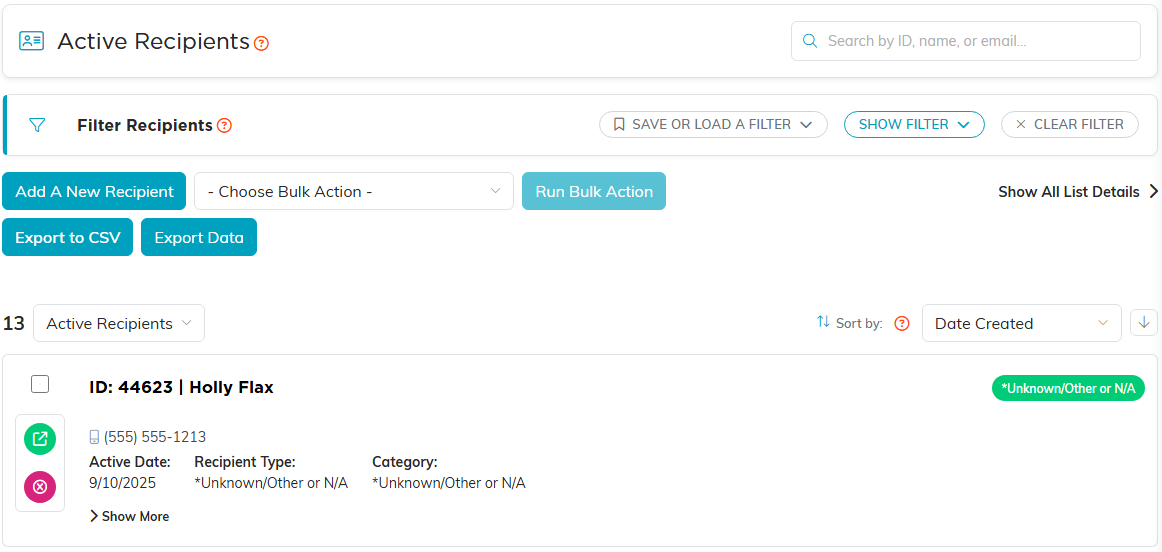
The Recipients list, with search at the top right and the filter bar beneath it.
Search, status, and sort
- Search at the top right finds a recipient by ID, name, or email.
- The dropdown beside the count switches between Active Recipients and All Recipients, which includes inactive ones.
- Sort by orders the list by Recipient ID, Date Created, Active Date, Status, Recipient Name, or Team Member. The arrow beside it flips the order.
- Show All List Details opens the extra details on every row at once.
Filter the list
- Click Show Filter on the Filter Recipients bar.
- Choose what you want to narrow by. You can combine as many fields as you like.
- Click Apply Filter. Clear Filter puts the whole list back.
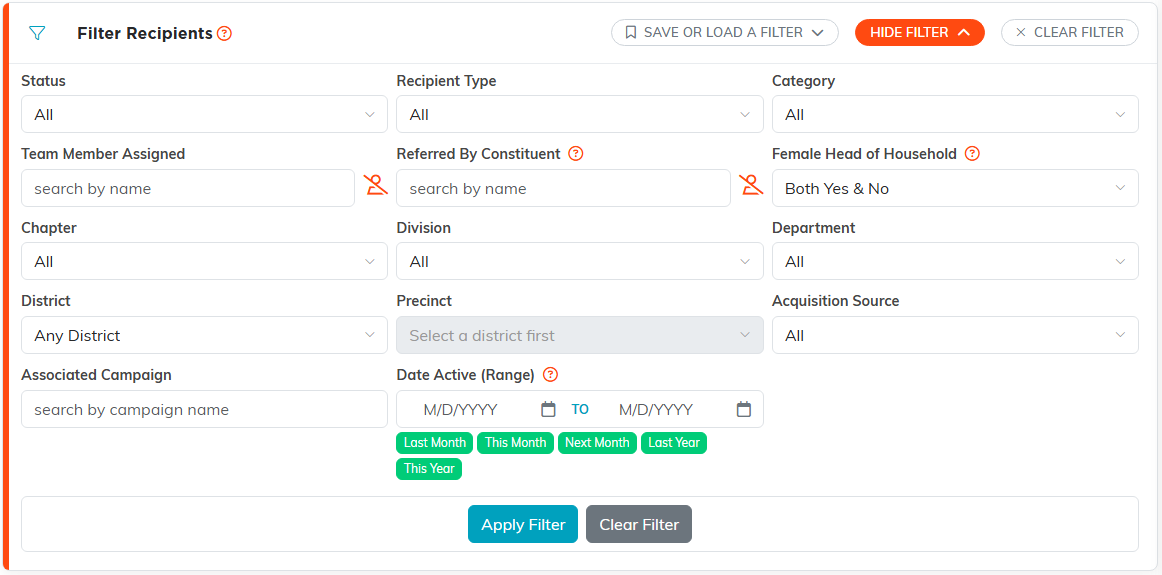
Every field on the filter panel. Apply Filter runs it.
The fields you can filter on are:
- Status, Recipient Type, and Category. These are your own classification codes, and you can pick more than one value in each.
- Team Member Assigned and Referred By Constituent. Start typing a name to find the person.
- Female Head of Household: Yes, No, or both.
- Chapter, Division, Department, District, and Precinct. Choose a district before a precinct, since the district sets the precinct list.
- Acquisition Source and Associated Campaign.
- Date Active (Range), the date each person became a recipient. Type the dates or click a shortcut such as This Month or Last Year.
If you run the same filter often, use Save or Load a Filter to keep it and bring it back later. For more on how filters behave across Argenta, see How To Filter Lists in Argenta.
Recipients by program
To group recipients by the program that serves them, create a Recipient Type or Category code for each program, set it on each recipient's Recipient Details, then filter on that field. To set the code on many recipients at once, use the bulk action Change Classification Code for Selected Records, described below.
Recipients by town or city
There are two ways to see recipients by where they live:
- Download the list. Export to CSV downloads whatever your current filter and search are showing, and the file has Address, City, State, and Postal Code columns you can sort in a spreadsheet. The button appears for admins and anyone with export permission.
- Run the City Mailing List report. Open the Report Center from the top right of the screen, click Custom Mailing Lists, and open City Mailing List. Tick the cities you want under Mailing City, tick Recipients under Constituent Relationship Group, and click Run Report. The results show each person's mailing address and, with export permission, can be downloaded as a CSV or PDF for labels.
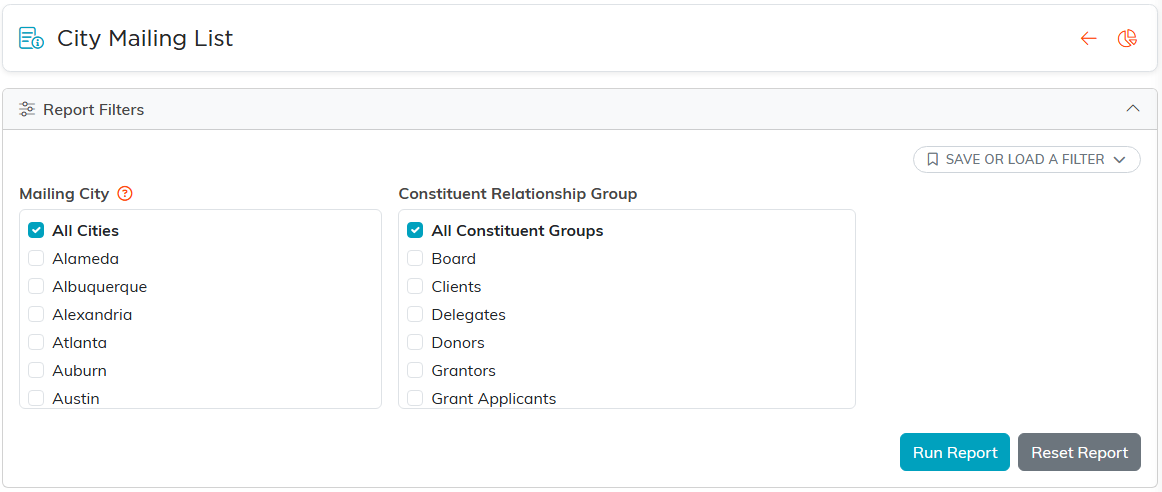
Pick the cities, pick Recipients as the group, then run the report.
Act on several recipients at once
Tick the box on each row you want, or choose Select All Records That Meet The Current Filter Criteria from Choose Bulk Action. Then choose an action, such as changing a classification code, adding a note, assigning a team member, or adding them to a constituent group, and click Run Bulk Action. On each row, the green icon opens the recipient and the pink one deletes them.
