Knowledge Base Article
How to Plan Monthly Bills in Argenta
The Monthly Bills page is your monthly plan in one table. You list the bills you expect to pay each month and the income you expect to bring in, and the page shows what is left over. Beside each line it also shows what really happened last month, so you can see where you ran over.
Monthly Bills plans; it never posts. Adding, changing, or deleting a bill writes nothing to your books: no expense, no payment, and no general ledger entry. The Actual column only reads your ledger.
You need Finance Manager access or Master Admin to open the page. If your login is view-only, you can see the page but cannot add, change, or delete bills.
Open Monthly Bills
- Click General Financials > Monthly Bills.
You can also click Monthly Bills under Expenses & Payroll on the General Financials page, or the Monthly Bills button at the top of the Expenses page.
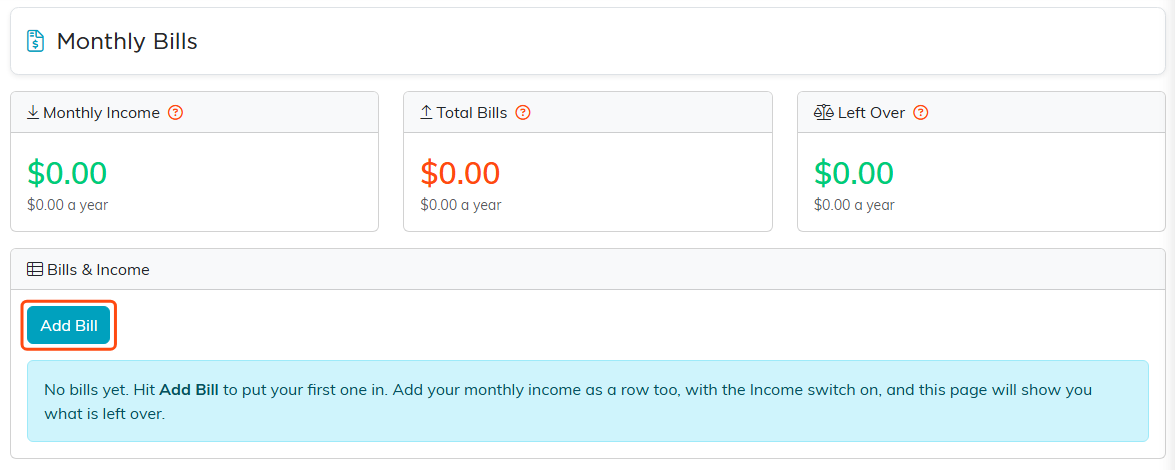
A new Monthly Bills page, before any bills are added.
The three cards
- Monthly Income adds up every active row that has This Is Income turned on. It is the amount you planned, not the amount that came in.
- Total Bills adds up every active row that is not income.
- Left Over is Monthly Income minus Total Bills. It turns orange when it drops below zero. It is not your bank balance, so it does not change when a payment clears.
Under each figure is its yearly amount, which is the monthly figure times 12. Inactive bills never count toward the cards.

Monthly Income, Total Bills, and Left Over.
Add a bill
- In the Bills & Income card, click Add Bill. The Add Bill window opens.
- Enter a name in Bill Name, such as
Office Rent. - Enter what you expect to pay each month in Monthly Amount.
- Optional: Fill in the other fields. Each one is described in the section The bill fields.
- Click Save. The window closes, and the bill appears in the table under its category.
To add income, such as monthly donations or membership dues, add a row the same way and turn on This Is Income. Income rows appear in the Income group at the top of the table.
A Monthly Amount cannot be negative. For money coming in, turn on This Is Income instead of typing a minus sign.
The bill fields
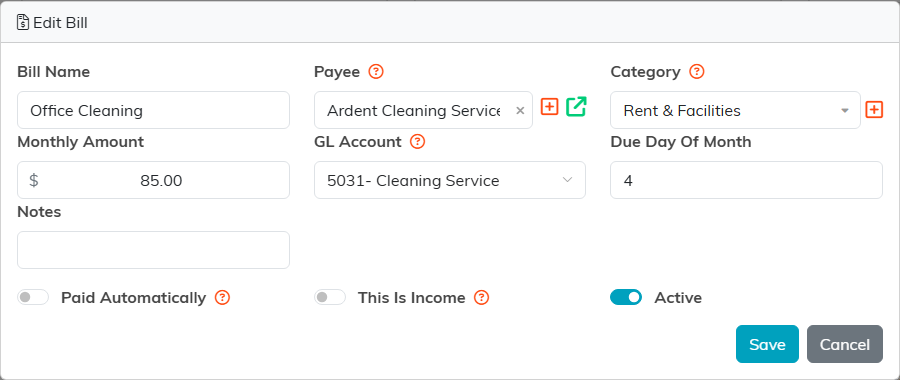
A bill linked to a payee and a GL account.
- Bill Name (required): the name shown in the table. It does not have to be a vendor; a name such as
Taxesis fine. - Payee (optional): the constituent you pay. Start typing a name, then select it from the list. With a payee linked, the Actual column shows what you paid that payee last month. It is the same payee you choose when you enter an expense. The plus button adds a new constituent, and the arrow button opens the selected payee's record.
- Category: the group the bill sits in on the table and the total it rolls into. If you leave it alone, the bill files under *Unknown/Other or N/A. An admin or master builder can add a category with the orange plus button beside the list; the new category is then available to everyone on your team.
- Monthly Amount: what you expect to pay, or receive, each month.
- GL Account (optional): the account in your Chart of Accounts that this bill is recorded in when you pay it. If the bill has no payee, the Actual column shows everything recorded in this account last month. Leave it on Not mapped to use no account. For a bill, the list offers every account except your asset and income accounts. For an income row, it offers your income and equity accounts.
- Due Day Of Month (optional): a number from 1 to 31, shown in the Due column. It is a note for you; Argenta sends no reminder and schedules nothing from it. Leave it empty for a bill with no fixed day.
- Notes (optional): anything you want to remember about the bill, such as when a lease renews. Notes show only in this window, not in the table.
- Paid Automatically: turn it on for a bill that comes out of your bank account on its own. It puts a green check in the Auto column. Argenta does not pay or schedule the bill.
- This Is Income: turn it on for money coming in. The row moves to the Income group and counts toward Monthly Income. Payee is not used on income rows. Turning this switch on or off clears the GL Account, so set it before you choose an account.
- Active: leave it on for a bill you still pay. Turn it off to keep a bill on file without counting it.
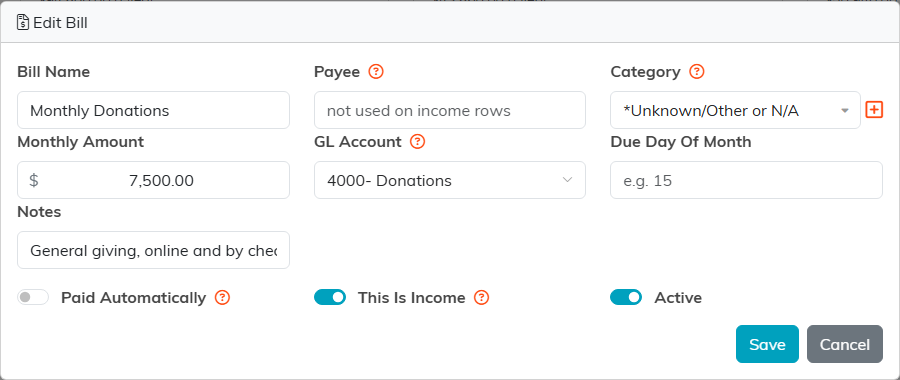
An income row. Payee is not used, and the GL Account list shows income accounts.
Edit or delete a bill
- To change only the amount, click the bill's box in the Monthly column, enter the new amount, and click outside the box. The page saves it and shows All changes saved at the top of the Bills & Income card.
- To change anything else, click the orange Edit (pencil) button on the bill's row. The Edit Bill window opens with the same fields as Add Bill. Make your changes, then click Save.
- To delete a bill, click the pink Delete button on its row, then confirm. Deleting removes only the plan; nothing in your books changes. To stop counting a bill but keep it on file, turn off Active instead.
If the bill was saved somewhere else while you had it open, by someone else or by you in another tab, Argenta does not save over that change. It tells you so and saves nothing. To keep your version, click Save again, or in the Monthly box, enter your amount again.
Read the table
Income rows come first, then one group for each category, each with a total line. Amounts in parentheses are negative.
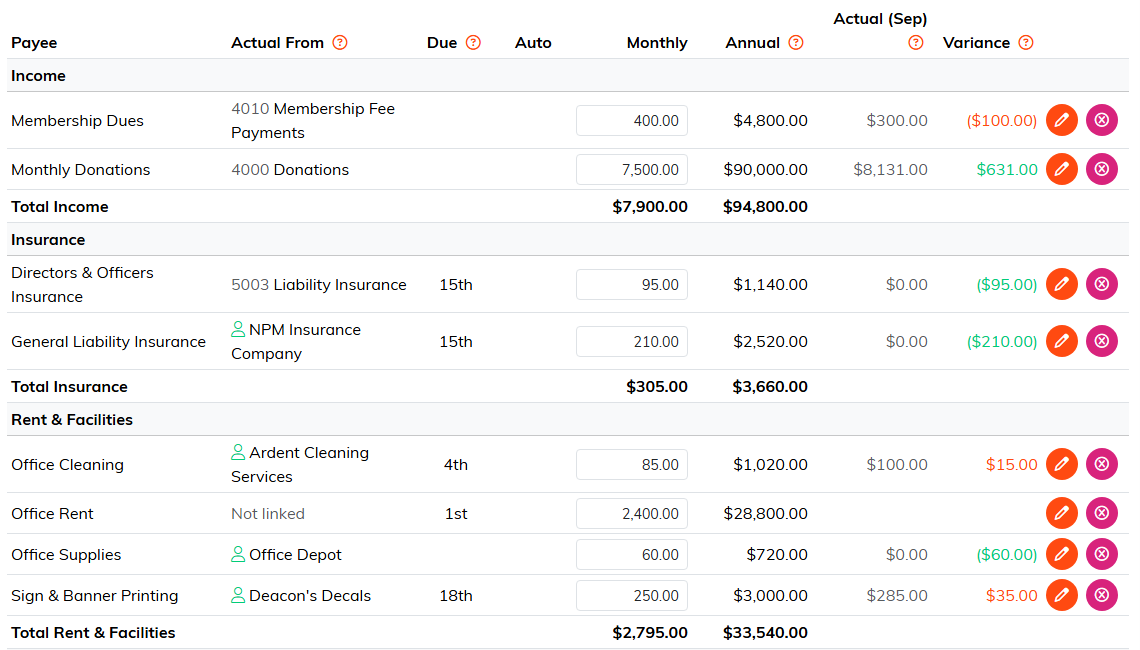
The table, with Actual figures for September and two bills over plan in orange.
- Payee: the bill's name, from the Bill Name field.
- Actual From: where the Actual figure comes from. A person icon and a name means a linked payee. An account number and name means a GL account. Not linked means the bill has neither, so there is nothing to compare. An orange warning triangle means another bill reads from the same payee or the same account, so the figure covers both bills, not this one alone.
- Due: the due day, such as 1st or 15th.
- Auto: a green check means Paid Automatically is on.
- Monthly: the planned amount. You can change it right in the table.
- Annual: Monthly times 12. It does not add up real months from your books, so a bill you pay twice a year looks larger here than it is.
- Actual: what really happened last month. The heading names the month, such as Actual (Sep). The page always uses the last complete calendar month, so a full monthly bill is never measured against a half-finished month. With a payee linked, Actual is what you paid that payee. With only a GL account, it is everything that moved in that account. A blank Actual means the bill has no payee and no account;
$0.00means it is linked and nothing was paid. - Variance: Actual minus Monthly. On a bill, orange means you spent more than planned, and green means you spent less. On an income row it is the other way around: green means more came in than planned, and orange means less. Variance is blank when Actual is blank.
When a bill has both a payee and a GL account, the payee figure is used. If several bills share one GL account, link each to its own payee to get each bill's own figure.
The last line of the table, Left Over, matches the Left Over card.

The Left Over line at the bottom of the table.
Show inactive bills
- In the Bills & Income card, turn on Show Inactive. Inactive bills appear in their groups with an Inactive label.
Show Inactive changes only what you see. Inactive bills never count toward the group totals or the three cards. If every bill is inactive and the switch is off, the page tells you how many inactive bills are hidden.

The Show Inactive switch, under Add Bill.
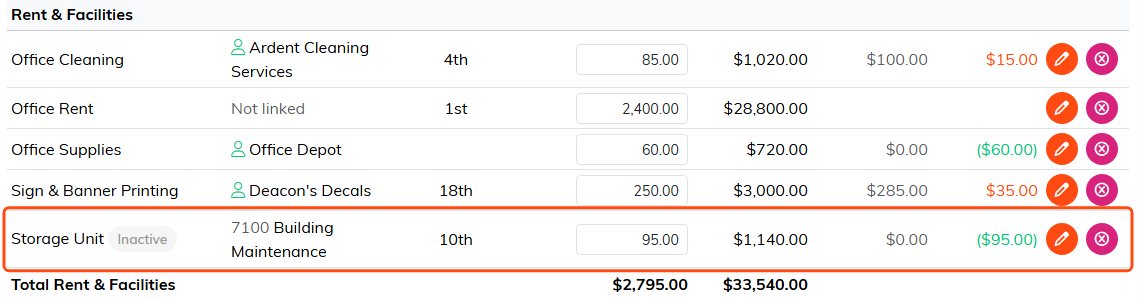
An inactive bill, shown but not counted in the group total.
What Monthly Bills does not do
- It does not record expenses or payments, and it writes nothing to your general ledger.
- It does not pay bills, including bills marked Paid Automatically.
- It does not send reminders on the due day.
To have a payment show in the Actual column, enter it as an expense with the same payee or GL account. It appears in Actual the month after it is paid. If you want Argenta to post the same transaction for you every month, see How to Set Up Auto-Recurring Transactions (Donations, Expenses, Deposits).
