Knowledge Base Article
How Families Cancel or Reschedule a Session Booking
The Cancel or Reschedule a Session page lets a family who booked sessions through your public session booking form cancel a session or move it to another time on their own, without a login and without calling you.
To keep a family's bookings private, the page never lists sessions for an address someone types. It emails a secure link to that address instead, and only the person who opens that email sees the sessions.
Where families find it
Open it from Our Public Interfaces in the left menu, under Cancel or Reschedule a Booking, to copy its link or see the page the way a family does. Share that link wherever families look for help with a booking, such as your website. That menu entry appears only for organizations that use this page.
1. Ask for a secure link
The family types the email address they used when they booked and clicks Email Me A Secure Link.
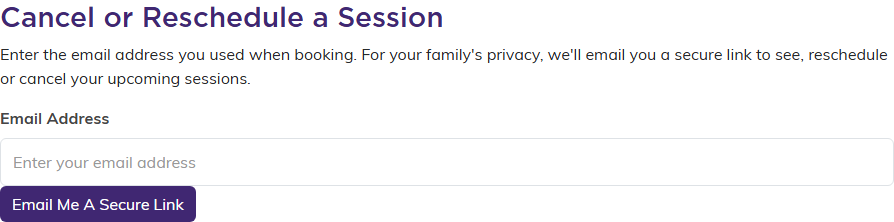
The first step only asks for the email address used to book.
The page then reads Check Your Email. If that address has upcoming sessions with you, Argenta has just emailed it a link to see, reschedule or cancel them. The page reads exactly the same when the address has no bookings, so it never tells a stranger whose address is on file. Use A Different Email goes back to the first step.
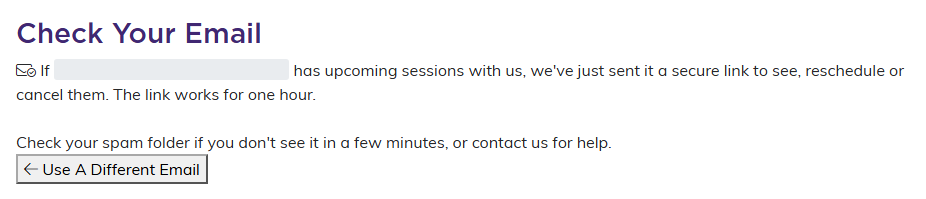
The same message shows whether or not the address has bookings.
The email comes from your organization with the subject Your Link to Cancel or Reschedule a Session and a View My Sessions link. The link works for one hour. After that, opening it says the link has expired and asks for the email address again, so the family can get a new one.
2. See the upcoming sessions
The link opens Your Upcoming Sessions, listing each upcoming session booked under that email: the date, the time, the location, the instructor, and the name of the person booked into it. Each session has a Reschedule link and a Cancel Session link.
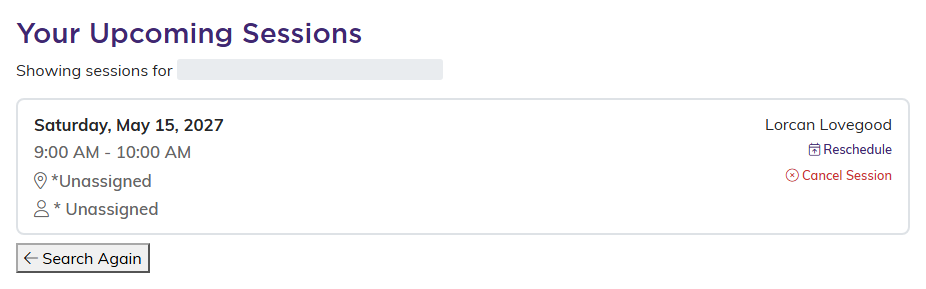
Each upcoming session has its own Reschedule and Cancel Session links.
A session you have canceled yourself, for weather for example, still shows in the list, marked Cancelled, with no links on it. A note above the list asks the family to contact you about it.
3. Cancel or reschedule a session
Clicking Cancel Session or Reschedule opens a box showing the session. The family picks a reason from Reason For Cancellation (or Reason For Rescheduling), which is required, then clicks Confirm Cancellation or Confirm Reschedule. Never Mind closes the box and changes nothing.
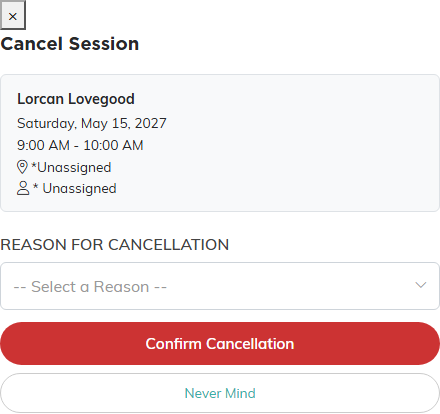
A reason has to be picked before the cancellation goes through.
- Cancel. The session comes off the list straight away and the page says Session cancelled successfully. When it was the last one, the page says so and points the family back to your main site to book again.
- Reschedule. The booking form opens with the family's details already filled in, so they only choose a new time. The original session is canceled once they finish booking the new one.
Changes less than 24 hours away
Cancelling or rescheduling a session that starts within the next 24 hours carries a $25.00 fee. The box says so, its button reads Pay $25.00 & Cancel or Pay $25.00 & Reschedule, and the family pays before the change goes through. Camp sessions never carry the fee.
See also How to Manage Session Participants and the Waitlist.
