Knowledge Base Article
How to Send Your Email Through Your Own Twilio Account
Argenta normally sends all of your email through its own sending service. If your organization has its own Twilio account, you can send your campaigns, automations and event email through that account instead, so they go out under your own Twilio account and sending reputation. This article walks you through connecting Twilio, switching your email over, and what changes once you do.
What goes through Twilio, and what stays with Argenta
Once you switch, these go out through your Twilio account:
- Email campaigns you send from the Mail Room.
- Email automations.
- Email you send to an event's guests.
Receipts and notifications always go out through Argenta, whatever you choose here. That includes donation receipts, confirmations and the alerts your staff receive. If those come from your own address, setting up a dedicated sending domain still helps them reach the inbox. See How to Verify Your Email Domain for Better Deliverability.
Before you start
- You need your Twilio Account SID, your Auth Token and a Twilio phone number. They are on your Twilio Console. Argenta uses the same Twilio account for your text messages and your email.
- Switching your email to Twilio is done on Email Settings, which opens for a user set to Subscription Admin or an admin.
Step 1: Connect Twilio
If the Send Text Messages page already shows Twilio Connected, skip to Step 2.
- In the menu, click Communication > Send Text Messages.
- Click Connect Twilio.
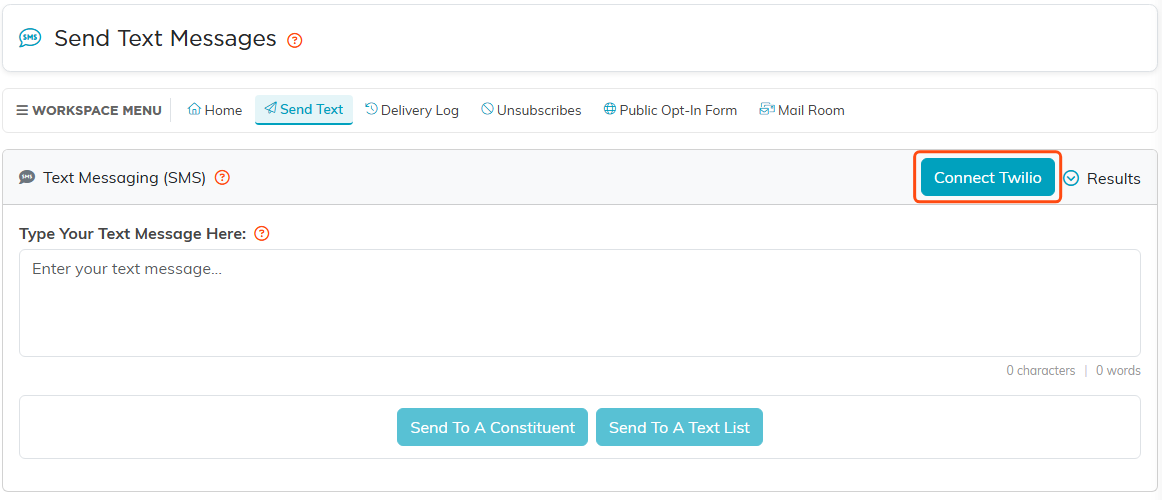
Connect Twilio is at the top right of the Text Messaging (SMS) card.
- In Twilio Account, enter your Twilio Account SID.
- In Twilio Auth Token, enter your Auth Token.
- In Twilio Phone Number, enter your Twilio phone number.
- Click Save. Argenta checks the details with Twilio before it saves them, and the button changes to Twilio Connected.
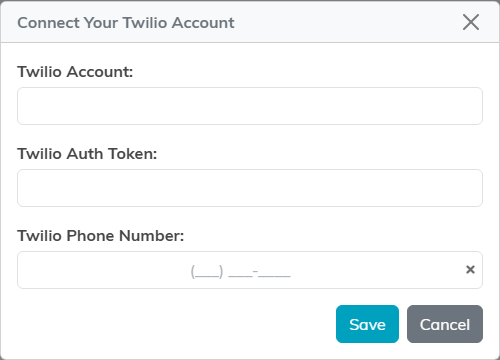
All three fields are required.
If Twilio refuses the details, Argenta shows the reason in the box and saves nothing. Check them on your Twilio Console and try again.
Step 2: Switch your email to Twilio
- At the top of the page, click Settings, then click Email Settings.
- Turn on Send Email Through My Own Twilio Account.
- Click Save All Changes.
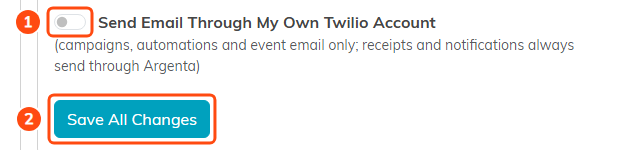
Turn on the switch (1), then save (2). The note under the switch is a reminder that receipts and notifications still go through Argenta.
If Twilio is not connected yet, Argenta does not make the switch. It asks you to connect your Twilio account on the Send Text Messages page first, and nothing else on the page is saved, so save again once Twilio is connected.
If the switch cannot be changed, Argenta has set your email sending service for you, and the page says so. Contact Argenta Support to change it.
Step 3: Authenticate your sending domain in Twilio
When your email goes through Twilio, Argenta sends your From address exactly as you entered it. It never swaps it for an Argenta address. So the domain of every From address you send from must be authenticated in your Twilio Console. The domain is the part of the address after the @.
Follow Twilio's instructions in your Twilio Console to authenticate the domain. Do this before you send your first campaign through Twilio, because Twilio can refuse email from a domain that is not authenticated.
Step 4: Forward your spam reports to Argenta
When someone marks your email as spam, Twilio receives the report, not Argenta. To bring those reports back into Argenta, open your email settings in your Twilio Console (Communications, Email, Settings) and set spam reports to forward to [email protected].
Until you do, Argenta never hears about those complaints, and it keeps emailing people who reported your email as spam.
Bounces and spam complaints
Email that can't be delivered and spam complaints come back into Argenta through Twilio, much as they do with Argenta's own sending.
- Bounces. Once a day, Argenta asks your Twilio account which of your emails could not be delivered. The first time an address fails, it is counted as a bounce. If it fails a second time, email is turned off for that person.
- Spam complaints. Each report you forward in Step 4 marks the address as having complained, and turns email off for that person in your organization.
Both show in the email's batch report, the same way they do for email sent through Argenta.
Deliveries, opens and clicks
Twilio does not report opens or clicks, so Argenta tracks them itself. Each campaign, automation and event email sent through your Twilio account carries Argenta's own open tracking, and its links pass through Argenta on the way to where they point. Opens and clicks show in the email's batch report as they happen, the same as for email sent through Argenta.
Deliveries come from Twilio in the same daily check as bounces, so they can take up to a day to appear in the batch report.
What works differently through Twilio
Replies go to the From address. Twilio does not support a Reply To address. When you send a campaign, the Mail Room says so under Reply To Email Address, and anything typed there is not used.
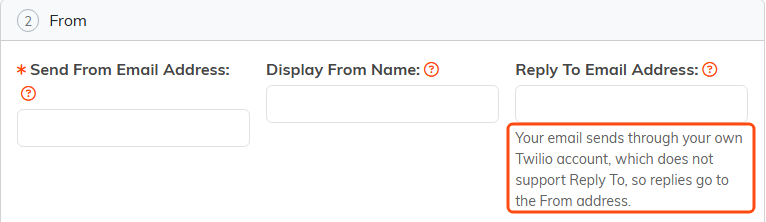
Replies to Twilio email go to the From address.
The sender's name uses plain letters. Twilio does not accept accented letters or curly quotes in the sender's name. Argenta sends Display From Name with plain letters instead, so é becomes e.
If Twilio becomes disconnected
If your Twilio connection stops working, for example because the Auth Token was changed on your Twilio Console, Argenta does not switch your email back to its own service. Instead:
- A warning shows on Email Settings, with a Connect Twilio link.
- The same warning shows on every page that sends campaign, automation or event email, and you cannot send from those pages until Twilio is connected again.
- Email that was already scheduled waits instead of being dropped, and goes out once Twilio is connected again.
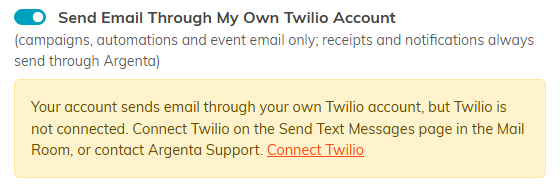
The warning on Email Settings.

The same warning across the top of the Mail Room's Send Email page.
To fix it, go to Communication > Send Text Messages and connect Twilio again, as in Step 1.
Switch back to Argenta
- At the top of the page, click Settings, then click Email Settings.
- Turn off Send Email Through My Own Twilio Account.
- Click Save All Changes. Your campaigns, automations and event email go out through Argenta again.
