Knowledge Base Article
How to Read Your Guests' Comments for an Event
Participant/Guest Comments gathers every comment your guests left for this event into one list, so you can read the seating requests, allergies and special needs in one pass instead of opening each guest.
Open the comments
Open the event and click Participant/Guest Comments in the Participants/Guests group of the workspace menu. Each comment shows the guest's name, their guest ID and the ticket they came in on.
The Participant/Guest Comments page has a short Show Me How To Use This Page video at the top right; click it to watch, and use its chapters to jump to the part you need.
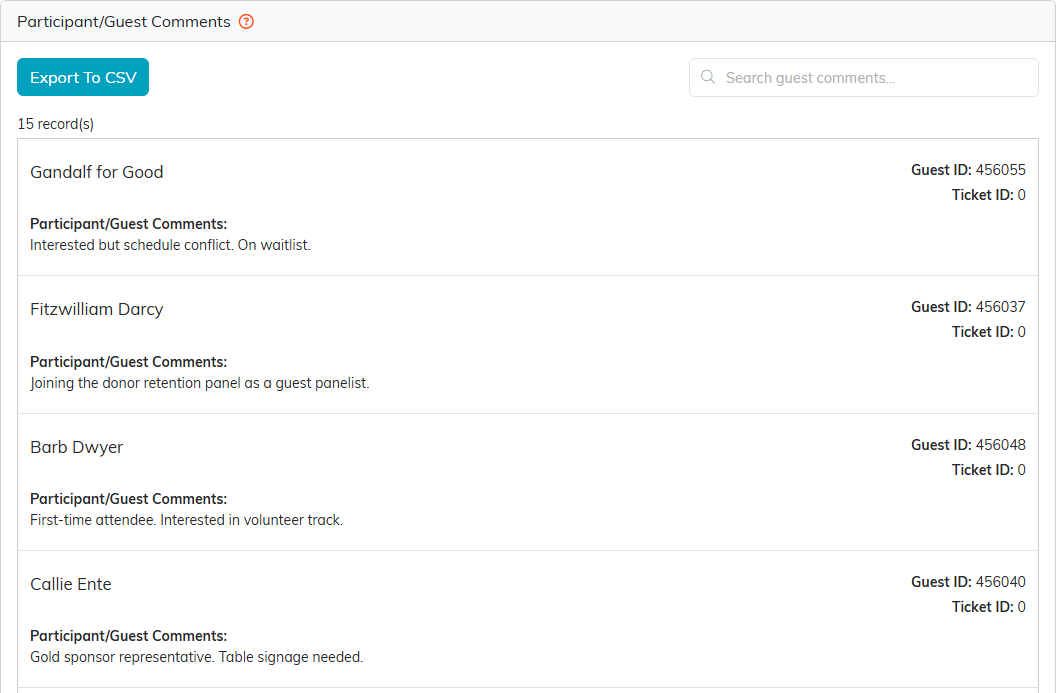
Every guest's note, in one place.
Search the comments
Type in Search guest comments. It looks through the comment text, the guest's name and email, and the guest and ticket IDs, so searching for a word like seat or allergic pulls out just the notes you need.
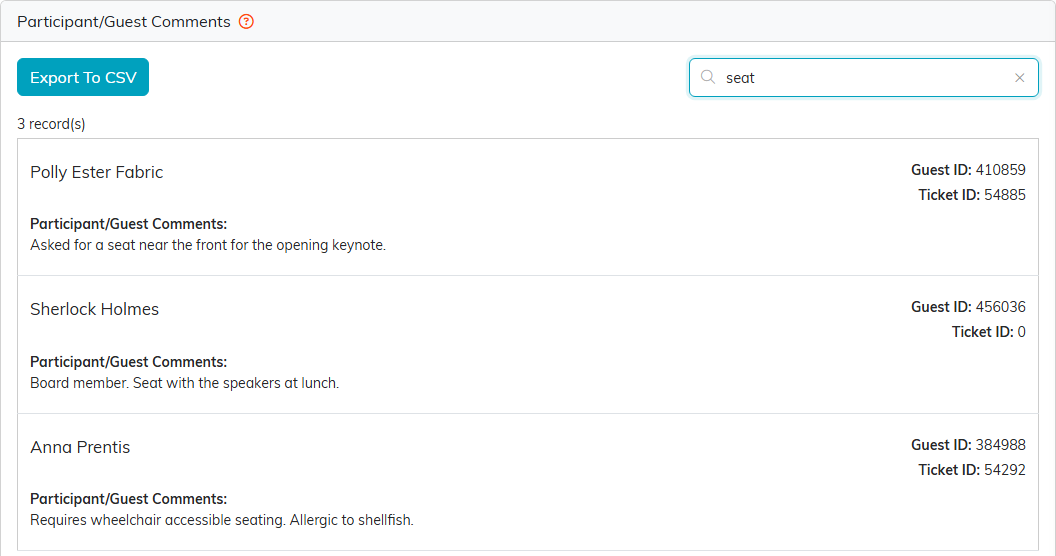
Three seating requests for whoever is planning the room.
Share them
Export To CSV downloads the comments you are looking at, ready for the caterer or the venue.
Change a comment
This list is read only. To change a comment, open the guest from the Participant/Guest List and edit Comments from the Guest on their record.
For more on the guest list, see How to Track Event Attendance.
