Knowledge Base Article
How to Manage an Event Committee
The Event Committee is the roster of people on your own team who are putting the event together, each with their job written out beside their name. It is separate from the guests who register.
Open the committee
Open the event and click Event Committee in the Planning group of the workspace menu. Each member shows their name and phone numbers, with their role and responsibilities in the box beside them.
The Event Committee page has a short Show Me How To Use This Page video at the top right; click it to watch, and use its chapters to jump to the part you need.
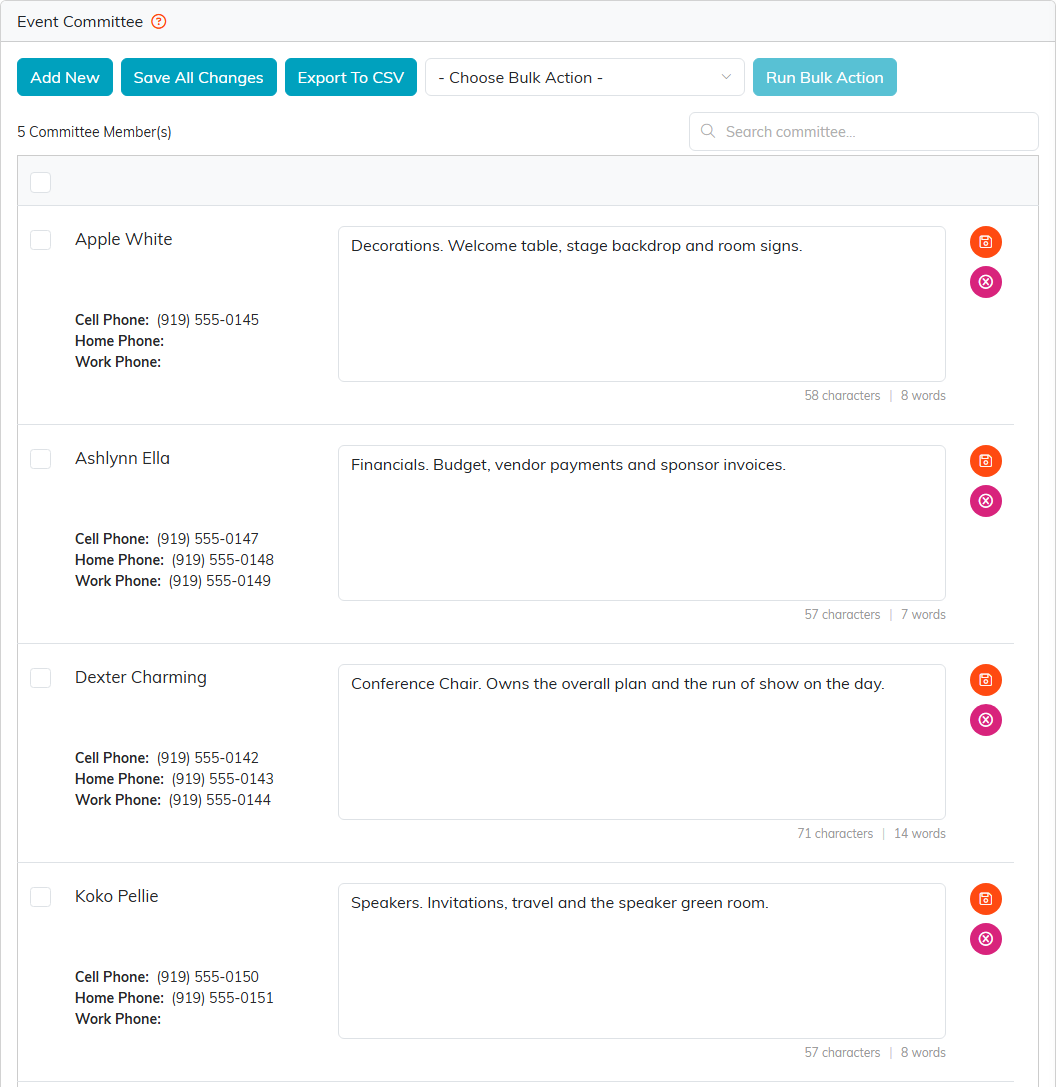
Five people, five jobs, one place to see who is doing what.
Add a member
- Click Add New.
- In Select Team Member to Add to This Committee, start typing a name and pick it from the list.
- Click Add To Committee.
Only team members come up here, not your whole constituent list. If someone is missing, set them up as a team member first. Argenta will not add the same person twice.

Pick the team member, then add them.
Write each person's role
Type each person's role and responsibilities in the box on their row. The floppy disk icon saves that one row, and Save All Changes saves every row at once. The pink icon takes someone off the committee after you confirm.
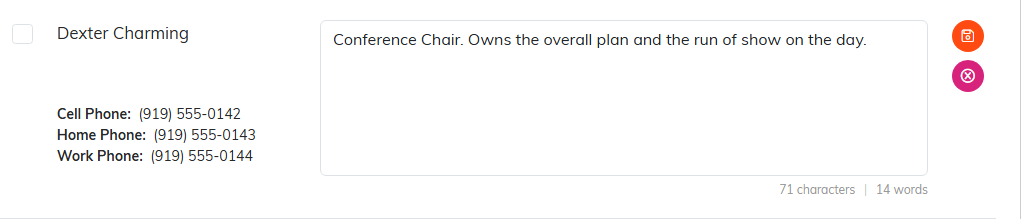
A clear role means nobody wonders who owns what.
Email the committee
Tick the people you want, choose Create A New Mailroom List With Selected Records or Add Selected Records To An Existing Mailroom List from Choose Bulk Action, and click Run Bulk Action. Then send them a message from the Mail Room. Export To CSV downloads the roster, and Search committee finds a member by name.
For a map of the whole event workspace, see Overview Part 1 of the Argenta Event Management System.
