Knowledge Base Article
How to Set an Event's Contact and Location
Contact & Location says who to ask about an event and where it happens. Both can come straight from records you already keep, or you can type them in.
Open Contact & Location
Open the event and click Contact & Location in the Setup group of the workspace menu.
The Contact & Location page has a short Show Me How To Use This Page video at the top right; click it to watch, and use its chapters to jump to the part you need.
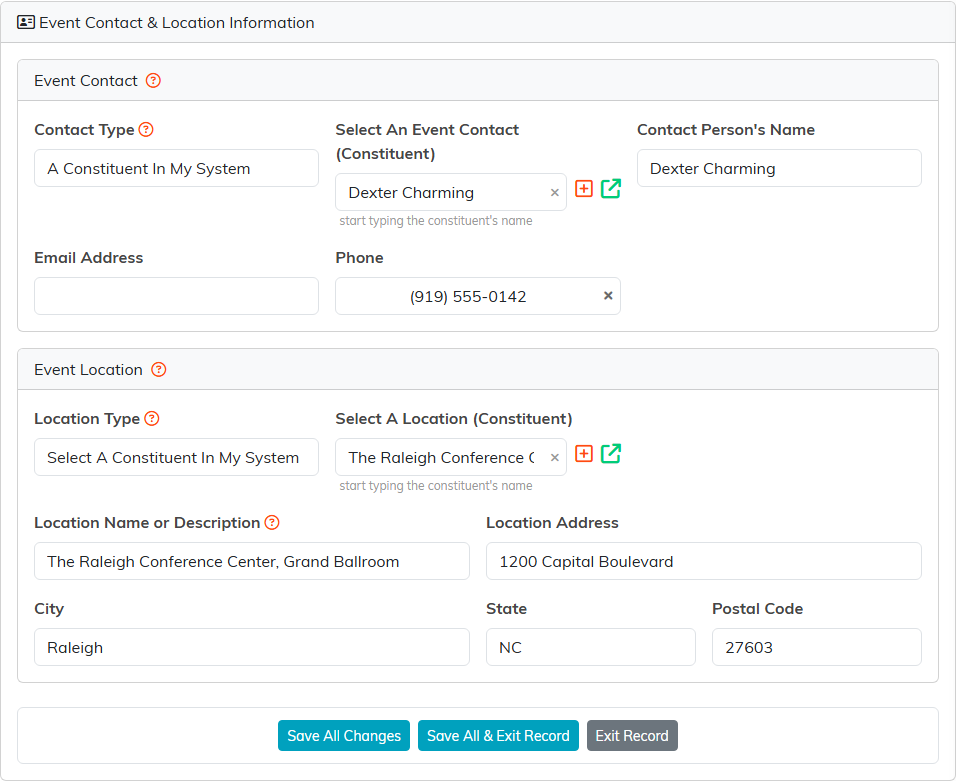
The contact on top, the venue below.
Event Contact
The event contact is the person in charge, the one guests, volunteers and staff should go to with questions.
- Set Contact Type to A Constituent In My System, then start typing the person's name in Select An Event Contact (Constituent) and pick them. Argenta fills in Contact Person's Name, Email Address and Phone from their record.
- Or set it to Enter A Contact Manually and type those three fields yourself.
You can change the name, email or phone after they are filled in. The email has to be a valid email address or left blank; Save refuses anything else. The event keeps what you type, and nothing is written back to the person's record.
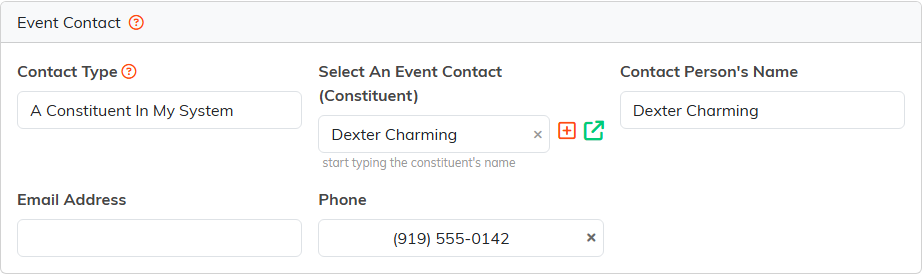
Pick the person once and their details come with them. Their email is filled in too; we hide email addresses in our pictures.
Event Location
The location is the venue. Choose where Argenta gets it from in Location Type:
- Select A Constituent In My System gives you a search box for a venue you already keep as a constituent, such as a hotel, a church or a school.
- Select A Chapter & Use The Chapter's Address gives you a list of your chapters instead.
- Enter A Location Manually leaves the fields for you to type.
- Use The Same Location As The Event is not offered here: it is a choice for a session held where its event is. An event that was set to it before still shows it, so the value is not lost.
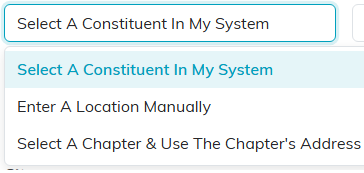
Pick where the venue comes from.
Picking a venue or a chapter fills in Location Name or Description and the address below it from that record. You can rewrite any of them for this event, for example to name the room. If the event is online, leave the location empty and nothing shows on the public form.
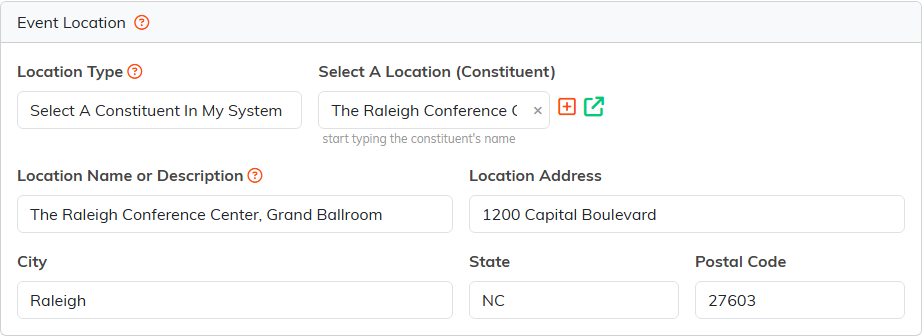
The venue came from its record, and the name was edited to add the room.
Save
Click Save All Changes to save and stay, or Save All & Exit Record to save and close the event.
For a map of the whole event workspace, see Overview Part 1 of the Argenta Event Management System.
