Knowledge Base Article
How to Add Files to an Auction
Keep an auction's paperwork with the auction itself: donated item forms, pickup checklists, gift certificates, the venue contract. Anyone who can open the auction finds them in one place.
Open Auction Files
Open the auction and click Auction Files in the workspace menu.

Auction Files is one of the tabs in the auction workspace menu.
Add a file
- Drag a file onto the box marked Drag & Drop Files Here, or click the box to pick one the usual way. You can choose more than one.
- Click Save The Selected File(s).
The files appear in the list beside the box. Click a file's name to open it in a new browser tab, the green icon to download it, or the pink icon to delete it. Argenta asks you to confirm before it deletes anything.
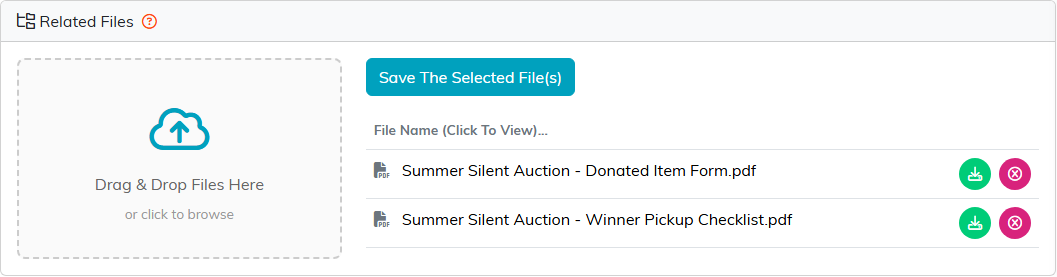
The upload box, and the files already on this auction.
Files here belong to this one auction. For documents the whole organization shares, such as templates and policies, use the Document Library instead. See Add Related Files.
