Knowledge Base Article
Stripe Connect Payees - How a Transfer Becomes an Expense in Argenta
If your Stripe account splits a payment on to somebody else's connected account, Stripe records the other party's share as a transfer. Argenta books each of those transfers as an expense against the vendor you name for it, dated the day Stripe moved the money, so you do not have to re-key every split by hand.
You name that vendor on the Stripe Connect Payees page. Until an account has a vendor, Argenta holds the transfer and posts nothing.
Where to Find Stripe Connect Payees
Go to General Financials and select Stripe Connect Payees under Banking & Accounts. The page is also in the left menu under General Financials.
The page is open to users with Finance Manager permission and to administrators. Naming a vendor decides where real money lands in your general ledger, so it is held to the same access as the rest of your accounting screens.
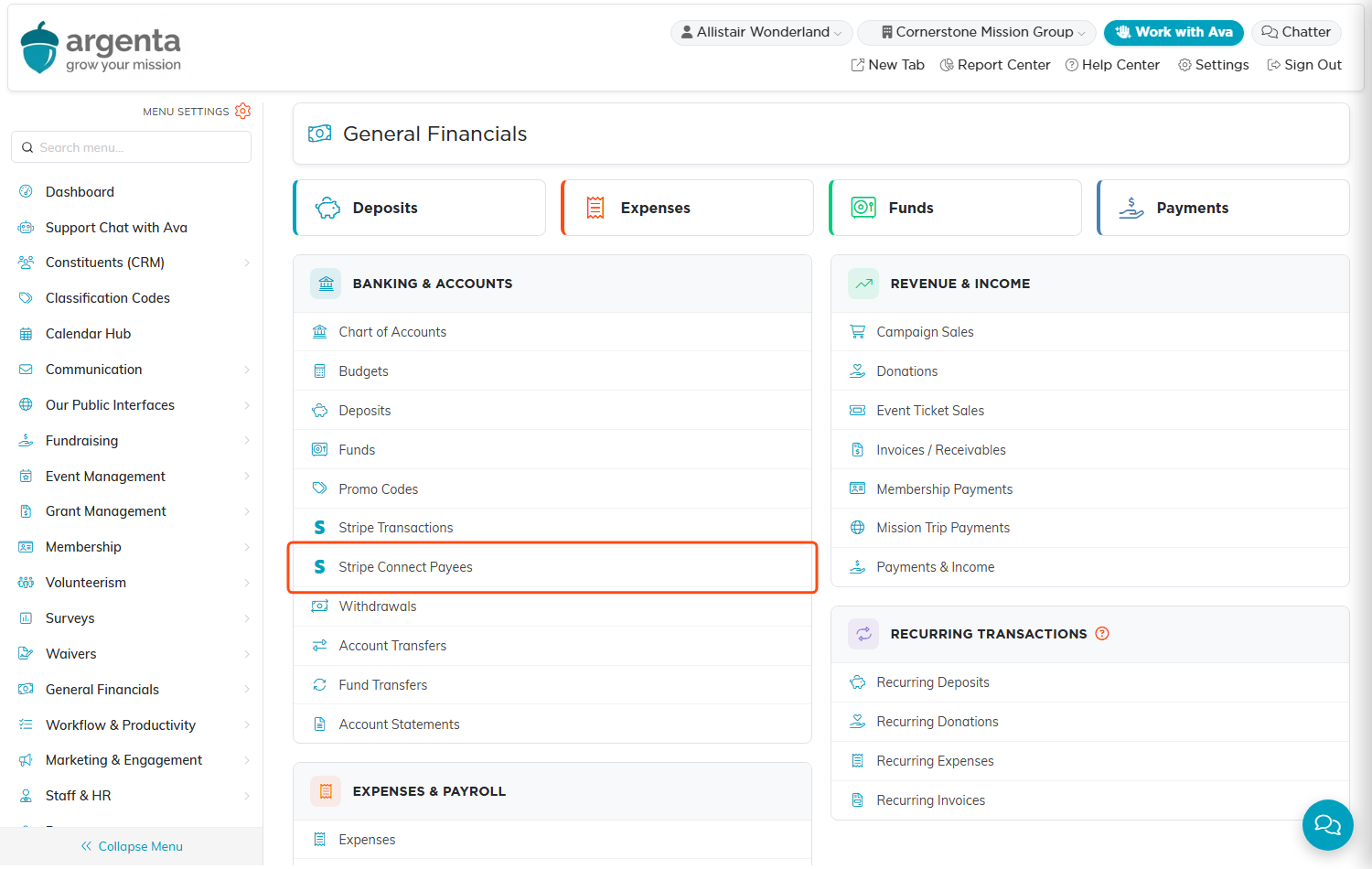
Stripe Connect Payees sits in the Banking & Accounts list on General Financials.
How an Account Reaches the List
Stripe does not let Argenta list the connected accounts that your own connected account pays. Each account therefore appears on this page on its own, the first time money moves to it. Argenta adds the row, leaves the vendor blank, and marks it Waiting On A Vendor.
If you already know an account you want to set up before any money has moved, click Add A Connected Account and enter the account yourself. If that account is already on your list, Argenta tells you so and fills in only what you entered, leaving the fields you left blank as they were.
Each row shows the Stripe account, the vendor, the expense category, the expense account, your own label, and whether Argenta is booking transfers to it. Use the Mapped To A Vendor filter to show only the accounts still waiting on a vendor.
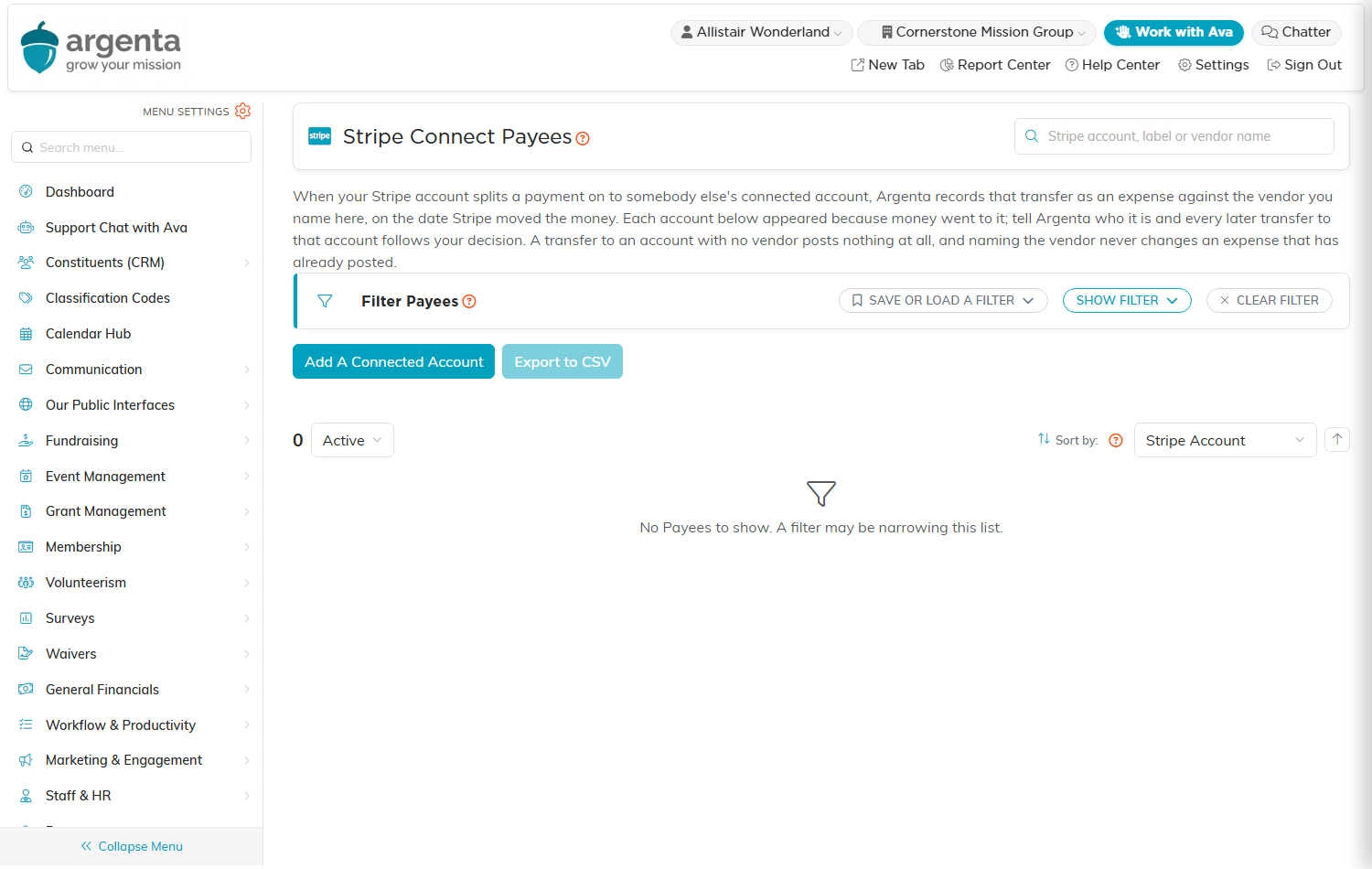
The Stripe Connect Payees page before any transfers have arrived.
Naming the Vendor for an Account
- Find the account you want and click the edit icon.
- In the Vendor field, enter part of the vendor's name and select the vendor from the results. If the vendor is not there yet, add them on the Vendors page first.
- Optional: in the Your Label For This Account field, enter the name you use for this payee. The label makes the account easier to recognize than its
acct_identifier. - Optional: select an Expense Category and an Expense Account.
- Click Save. Every later transfer to that account follows your decision.
If you leave Expense Account unset, Argenta posts the transfer to your Unclassified Expense account and files a note asking somebody to reclassify it. The entry is balanced either way.
Clearing the Booking Transfers switch stops new transfers to that account posting. It never changes an expense that has already posted.
To take the vendor off an account, click the pink Remove The Vendor icon on its row and confirm. Save keeps a vendor the account already has, so emptying the Vendor field and clicking Save does not remove it.
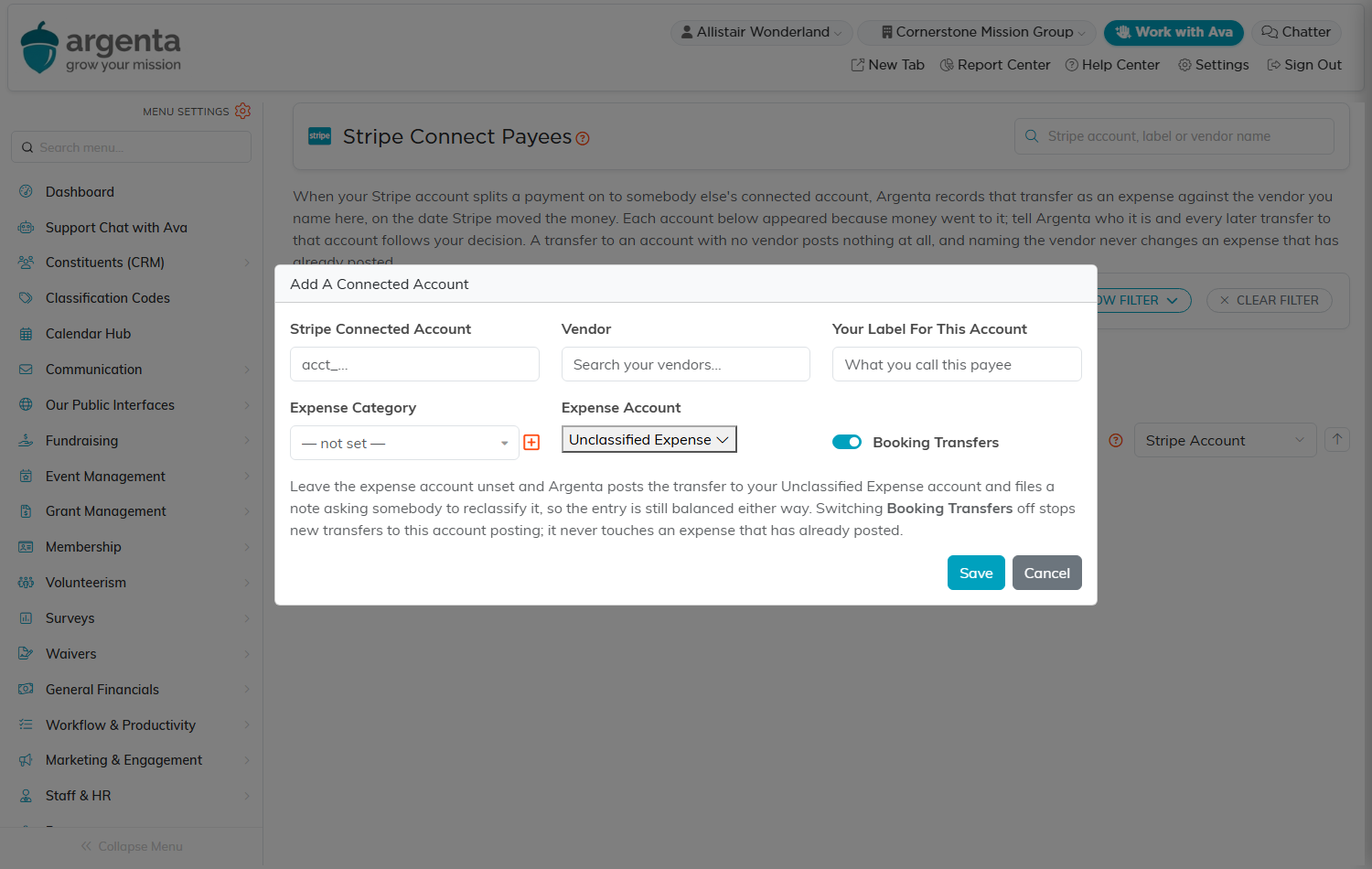
Naming the vendor, the category, and the expense account for a connected account.
What Argenta Books for a Transfer
Argenta works through new transfers overnight, after it has imported the day's payouts, so a transfer you see in Stripe today appears in Argenta the next morning. For each one it creates:
- An expense against the vendor you named, for the amount of the transfer, dated the day Stripe moved the money, described as
Stripe Connect Transfer toand the vendor's name. - A matching pair of general ledger entries: a debit to the expense account you chose and a credit to Undeposited Funds.
The expense carries the category you selected, so it reports alongside the rest of your spending.
When a Transfer Posts Nothing
Argenta never guesses at a vendor, because an expense booked against the wrong party cannot be told apart from a correct one afterwards. A transfer posts nothing when any of the following is true:
- Nobody has named a vendor for the destination account yet.
- The vendor that was named no longer exists.
- Booking Transfers is cleared for that account.
On the Stripe Connect Payees page, an account with no vendor shows as Waiting On A Vendor, and an account with Booking Transfers cleared shows No under Booking Transfers. Nothing is lost: once you name the vendor, the transfer books on the next overnight run. Naming the vendor never changes an expense that has already posted.
Argenta looks back about 60 days for transfers it has not booked, so name the vendor within that window.
Refunds, Cancellations, and Failed Transfers
When a transfer comes back to you, Argenta books a second expense rather than editing the first. The amount is negative, the two ledger accounts are swapped, and the expense is marked as refunded, described as Stripe Connect Transfer Reversal to and the vendor's name.
The original expense stays on your books for the period it belonged to, and the reversal reduces expense in the period the money came back. This works even for a reversal of a transfer that predates the page.
How This Shows Up on Your Payout
A transfer leaves your Stripe balance before your payout is raised, so your payout arrives smaller by the amount of the transfer. The ledger entry Argenta writes here is what makes the payout's deposit reconcile. For how a payout is built and where to find it, read Stripe Payouts - How They Work and Where to Find Them in Argenta.
